


Participant
April 17, 2025
Answered

How do I reference the file title in action wizard?

  • April 17, 2025
  • 3 replies
  • 427 views

I would like to use the Action Wizard to batch add the file name and page number to multiple files.  I would prefer to add a dynamic filed within the Action Wizard instead of writing code if possible.

Correct answer JR Boulay

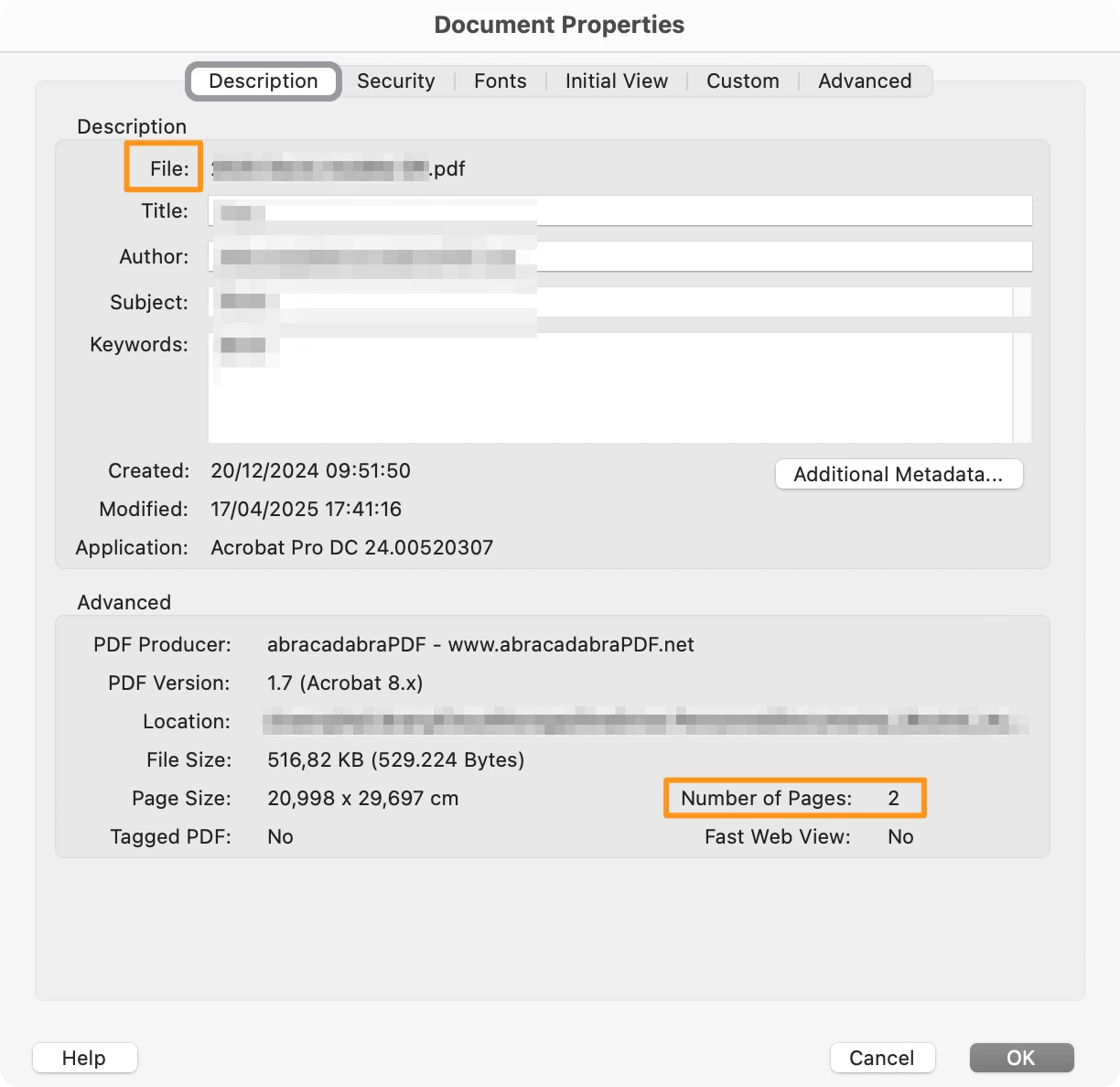
Where do you want to add the file name and the number of pages ?

These infos are already available in any PDF, go to File menu: Properties: Description (CTRL D or CMD D).


3 replies

JR Boulay
Community Expert
JR BoulayCommunity ExpertCorrect answer
Community Expert
April 17, 2025

Where do you want to add the file name and the number of pages ?

These infos are already available in any PDF, go to File menu: Properties: Description (CTRL D or CMD D).


Acrobate du PDF, InDesigner et Photoshopographe
try67
Community Expert
Community Expert
April 17, 2025

What do you mean by this line, exactly: "I would prefer to add a dynamic filed within the Action Wizard instead of writing code if possible."

Do you mean a form field, or a metadata field? Or something else? At any rate, it's not likely you will be able to do without using a script.

AnandSri
Legend
April 17, 2025

Hello Rebecca!


I hope you are doing well, and thanks for reaching out. 


Great question! Yes, you can use the Action Wizard in Adobe Acrobat Pro to add the file name (title) and page numbers to multiple PDFs in a batch. While Acrobat doesn't directly expose a "file title" field dynamically via the GUI in the Action Wizard, you can use JavaScript within the Action Wizard to automate this process.


Open Action Wizard: Go to All Tools > Action Wizard > Create New Action. Use guided actions (Acrobat Pro). In the Action Wizard, add a JavaScript command. Use the following JavaScript code to reference and use the file this.saveAs(this.path.replace(this.documentFileName, this.info.Title + ".pdf"));

Or,

Page <page> of <totalpages>


This code will save the file with its title as the new filename. For a similar question, see this community article. Configure and Run the Action: Add any additional steps you need for your action. Save and run the action on your selected files


Note: The code provided is a sample, and you may need to customize it according to your requirements or machine environment.


I hope this helps.

Thanks,

Anand Sri.