Participant
August 11, 2017
Answered

how do I set the page size when I create a document

  • August 11, 2017
  • 2 replies
  • 1738 views

I am trying to create a pdf file from the clipboard which contains images; some pages are fine with 81/2x11; however it either does not put the full image or creates it on an odd size page.  Is there any way to set the page size in Adobe Acrobat DC Pro?
This topic has been closed for replies.
Correct answer Cari Jansen

To adjust the page size after you've created a PDF from Clipboard:

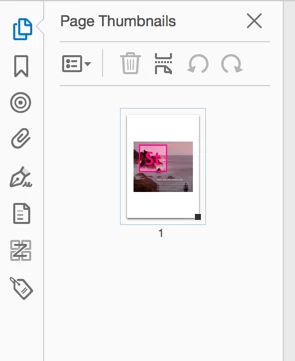
  1. Choose View > Show/Hide > Navigation Panes > Page Thumbnails
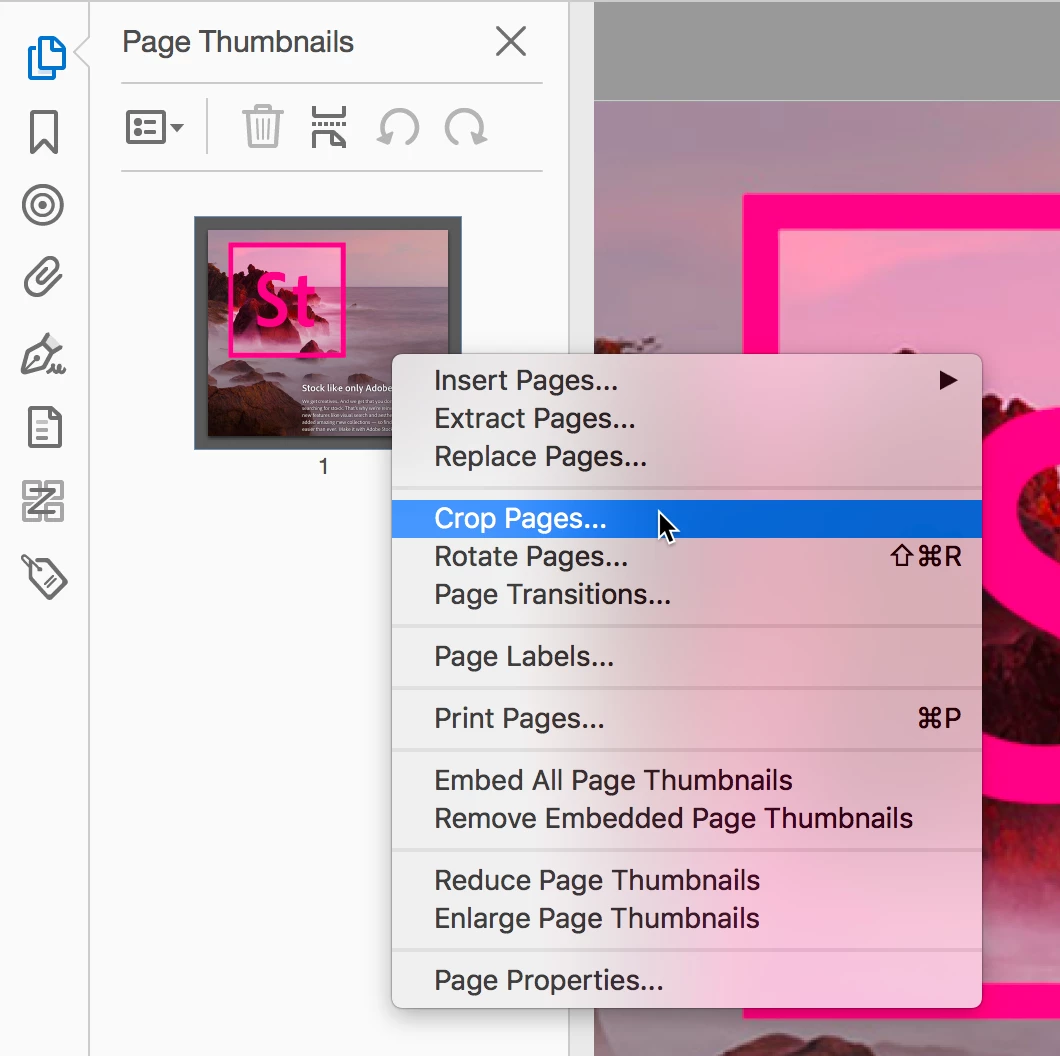
  2. Under Options, select Crop Pages.
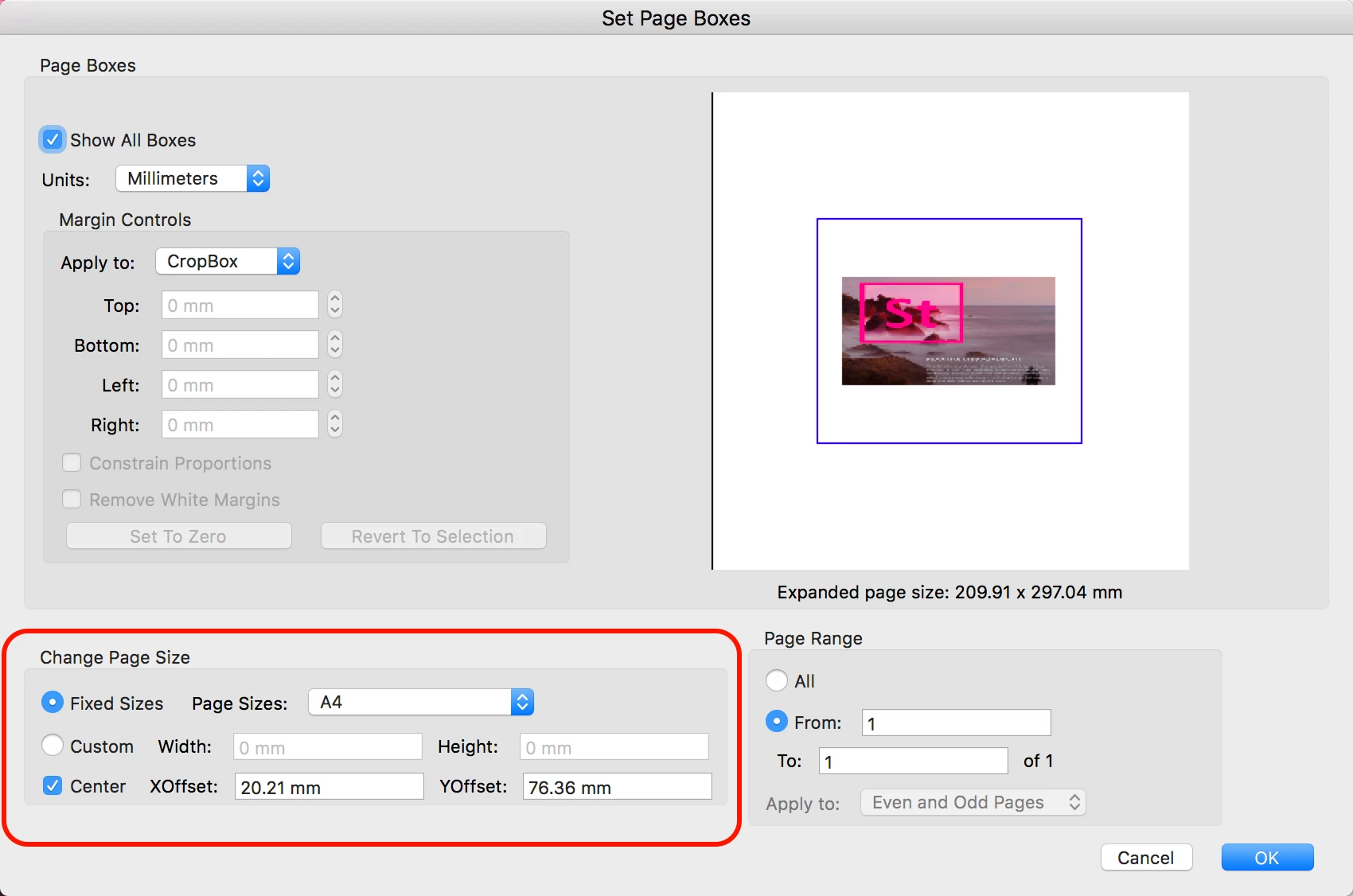
  3. In the Set Page Boxes dialog box, under Change Page Size, set the preferred page size. Click OK.


2 replies

Legend
August 12, 2017

Another thing you can try start by creating a blank PDF that has the exact page size you want to use.

  1. Choose View > Tools > Edit PDF > Open
  2. Then use Ctrl-V / Cmd-V to paste the clipboard content onto a page.
  3. You can still resize the pasted item(s) if needed after doing this.


Cari JansenCorrect answer
Legend
August 12, 2017

To adjust the page size after you've created a PDF from Clipboard:

  1. Choose View > Show/Hide > Navigation Panes > Page Thumbnails
  2. Under Options, select Crop Pages.
  3. In the Set Page Boxes dialog box, under Change Page Size, set the preferred page size. Click OK.