mapowell
Participant
March 29, 2026
Question

How do I view pdf without the "editing marks" showing in the document?

  • March 29, 2026
  • 3 replies
  • 34 views

When I edit a pdf document, the document has red strikethrough marks wherever I changed text -- and the new text is contained in a “comment box.” Obviously, I want the new text in the document itself, but there does not appear to be any way to make that happen. If I close and reopen the document, or export it, or try to print it--it still has all the strikethrough marks visible, without the new replacement text. In other words, it seems possible to indicate changes you WANT to make in a document, but it does not seem possible to actually make those changes.

Google indicates I need to “exit edit mode” but that may not be possible. Clicking the pan “hand” does nothing. Pressing “esc” does nothing. Closing and re-opening Adobe does nothing. 

Curiously, AI Assistant is completely clueless on this seemingly important matter--no idea how to make desired editorial changes actually take effect in the pdf document. 
    3 replies

    tonks_the_auror
    Community Expert
    Community Expert
    March 29, 2026


    Greetings,
    I’m assuming that you’re using Acrobat Pro and that you are using the “New Acrobat Experience.” If you’re not using the New Acrobat, the tools are in different places, but they work the same.

    It sounds to me as if you are using the “Add a Comment” feature rather than “Edit Text and Images.”


    So when you select text to change it, it becomes a comment, not an edit.


    You need to choose “Edit Text and Images.”


    Choose Add Content > Text.


    After you choose “Edit Text,” you can click inside a frame and edit the text.


    When you finish your edits, close the Edit panel.


    Final result.

    I hope this helps!


    tonks_the_auror
    Community Expert
    Community Expert
    March 29, 2026

    I guess I was a little late to the party. It took me a while to reply because I don’t use “New Acrobat,” which I detest, so I had to enable it and find the tools. 

    try67
    Community Expert
    Community Expert
    March 29, 2026

    You can do all of that with the old Acrobat UI, too.

    Karl Heinz  Kremer
    Community Expert
    Community Expert
    March 29, 2026

    As Dave indicated, you are not editing the document, you are adding comments. If you want to edit the document, you need to use the features in the “Edit PDF” tool:

    Here you can edit text and images. 

    However, I always call PDF as “final file format” - it’s not the best way to make your edits in the PDF file (unless it’s just fixing a typo or something like that), it’s always best to go back to the original document, make the edits there and then convert to PDF again. 

    mapowell
    mapowellAuthor
    Participant
    March 29, 2026

    I AM using the “edit pdf” feature -- but there does not appear to be any way to actually make the changes apply in the document. (see reply to Dave). And I can’t adjust the original document because it is in Atticus and overrides such changes. I exported the Atticus document as a pdf and now I want to make minor editorial changes that Atticus wouldn’t allow (such as changing Small Cap in a subheading to normal font). I paid for the Adobe upgrade to make that appears to be worthless f the program  only indicates changes you want to make and won’t actually make them. 

    Karl Heinz  Kremer
    Community Expert
    Community Expert
    March 29, 2026

    This is the “Edit PDF” toolbar:


    As you can see, there is is no “replace existing text” - this is a feature of the comment toolbar:

    You are not in the correct location. Can you please provide a screenshot of what you see. 

    Dave Creamer of IDEAS
    Community Expert
    Community Expert
    March 29, 2026

    Technically, you are not editing but adding comments. 
    open the Comments list and select "Hide All Comments”. 
     

    To edit the document, go to the edit tools and select the text you want to edit it. 

    David Creamer: Community Expert (ACI and ACE 1995-2023)
    mapowell
    mapowellAuthor
    Participant
    March 29, 2026

    First, “Hide All Comments” is not an option under the Comments list.

    But more to the point . . . I am using the “Edit PDF feature. When you open that feature, you can set of tools -- including “replace existing text”. I click that (NOT “add a comment”) and highlight the text I want to replace--it is then marked through with red lines and there is a box where I can enter replacement text. After doing this--and hitting “Save” I have a document with red lines through it and the intended text in a “Comment” box on the side. I was NOT adding a comment--I was replacing text with the tool for that in the “Edit pdf” panel.

    Dave Creamer of IDEAS
    Community Expert
    Community Expert
    March 29, 2026

    Sorry--I should have mentioned that you need to use a keyboard command. 

    Control-Shift-8 or Command-Shift-8


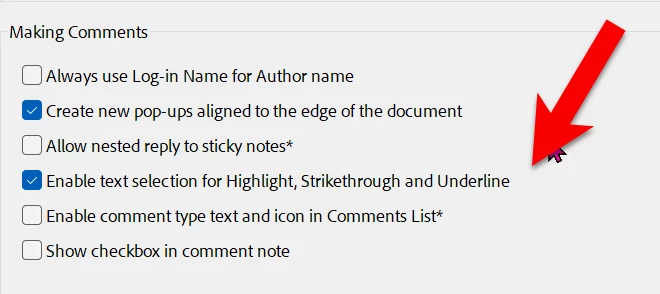
    You can also disable the “automatic” tools under the preferences:


    David Creamer: Community Expert (ACI and ACE 1995-2023)