Participant
January 29, 2018
Answered

How do you get the same signature on mobile app onto the desktop version?

  • January 29, 2018
  • 2 replies
  • 845 views

Hello, I am trying to tie my signature on the Adobe Fill & Sign to the Desktop version.  I prefer to use my own signature using my stylus pen on my ipad. but the same signature is not appearing on the desktop version even though I am using the same login for both the mobile app and desktop version.  Please help.

This topic has been closed for replies.
Correct answer Adorobat

Hi Tracyf,

Sorry for the delayed response.

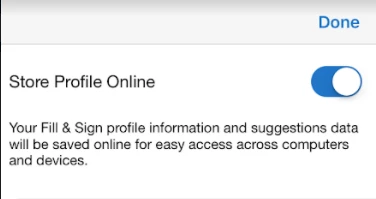
Please find below the steps to access Save to online profile option:

1- Launch Fill and sign app > tap profile icon (screenshot below).

2- Tap settings (in the top-right corner) > Done

Thank You,

Shivam

2 replies

Adorobat
AdorobatCorrect answer
Participating Frequently
April 19, 2018

Hi Tracyf,

Sorry for the delayed response.

Please find below the steps to access Save to online profile option:

1- Launch Fill and sign app > tap profile icon (screenshot below).

2- Tap settings (in the top-right corner) > Done

Thank You,

Shivam

Bernd Alheit
Community Expert
Community Expert
January 30, 2018

Activate "Save to Online Profile" or "Save signature".

Participant
January 30, 2018

The only option on the ipad or iPhone is to save to device.  Am I missing something?

Bernd Alheit
Community Expert
Community Expert
January 30, 2018

Sign in in the Fill & Sign app. Create the signature and activate "Save to Online Profile".