Apr 23, 2015 11:14 AM UTC
Answered

how to add blank page to existing Document In Adobe Dc

how to add blank page to existing Document In Adobe Dc Pro

AadeshSingh
AadeshSinghCorrect answer
Participating Frequently
Apr 23, 2015 11:50 AM UTC

Hi thashrifs16749461,

You can add a blank page using Adobe Acrobat DC by following the below instructions :-

1) Open your existing pdf document in Acrobat DC.

2) Choose the 'Organize Page' option form the Tools pane on the right as shown below in the screen shoot.
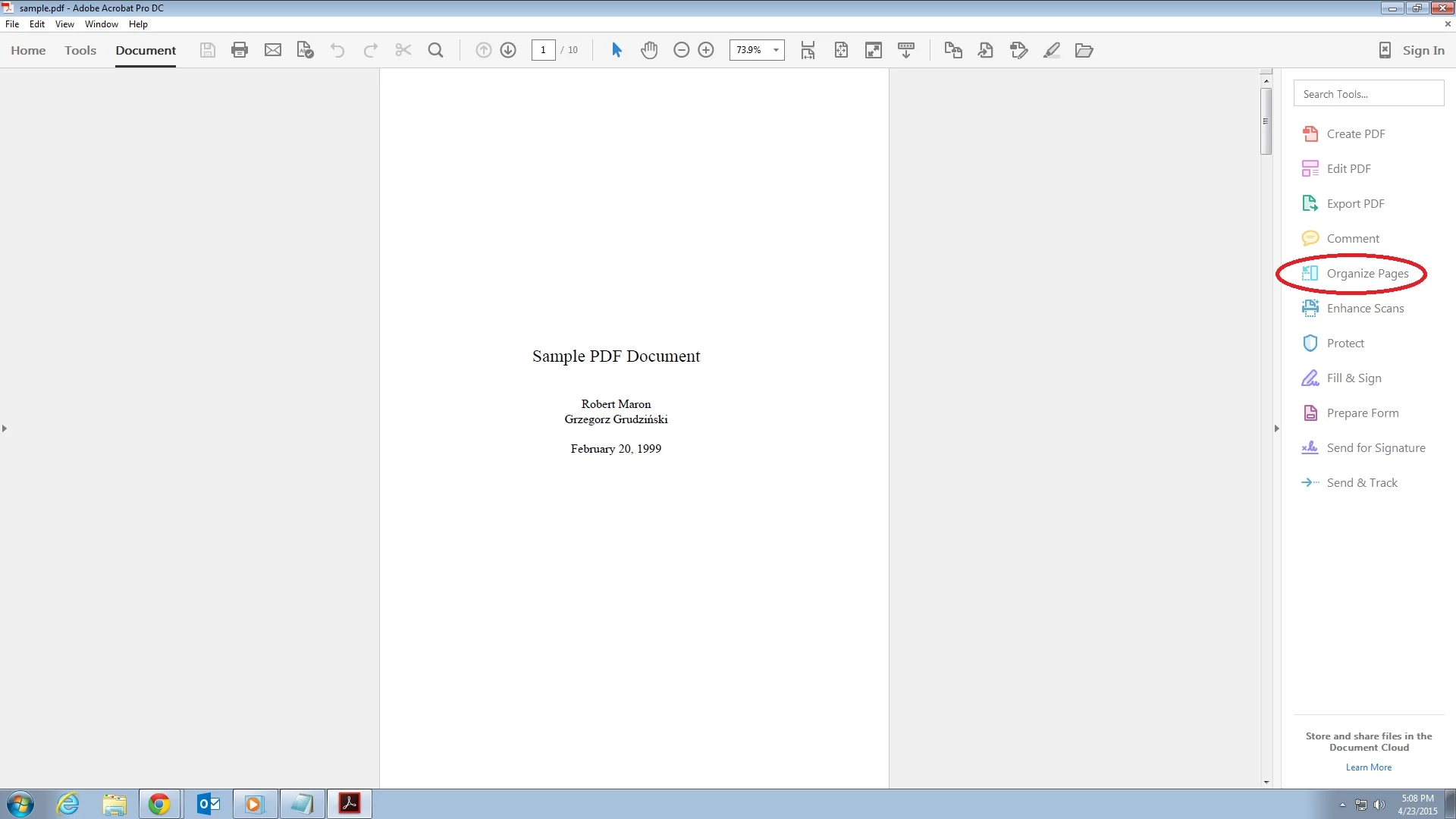
3) Now at the top you will see all the tools to Organize the page, Click on 'Insert' & select 'Blank Page' from the drop-down to insert blank pages.

*Shortcut : If you are using windows computer you can use ' Shift+Ctrl+T ' key to insert blank pages.

In case if you experience any issue or have any query please let us know. We will be happy to help you.

Regards,

Aadesh

4 replies

Participant
Sep 20, 2025 8:24 AM UTC

If you are adding to an existing PDF, there are two tools you can use: Adobe Acrobat, which requires a subscription, or Preview on Mac. You can also rearrange pages, delete pages, or add blank pages.


There is a step-by-step guide that demonstrates this process.

Translate
Participant
Aug 28, 2022 7:47 PM UTC

how to drag text from one page to the new blank page?

Translate
corys82331386
Participant
Jul 6, 2016 2:28 PM UTC

Thank you!!!

Translate
AadeshSingh
AadeshSinghCorrect answer
Participating Frequently
Apr 23, 2015 11:50 AM UTC

Hi thashrifs16749461,

You can add a blank page using Adobe Acrobat DC by following the below instructions :-

1) Open your existing pdf document in Acrobat DC.

2) Choose the 'Organize Page' option form the Tools pane on the right as shown below in the screen shoot.

3) Now at the top you will see all the tools to Organize the page, Click on 'Insert' & select 'Blank Page' from the drop-down to insert blank pages.

*Shortcut : If you are using windows computer you can use ' Shift+Ctrl+T ' key to insert blank pages.

In case if you experience any issue or have any query please let us know. We will be happy to help you.

Regards,

Aadesh

Translate