Participant
February 20, 2021
Answered

How to center the page when printing a document with the Custom Scale option

  • February 20, 2021
  • 1 reply
  • 20539 views

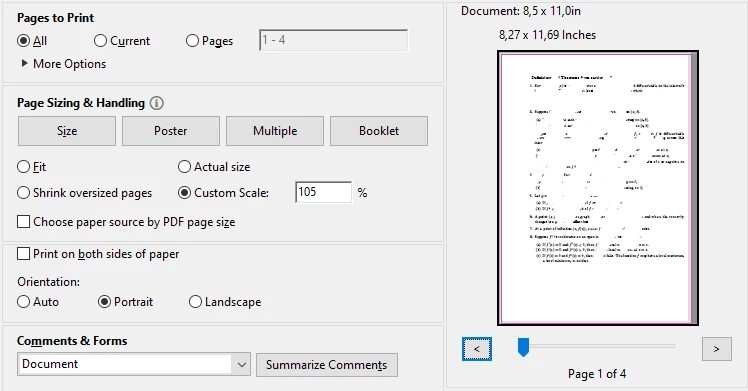
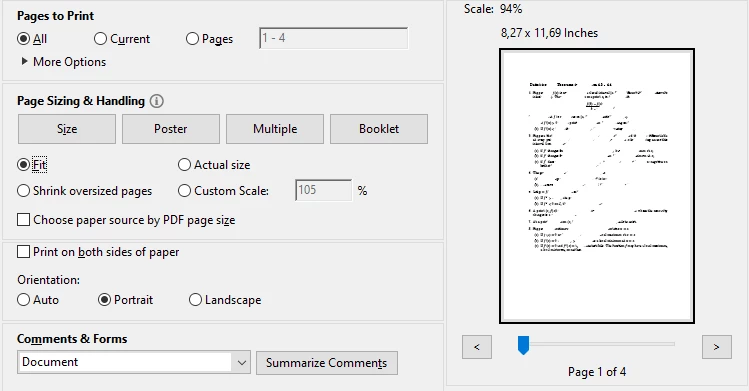
Whenever I try and print PDFs from Adobe, it's common that the paper size of my PDF will be different than my printer's paper size (A4 -> Letter or Letter -> A4). Although the "Fit" option does work in centering and fitting the page to the destination, whenever I chose the "Custom Scale" option, I am able to make the content larger but it seems that the scaling is anchored at the top left corner and not the center. This makes the text/content appear larger but off-center. Is there a way to tell Acrobat to scale from the center or somehow center the document after scaling? Thank you!


Correct answer Meenakshi0101

Hi defaultp1icjt1kj3ou,


Thank you for reaching out, and sorry for the trouble caused.


When you use Custom Scale in the Print dialog, Acrobat scales the page from the top‑left corner of the printable area, not from the center. Unlike the Fit option, Custom Scale does not re‑center the content after scaling, which is why the page appears enlarged but shifted off‑center.


At this time, Adobe Acrobat does not provide a built‑in option to anchor Custom Scale from the center or to automatically center content after applying a custom scale factor.

However, you may try the following:

1.If your require centered and proportional output:

  • Go to File > Print
  • Under Page Sizing & Handling, choose Fit


2.Change the PDF Page Size Before Printing:

  • Go to Tools > Print Production
  • Open Set Page Boxes
  • Set the page size to match the target paper (A4 or Letter)
  • Apply the change and save the PDF
  • Print using Actual Size or a mild Fit


3. Use Poster Printing with Overlap = 0 
 

  • Open Print
  • Select Poster
  • Set Tile Scale to your desired percentage
  • Set Overlap = 0
  • Enable Cut Marks only if needed


Let us know if the information helps.


Thanks,

Meenakshi

1 reply

Participant
December 10, 2022

Under "Orientation" select "Auto" instead of "Portrait".


defaultp1icjt1kj3ou
Participant
May 5, 2026

This doesn’t work! It still aligns top left. This is very irritating!

Meenakshi0101
Community Manager
Meenakshi0101Community ManagerCorrect answer
Community Manager
May 5, 2026

Hi defaultp1icjt1kj3ou,


Thank you for reaching out, and sorry for the trouble caused.


When you use Custom Scale in the Print dialog, Acrobat scales the page from the top‑left corner of the printable area, not from the center. Unlike the Fit option, Custom Scale does not re‑center the content after scaling, which is why the page appears enlarged but shifted off‑center.


At this time, Adobe Acrobat does not provide a built‑in option to anchor Custom Scale from the center or to automatically center content after applying a custom scale factor.

However, you may try the following:

1.If your require centered and proportional output:

  • Go to File > Print
  • Under Page Sizing & Handling, choose Fit


2.Change the PDF Page Size Before Printing:

  • Go to Tools > Print Production
  • Open Set Page Boxes
  • Set the page size to match the target paper (A4 or Letter)
  • Apply the change and save the PDF
  • Print using Actual Size or a mild Fit


3. Use Poster Printing with Overlap = 0 
 

  • Open Print
  • Select Poster
  • Set Tile Scale to your desired percentage
  • Set Overlap = 0
  • Enable Cut Marks only if needed


Let us know if the information helps.


Thanks,

Meenakshi