
Participant
August 7, 2020
Question

How to Change Image Pop-up Descriptions.

  • August 7, 2020
  • 1 reply
  • 2780 views

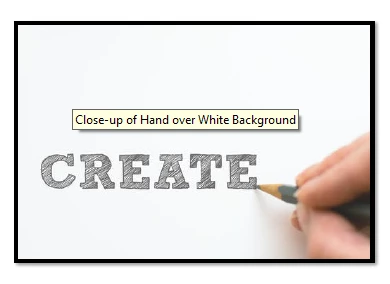
When hovering over an Image in Acrobat Pro DC, there is a yellow pop-up box with a description. How do you change the description? This document was converted from Microsoft Word 365 but I have done considerable work on the document and really do not want to start over. I have updated the alt text in the object properties but it doesn't change the text in the popup. So I need a way to either remove it or change the text. This could cause confusion as we are remediating the document for accessibility.
This topic has been closed for replies.

1 reply

Amal.
Legend
August 7, 2020

Hi lesliej


We are sorry for the trouble. As described you want to edit the alt text of the image


Please take a look at the steps provided in the similar discussion https://answers.acrobatusers.com/how-make-edit-alternate-text-objects-pdf-file-q2393.aspx and see if that works for you.
Note: Steps are same for the new version.


Hope it will help


Regards

Amal

Participant
August 8, 2020

Amal, 

Thanks for the reply. I have changed the alt text and it does not change the text in the pop-up (see image above).


Any other ideas?

Meenakshi_Negi
Legend
August 8, 2020

Hi Lesliej,


As the PDF was created from a Word file, try the following steps to remove the pop-up box with description or change the text in that description:

- Open the Word file and go to Insert > Link.

- In the Insert link window, select "Place in this document".

- Then on the right, check if you can find the image listed there under bookmark.

- Select it and click on Screen Tip button at top right corner of that window.

There you can either delete the text or edit it. Check the screenshot below for reference: 

Check if that helps.


Let us know how it goes.


Regards,

Meenakshi