Participant
July 22, 2020
Answered

How to change “Issued by” name from Digital ID?

  • July 22, 2020
  • 1 reply
  • 4988 views

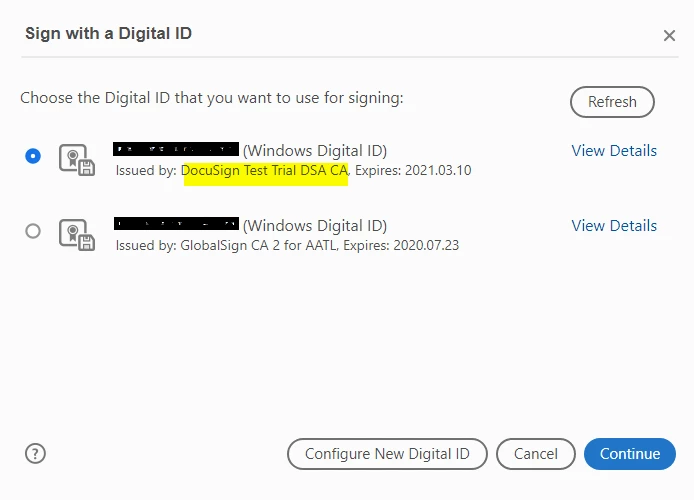
I have just purchased docusign but the new option doesn't come up, only the trial account and it was the same for Globalsign. You can see in the screenshot that it says Digital ID issued by Docusign Test Trial. I no longer have the test trial. I have a proper paid docusign account.  


This topic has been closed for replies.
Correct answer Meenakshi Negi

Hi Tech-nol,


Thank you for reaching out.


As per your description, you wish to change the name "DocuSign Test Trial DSA CA" shows for "Issued by" in the screenshot. It is a name that you use/select while creating a self-signed Digital ID in the Acrobat/ Reader. 


To change the name, please use the following steps: 

  • Launch the Acrobat and go to Edit menu > Preferences > Signatures. 
  • Click on the "More" button for "Identities & Certificates" at the right-hand side in the Preferences window. 
  • In the Digital ID and Trusted Certificate Settings, select Digital IDs. 
  • Select the digital ID from the list provided at right and click on the pencil icon at the top. 
  • Select Personalize from the drop-down list. 
  • Now change the “Friendly name” as required. 

That will update the name shows for "Issued by" in the Digital ID.


Hope the information helps.

Let us know if you have any questions or need any help.


Regards,

Meenakshi

1 reply

Meenakshi Negi
Community Manager
Meenakshi NegiCommunity ManagerCorrect answer
Community Manager
July 22, 2020

Hi Tech-nol,


Thank you for reaching out.


As per your description, you wish to change the name "DocuSign Test Trial DSA CA" shows for "Issued by" in the screenshot. It is a name that you use/select while creating a self-signed Digital ID in the Acrobat/ Reader. 


To change the name, please use the following steps: 

  • Launch the Acrobat and go to Edit menu > Preferences > Signatures. 
  • Click on the "More" button for "Identities & Certificates" at the right-hand side in the Preferences window. 
  • In the Digital ID and Trusted Certificate Settings, select Digital IDs. 
  • Select the digital ID from the list provided at right and click on the pencil icon at the top. 
  • Select Personalize from the drop-down list. 
  • Now change the “Friendly name” as required. 

That will update the name shows for "Issued by" in the Digital ID.


Hope the information helps.

Let us know if you have any questions or need any help.


Regards,

Meenakshi