


AntonyUpward
Participant
February 7, 2018
Answered

How to Display Number of Pages in Open PDF Document? (Used to be in Status Bar)

  • February 7, 2018
  • 34 replies
  • 67482 views

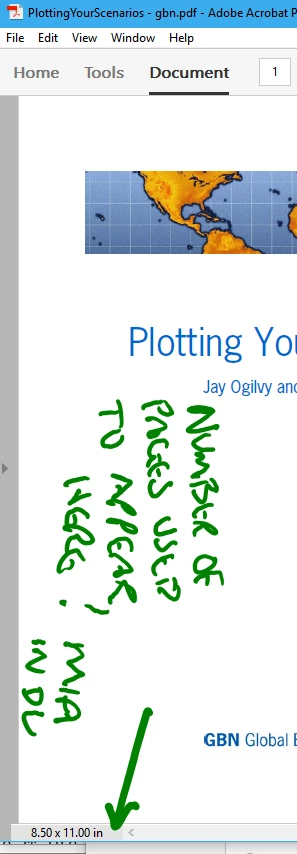
Hi, in earlier versions of Adobe Acrobat Pro the "number of pages" in the open document was displayed in the "status bar" at bottom left of window.

In AAProDC this is MIA.  Now the fastest way to get this information appears to be to click the arrow on the left of the window to open the pages pane.  Not as fast as the info being displayed alongside the page dimension information.

See screenshot below.

I've looked in the options/preferences to see if one can change what is shown in the "status bar" - but I don't see this possibility.  Can Is this possible?

This functionality appears to have also disappeared in Acrobat Reader
Correct answer PositiveEnergy

Restore Menu Bar in Adobe Reader


https://youtu.be/zFkjvUxkSS0

34 replies

Participant
September 22, 2026

this has totally changed in the new Acrobat.  I work on books with hundreds of pages in them and I am required to check the printed page number against the page number displayed in the Acrobat which I have done for decades, but I cannot figure out how to do this,  Help

Anand Sri Bhattacharya
Community Manager
Community Manager
September 22, 2026

Hello ​@writerrad 


I hope you are doing well, and thanks for reaching out. Sorry for the trouble you had.

A couple of quick questions so I can be exact:

  • Which Acrobat version are you on, and is it the new experience or classic? (Help > About shows the build.)
  • Do you specifically need the printed page labels, like roman numerals in the front matter, to match, i.e. Use Logical Page Numbers?
  • Windows or Mac? (The menu path differs slightly.)

Please note that in the new Acrobat, the page navigation controls (the current-page box, the up/down arrows, and the total) moved from the bottom status bar to the bottom of the right-hand panel. Look at the lower-right of the window: you will see the page-number box with the total, and you can type a page number there to jump. If the box looks cramped and the number seems cut off, hover over it to see the full value. You can also use Menu > View > Page navigation > Go to page.


For checking the printed page number against what Acrobat shows, turn on Use Logical Page Numbers:

Preferences (Ctrl+K on Windows, Cmd+K on Mac) > Page Display > Page Content and Information > tick "Use Logical Page Numbers."
With this on, Acrobat displays the document's printed page label with the physical position in parentheses, for example, "i (1 of 1)" for a front-matter page numbered i, or "12 (24 of 480)" once the Arabic numbering starts. That is exactly the printed-vs-displayed comparison you have done for years. (If a file has no page labels defined, you can add or fix them via All tools > Organize pages > Page labels, choosing the numbering style and start number.)


You can also refer to these help articles for more info: 

https://helpx.adobe.com/acrobat/desktop/get-started/learn-the-basics/navigation.html

https://helpx.adobe.com/acrobat/using/viewing-pdfs-viewing-preferences.html


I hope this helps, and please reach out if you need any assistance.

Regards,

Anand Sri.

Participant
June 7, 2024

Right-click on the Quick Tools bar and hover-over/highlight "Show Page display Tools" then left-click on "Show All Page Display Tools". You should now see the familiar   (ie - page X / pages) displayed on the toolbar.


PositiveEnergyCorrect answer
Inspiring
March 3, 2024

Restore Menu Bar in Adobe Reader


https://youtu.be/zFkjvUxkSS0

stevew41834632
Participant
October 10, 2024

THIS WORKED GREAT - THANK YOU!!!!

hughj68293907
Participant
September 16, 2023

Agreed the "new experience" is a step backward!  Why does a "new experience" (software companies are really wearing this phrase out) more often than not make an application harder to use or, at the very least more time need to use the application.

Document Geek
Community Expert
Community Expert
February 7, 2018

Right click on the Toolbar, then choose Customize Quick Tools and choose "Page number"

AntonyUpward
Participant
February 7, 2018

Yes and this feature takes up valuable space in the Toolbar - which is now at a premium given the enlarged size of the icons (to try and make a single UI design work for both touch and mouse - sigh). 

The old functionality of displaying current and total number of pages in status bar was better - and its odd since the size of the document pages *is* still displayed there - they just removed the current page / total number of pages - sigh.  #GoingBackwards

Any other solutions?

Document Geek
Community Expert
Community Expert
February 7, 2018

Please share your thoughts on the Acrobat User Voice page: 

Here are a couple of requests that are along similar lines:

Full Tools, Menu customisation

Different approach to toolbar layout

Time saving toolbars