Participant
August 14, 2020
Answered

how to draw a line on pdf in acrobat pro?

  • August 14, 2020
  • 1 reply
  • 49108 views

Sorry but complete newbie here and after looking at very slow help section Adobe am close to giving up.

How can i draw a line (of dots and dashes preferrably) on a pdf plan drawing of a building plan. I have imported the pdf (a plan view of a building plot with house and fencing etc.). I would like to add a line (both straight and shaped) where there isn't one and erase a part of a line where there is. I can add text and all of the other things (but i don't want to) but can't find the "line drawing tool"  I am using Continous Release Version 2020.012.20041 downloaded yesterday on Windows 10 Entreprise .  I have the "edit and test tool" but all of the options are grayed out and I can't no "line" there anyway. Please help - anyone.  Thanks
This topic has been closed for replies.
Correct answer gary_sc

Hi Nick,


Be a bit warned, this is a bit clunky but very doable.


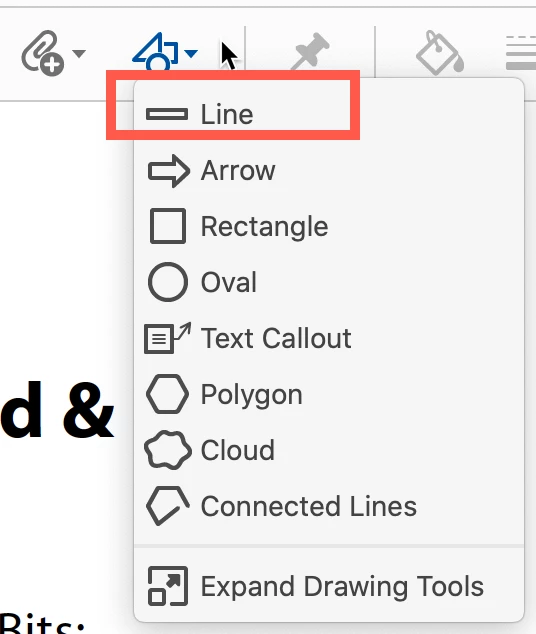
After you go into shapes, select "Line" and draw your line

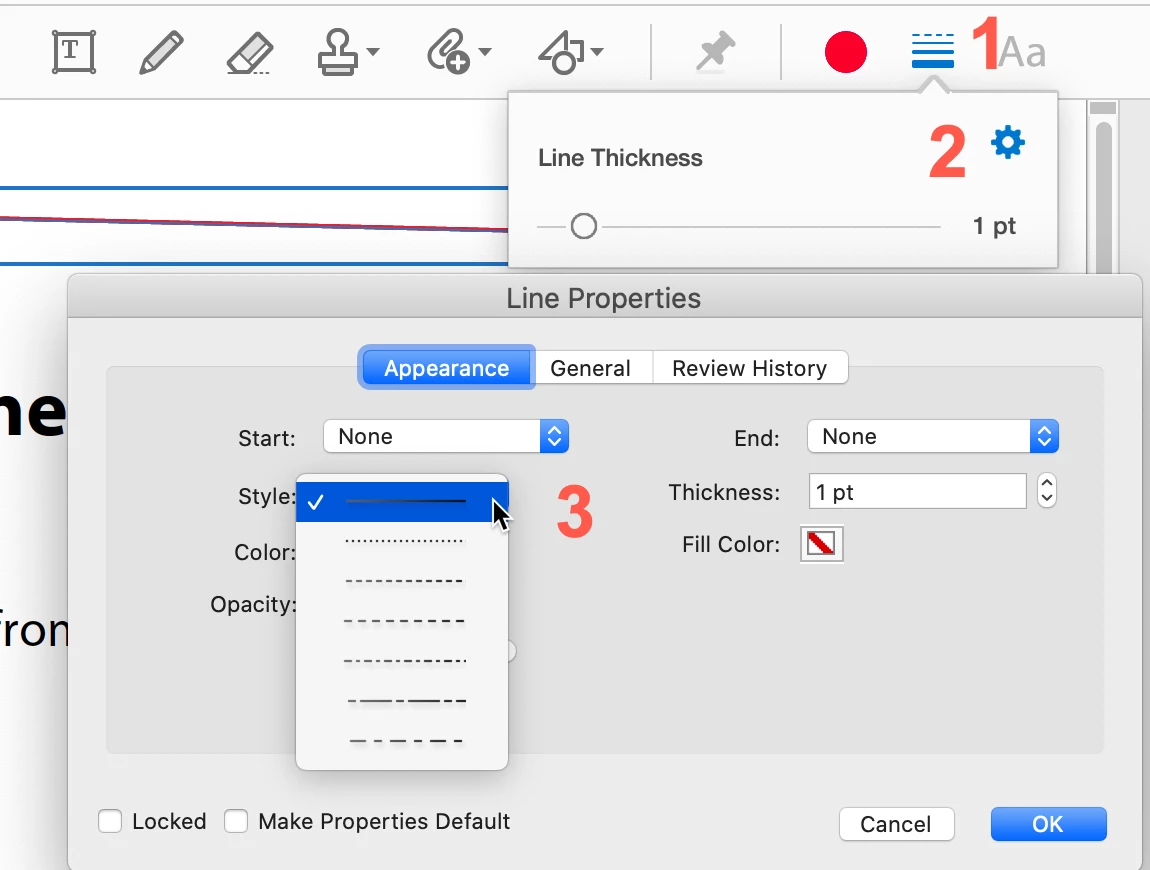
After the line is corrected, you will see the line options to the right (next to #1). When you click on that you can directly change the thickness and you'll also see a "Gear" icon, click that (#2)

This brings up the Line Properties. From there on the left isde you can see "Style" options, (#3) and there are dots and dashes to your pleasure. Plust you can alter Ends, Thickness (much easier than dragging that slider) and a few other options.


IMPORTANT, these settings will not automatically be sticky but you can make them sticky. If you look at the very bottom of this window you can see "Make Properties Default." When you check that, the settings will then be sticky until you change them. 


Enjoy!

1 reply

Bernd Alheit
Community Expert
Community Expert
August 14, 2020

Look at the Drawing Tools at Tools > Comment.

Nick5CE0Author
Participant
August 14, 2020

Thank you.  Very helpful. have found it.  two more related questions thought (sorry) - how to draw a straight line between two points (or do i just have to keep my hand steady?) and how to change the line to a dotted line (is that possible in the menu somewhere?). Thank you again for the first help?

gary_sc
Community Expert
gary_scCommunity ExpertCorrect answer
Community Expert
August 14, 2020

Hi Nick,


Be a bit warned, this is a bit clunky but very doable.


After you go into shapes, select "Line" and draw your line

After the line is corrected, you will see the line options to the right (next to #1). When you click on that you can directly change the thickness and you'll also see a "Gear" icon, click that (#2)

This brings up the Line Properties. From there on the left isde you can see "Style" options, (#3) and there are dots and dashes to your pleasure. Plust you can alter Ends, Thickness (much easier than dragging that slider) and a few other options.


IMPORTANT, these settings will not automatically be sticky but you can make them sticky. If you look at the very bottom of this window you can see "Make Properties Default." When you check that, the settings will then be sticky until you change them. 


Enjoy!