

Answered
How to hide mail header from Outlook PDF Conversion
After searching for days on this forum and online, I've been unable to find any solution to preventing header information from appearing on Outlook PDF conversions. 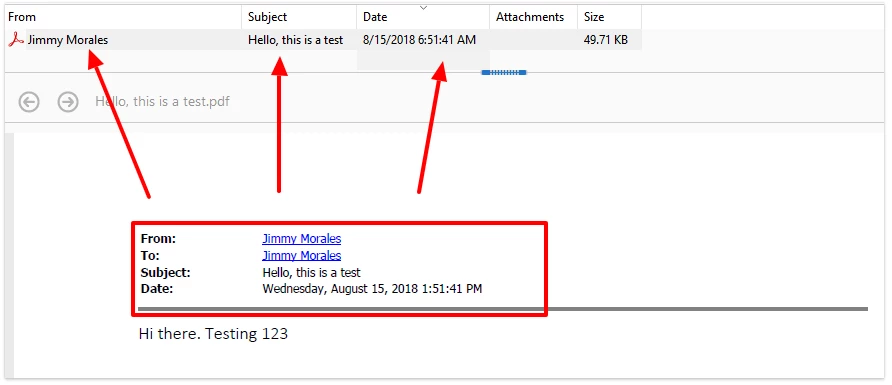
In the above example, you can see that Convert to PDF in Outlook automatically creates a header in the PDF file with this information. Not only does it cause issues with formatting (forcing the layout of emails to be pushed down an inch or so) but there are plenty of circumstances where an email subject/author/date information may need to be hidden when printing.
What I've tried:
- Using the "Remove Hidden Information" option in Document Preferences.
- Deleting Document Information in the Document > Properties > Custom Tab
- Removing Header Information using the Edit PDF Tool (Convert to PDF does not actually create a header for this part)
- Adjusting the Print Defaults (Memo Style Print/Quick Print) to hide "Title" and "Fields" with Adobe Blank Font
- Set Adobe PDF as the Default Printer along with the 4th option
- Enable/Disable all variations of the PDFMaker Settings in Conversion Options in Outlook
- Using Automatic Archival to Create a Portfolio instead
All attempts have resulted in this header being printed in all emails.
There are two benefits to using the PDFMaker Conversion as opposed to QuickPrint and using the Adobe PDF Printer:
- Portfolios allow for bulk operations on several emails as well as Automatic Archival for entire Outlook folders regularly
- PDFMaker preserves the HTML and Internet Print format for all graphics, tables, texts, page breaks, and layout options in emails so it looks much cleaner.


 AdChoices