Participant
September 8, 2023
Answered

How to hide tool bar in Adobe acrobat reader

  • September 8, 2023
  • 2 replies
  • 3745 views

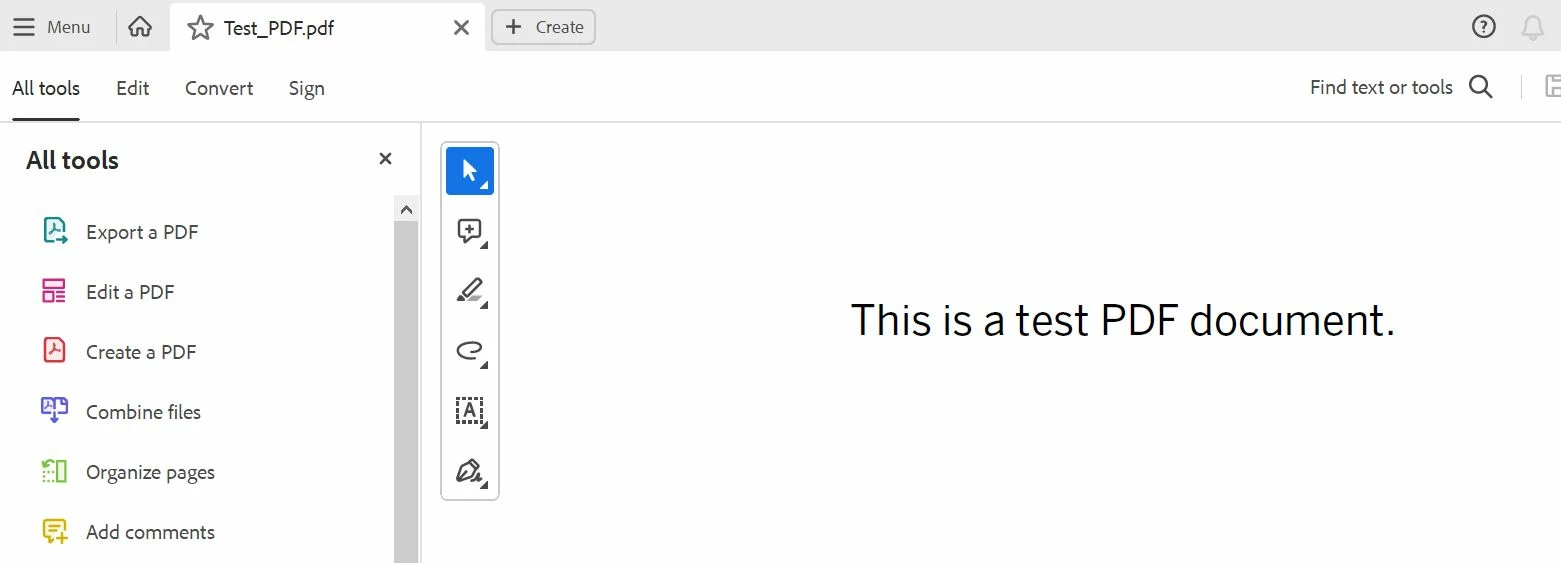
Some weeks ago this was displayed and I can't figure out how to hide it. I tried reinstalling but with same results. In other words, I didn't accidentally set it on. Please see attached screenshot.

I tried this but can't navigate to those options:
https://helpx.adobe.com/acrobat/kb/disable-right-hand-pane-in-acrobat-reader.html


Correct answer AnandSri

Hi @Eivind32155093ov7s 


I hope you are doing well.


We acknowledge that the new Acrobat represents a notable change. However, we hope that as you get familiar with the new interface, you will be able to be more productive & get more out of Acrobat.  


A point to note is that as we made these changes in the interface, we have tried to ensure all tools & features currently supported retain their familiar functionalities and workflows as they did in the previous version

Rest assured, we are actively working on any missing feature, functionality or ability to customize or move the Quick Toolbar or the All Tools section. We will address them with the highest priority in future releases.


If your critical workflows are impacted, you can switch to the old UI from the "Menu" on the top left corner of Windows OS and View Menu on MacOS. 


Please don't hesitate to reach out if you continue to experience any issues or if you have any further questions related to the new Acrobat. We are here to assist you.


~Anand Sri.

2 replies

AnandSri
Community Manager
AnandSriCommunity ManagerCorrect answer
Community Manager
September 10, 2023

Hi @Eivind32155093ov7s 


I hope you are doing well.


We acknowledge that the new Acrobat represents a notable change. However, we hope that as you get familiar with the new interface, you will be able to be more productive & get more out of Acrobat.  


A point to note is that as we made these changes in the interface, we have tried to ensure all tools & features currently supported retain their familiar functionalities and workflows as they did in the previous version

Rest assured, we are actively working on any missing feature, functionality or ability to customize or move the Quick Toolbar or the All Tools section. We will address them with the highest priority in future releases.


If your critical workflows are impacted, you can switch to the old UI from the "Menu" on the top left corner of Windows OS and View Menu on MacOS. 


Please don't hesitate to reach out if you continue to experience any issues or if you have any further questions related to the new Acrobat. We are here to assist you.


~Anand Sri.
Participant
September 11, 2023

Thank you for your kind reply. Can you please tell under which category I can do this reset?


Regards


Eivind

Participant
September 11, 2023

Under Menu there is a "Revert to old version" that works. A big thanks for your help with this.


Regards


Eivind

Eric Dumas
Community Expert
Community Expert
September 8, 2023

Hi,

I experienced something similar recently.

This is the updated interface. There was an icon to turn it off and revert back to the more standard UI.