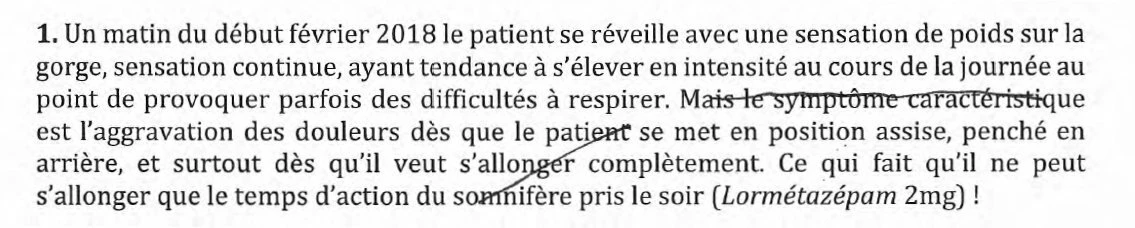
OCR works on the basis of the software seeing, and recognizing certain shapes. Once you’ve crossed over text, such as in your screenshot, those letters are no longer the text that it can recognize. I can suggest two options.
let the OCR run and then go back and manually type in the missing content. This WILL BE faster than typing the whole thing from scratch. (Don’t ask me how I know.)
If you have Photoshop, see if the “remove” functions and effectively remove the lines.
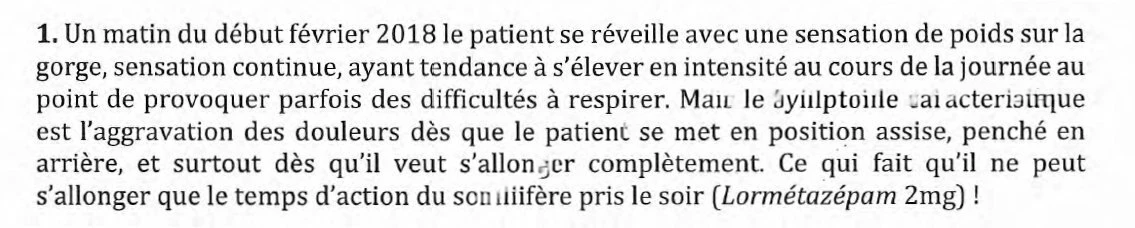
I decided to test this last one, and the results are interesting. In this first example, I took the screenshot above, opened it up in Photoshop and used the “Remove Tool.” I drew a mark across the offending lines and got this. OK, but no cigars.
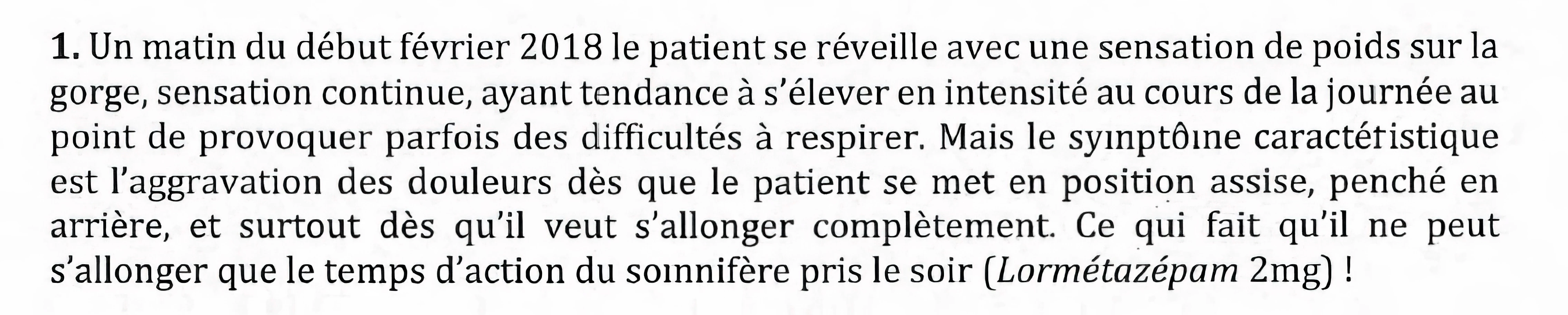
I then took the same screenshot, and ran it through Topaz Photo AI to get a better quality larger image. [Note: the quality of OCR increases dramatically as the resolution of the text goes up. So, a scan at 600 ppi will provide much better OCR results than a similar scan at 300 ppi.] Plus, at the same time, the Topaz sofware got rid of the JPG degretation in your image, so the text was much clearer, and and used the same “Remove Tool” as before, and got this:
Now, here’s the kicker: I do not know if you have Photoshop (not an old one, only the latest versions have the Remove Tool), and I kinda doubt you’ll have Topaz Photo AI. But, my next question is did you do the scan? If you did, redo the scan at 600 ppi, and save it in the TIF format and see if the Photoshop you have can remove that line. After that, good luck! For more suggestion on how to get a better quality scan, see this blog I wrote for Adobe a number of years ago. If you still have questions, please feel free to ask. https://community.adobe.com/questions-9/scanning-clean-searchable-pdfs-1278321#M89
OCR works on the basis of the software seeing, and recognizing certain shapes. Once you’ve crossed over text, such as in your screenshot, those letters are no longer the text that it can recognize. I can suggest two options.
let the OCR run and then go back and manually type in the missing content. This WILL BE faster than typing the whole thing from scratch. (Don’t ask me how I know.)
If you have Photoshop, see if the “remove” functions and effectively remove the lines.
I decided to test this last one, and the results are interesting. In this first example, I took the screenshot above, opened it up in Photoshop and used the “Remove Tool.” I drew a mark across the offending lines and got this. OK, but no cigars.
I then took the same screenshot, and ran it through Topaz Photo AI to get a better quality larger image. [Note: the quality of OCR increases dramatically as the resolution of the text goes up. So, a scan at 600 ppi will provide much better OCR results than a similar scan at 300 ppi.] Plus, at the same time, the Topaz sofware got rid of the JPG degretation in your image, so the text was much clearer, and and used the same “Remove Tool” as before, and got this:
Now, here’s the kicker: I do not know if you have Photoshop (not an old one, only the latest versions have the Remove Tool), and I kinda doubt you’ll have Topaz Photo AI. But, my next question is did you do the scan? If you did, redo the scan at 600 ppi, and save it in the TIF format and see if the Photoshop you have can remove that line. After that, good luck! For more suggestion on how to get a better quality scan, see this blog I wrote for Adobe a number of years ago. If you still have questions, please feel free to ask. https://community.adobe.com/questions-9/scanning-clean-searchable-pdfs-1278321#M89
Thank you for this. I should have offered that editing the original can help before giving it up. I appreciate you keeping me honest here.
To the original poster: both of these options can work for you, with varying degrees of success. After a little practice at this, you’ll get a better feel for which option will work best for you. As Gary offers, these are things you can do manually — slowly — or automatically relying on how well the automatic function works for you.
If you do have the luxury of time, and the ability to re-scan the originals, it’s worth clicking on Gary’s link to how to get better scan results. A while ago he answered a question of mine with that link, and it helps doing book-sized projects significantly.
Oh, let me add that even after all that work, there still will be mistakes in the OCR. You cannot get away from that. Acrobat’s OCR is good, but not spectacular. But, even the best is not 100%. Just do not be expecting miracles.
I’m afraid by opening the OCR output in a word processing application and manually editing your corrections. I learned this from unfortunate personal experience.
Wish I had better news for you — and for me too, to tell you the truth …




 AdChoices