



jarikunnel
Participant
June 9, 2026
質問

I would like to add text to cover up old information. I add a text box and i want to fill it with a white background so you dont see the old text. How to do this?

  • June 9, 2026
  • 返信数 1.
  • 13 ビュー

I would like to add text to cover up old information. I add a text box and i want to fill it with a white background so you dont see the old text. How to do this?

    返信数 1

    Anand Sri Bhattacharya
    Community Manager
    Community Manager
    June 9, 2026

    Hello @jarikunnel,


    I hope you are doing well. Thanks for reaching out, and sorry for the trouble you had.


    Could you please share more details about the issue/workflow:

    1. Which product are you using? A) Acrobat Pro (desktop), B) Acrobat Standard (desktop), or C) Acrobat Reader / Acrobat web.

    2. Which platform? A) Windows, B) macOS.

    3. Do you need the old text permanently removed (true redaction), or is visually covering it with a white box sufficient?

    4. Could you please share the complete workflow?


    Suggestions/Workarounds:


    Text Box comment with white fill (cover + new text in one object)

    1. Open your PDF > All tools > Add a comment.

    2. Choose the Text Box tool and draw a box over the old text.

    3. Right-click the box > Properties > Appearance tab.

    4. Set Fill Colour to white and Border/Line Colour to white or No colour.

    5. Type your replacement text inside and match the font/size.


    Rectangle markup with white fill (most dependable opaque cover)

    1. All tools > Add a comment > Drawing Markups > Rectangle.

    2. Draw the rectangle over the text you want hidden.

    3. Right-click > Properties > Appearance: Fill Colour = white, Border/Line Colour = white or none.

    4. (Optional) Add a Text Box on top if you want new text over the patch.


    A rectangle gives the most solid, fully opaque cover, which is why I'd lean toward Option B if a plain patch is all you need.


    If the text is sensitive, use Redaction (permanently removes it):

    1. All tools > Redact a PDF (Acrobat Pro only).

    2. Select or search to mark the text for redaction.

    3. Click Apply to permanently remove it, then accept the prompt to Remove Hidden Information.

    4. Save a copy > redaction can't be undone.

    5. To learn more, check this article: https://adobe.ly/4xhMMSX


    Let us know how it goes, and reach out if you need any assistance.

    Regards,

    Anand Sri.

    jarikunnel
    jarikunnel作成者
    Participant
    June 9, 2026

    I am using Adobe Acrobat (64-bit) 26.001.21563 on Windows. There is no language on pro, standard, or adobe reader. It looks like all adobe acrobat withholds that information. I have a paid subscription. I do not have “Add a Comment”. Under “All Tools”, I see “Add Comments”. Selecting “Add Comments” opens a left panel which allows me to create a speech balloon with text. I do not see any rectangles or shapes or text boxes. Under “Edit”, I can select “T+ Text” which allows me to write text. Under format text, I can change the font size, color, spacing and bullets. There is no evidence of text box editting - No properties or appearance tabs. 


    Meenakshi0101
    Community Manager
    Community Manager
    June 9, 2026

    Hi,


    Please try the steps as suggested below:

    • In Acrobat, open the PDF
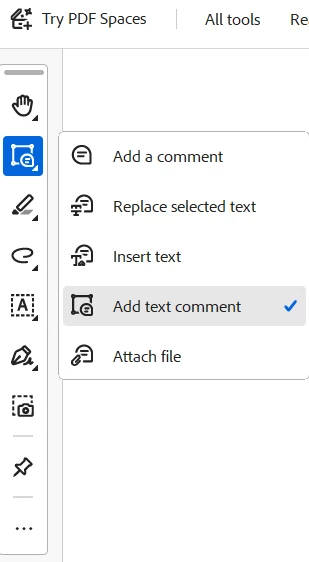
    • On the floating tools pane, click on the Add comment icon as shown in the screenshot and select Add text comment.


    • Then add the text box in the PDF covering the text. 

    Check if that helps.


    Thanks,

    Meenakshi