



symone_h
Participant
September 10, 2026
Answered

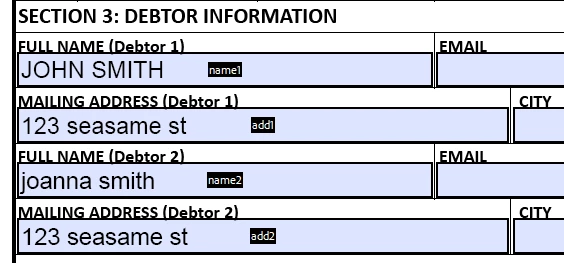
If fieldB is blank, leave fieldC blank. if fieldB contains text, fieldC will populate what is in fieldA

  • September 10, 2026
  • 6 replies
  • 32 views

If fieldB is blank, leave fieldC blank. if fieldB contains text, fieldC will populate what is in fieldA. There will always be information in fieldA.
    Correct answer symone_h

    For whoever may need this in the future:

    > in add2, calculation script:

    var trigger = this.getField("name2").valueAsString;
    if (trigger == "") {
    event.value = "";
    } else {
    event.value = this.getField("add1").valueAsString;
    }


    6 replies

    symone_h
    symone_hAuthorCorrect answer
    Participant
    September 11, 2026

    For whoever may need this in the future:

    > in add2, calculation script:

    var trigger = this.getField("name2").valueAsString;
    if (trigger == "") {
    event.value = "";
    } else {
    event.value = this.getField("add1").valueAsString;
    }


    symone_h
    symone_hAuthor
    Participant
    September 11, 2026

    It worked perfectly, thank you!

    Anand Sri Bhattacharya
    Community Manager
    Community Manager
    September 11, 2026

    Glad that it worked. Please feel free to reach out if you need any assistance.


    Regards,

    Anand Sri.

    Anand Sri Bhattacharya
    Community Manager
    Community Manager
    September 10, 2026

    Hello @symone_1364,


    I hope you are doing well, and thanks for reaching out. Sorry for the trouble.


    Could you please share more details about the issue/workflow?

    Are you trying to create a PDF form using the Acrobat Pro desktop app, adding these form fields, and want to add any logic?


    Please refer to these help articles and try the suggestions:

    https://adobe.ly/4A3tvq1

    https://adobe.ly/4czwsVg

    https://adobe.ly/4r5ju7n

    https://adobe.ly/4reWFhN


    I hope this helps, and please reach out if you experience any issue, or need any help.

    Regards,

    Anand Sri.

    symone_h
    symone_hAuthor
    Participant
    September 11, 2026

    I apologize for the lack of information. I have a PDF form. I am trying to use scripts in text fields.

    If there is information in “FULL NAME DEBTOR 2” then I want “MAILING ADDRESS DEBTOR 2” to match what is in “MAILING ADDRESS DEBTOR 2”

    “FULL NAME DEBTOR 1” and “MAILING ADDRESS DEBTOR 1” will never be blank.


    Anand Sri Bhattacharya
    Community Manager
    Community Manager
    September 11, 2026

    Thanks for sharing the details, ​@symone_h 


    Just to confirm, because there is a small slip in the wording: I read your rule as, if FULL NAME (Debtor 2) has any text, then MAILING ADDRESS (Debtor 2) should copy MAILING ADDRESS (Debtor 1); and if FULL NAME (Debtor 2) is blank, MAILING ADDRESS (Debtor 2) stays blank. Since Debtor 1's fields are never empty, that is your always-populated source. If that is right, here is the setup.


    Here is a suggested script that you can try and modify according to your requirements. Please note that it may or may not work depending on the form type, environment, and application version.


    Put the script on the field that should auto-fill (MAILING ADDRESS (Debtor 2)):

    1. In Prepare a Form, double-click the MAILING ADDRESS (Debtor 2) field > Properties > Calculate tab > Custom calculation script > Edit.
    2. Paste this, using your fields' real names:

    var trigger = this.getField("FULL NAME (Debtor 2)").valueAsString;
    if (trigger == "") {
    event.value = "";
    } else {
    event.value = this.getField("MAILING ADDRESS (Debtor 1)").valueAsString;
    }


    The one thing that will make or break it: the names inside getField() must match the fields' actual names exactly, not the printed labels on the form. Spaces and parentheses are fine, but "FULL NAME (Debtor 1)" printed on the page is just static text; the input box next to it might really be named something like "FullName1" or "Debtor2_Name". To check, in Prepare a Form, hover over (or double-click) each field and read the Name at the top of its Properties. Swap in those exact names, and it will work.


    I hope this helps, and please refer to the above shared help articles for related JavaScript and form fields properties.


    Please reach out if you need any assistance.

    Regards,

    Anand Sri.