
Inconveniente con Acrobat DC al usar checkmark / Issue with Acrobat DC desktop when using checkmark
Estoy usando Adobe Acrobat DC desktop para Windows 10 y Windows 11 con la finalidad de realizar la edición de un PDF, mi interés es verificar las especificaciones técnicas descritas en un plano (AutoCad) para identificar posibles errores.
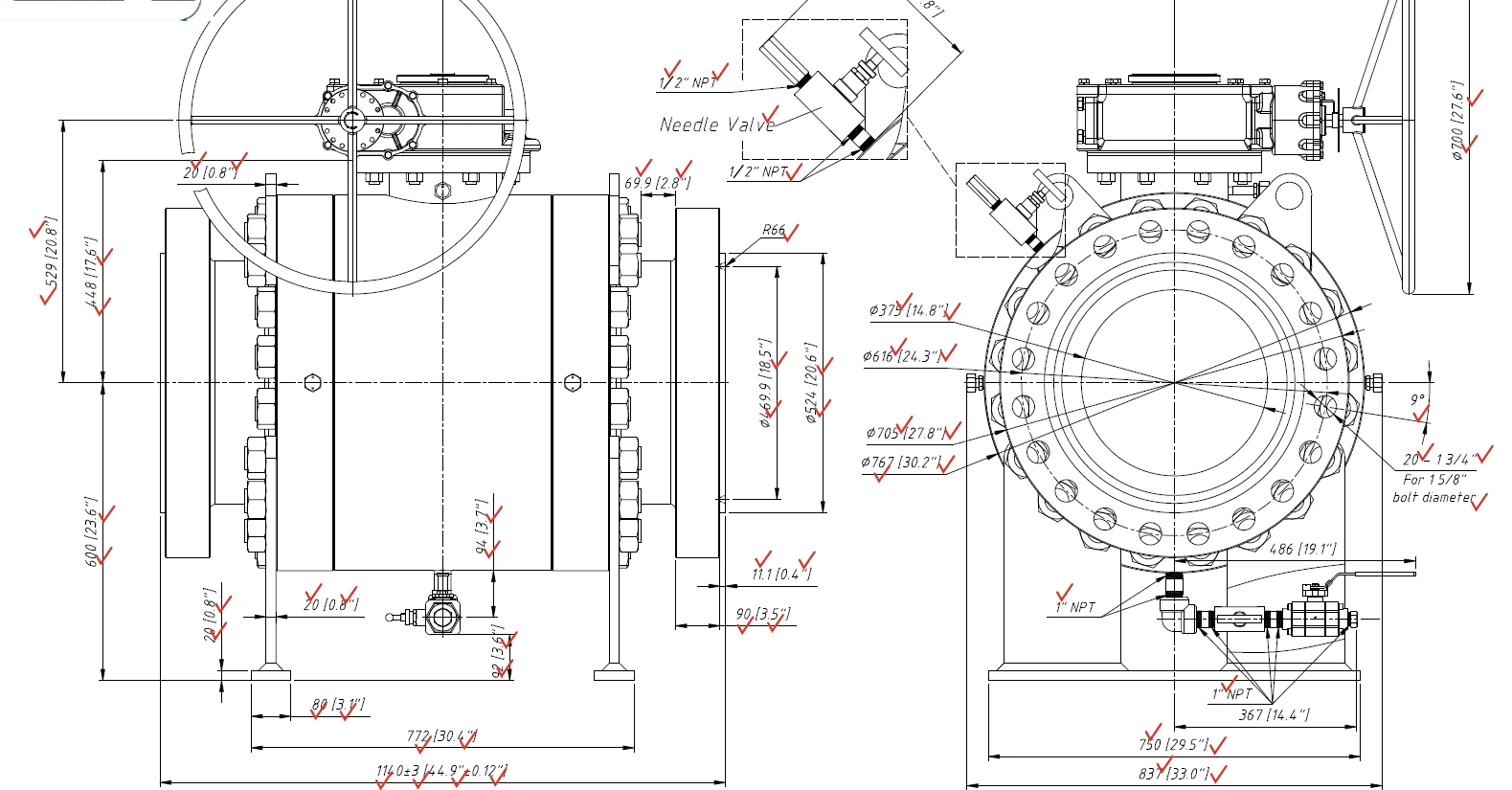
Documento original (parcial)
Al utilizar la herramienta de checkmark se presentan múltiples inconvenientes aleatorios que relato a continuación:
1. No aparece el checkmark en la ubicación indicada
2. A veces no aparece el checkmark o aparece invisible, solamente se hace visible después de seleccionarlo
3. El checkmark aparece aleatoreamente en una ubicación distinta a la seleccionada
4. Se distorsiona la imagen a medida que se van estableciendo nuevos checkmark
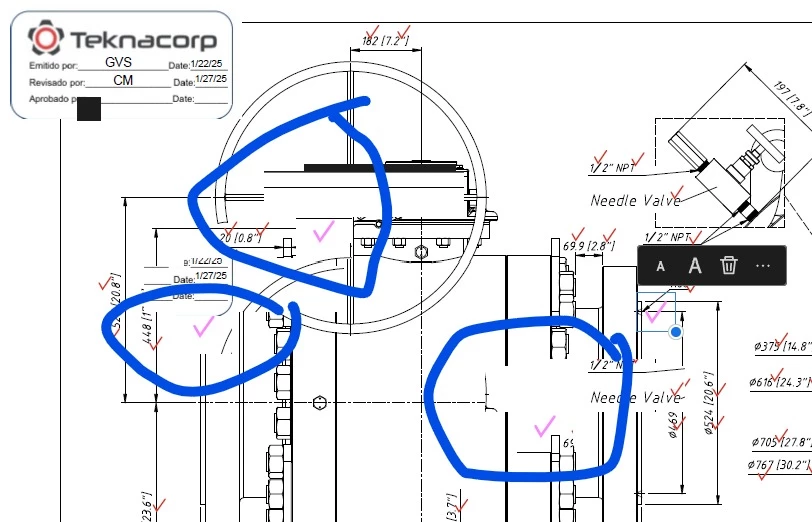
Imagen distorsionada (ejemplo usando Acrobar DC de escritorio para Windows 11)
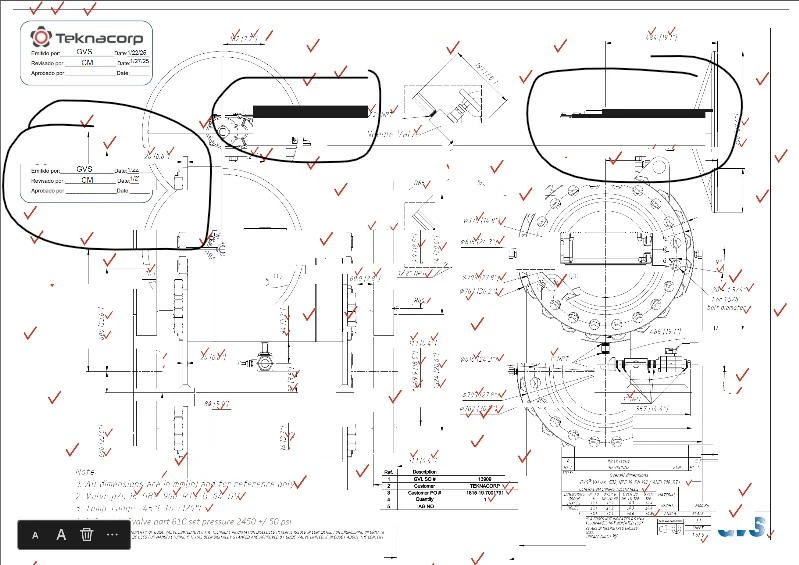
Imagen distorsionada (ejemplo usando Acrobar DC de escritorio para Windows 10)
5. Al guardar la imagen las distorsiones ocasionadas se mantienen
6. El tiempo de respuesta en múltiples oportunidades para que aparezca el checkmark es alto (varios segundos)
Esta situación se reproduce con facilidad en estaciones de trabajo diferentes, con cuentas de usuarios distintas.
Ya he reinstalado la aplicación, descargándola directamente de la página de Adobe (new pack).
Las mismas pruebas realizadas sobre el mismo documento, pero usando la versión web no presentan el error, lo que me sugiere que el inconveniente está asociado directamente a la versión de escritorio (desktop). Como medida temporal hemos comenzado a utilizar la versión web de Adobe Acrobat DC.
Anexo evidencias de lo descrito, destaco que la información del documento es CONFINDENCIAL
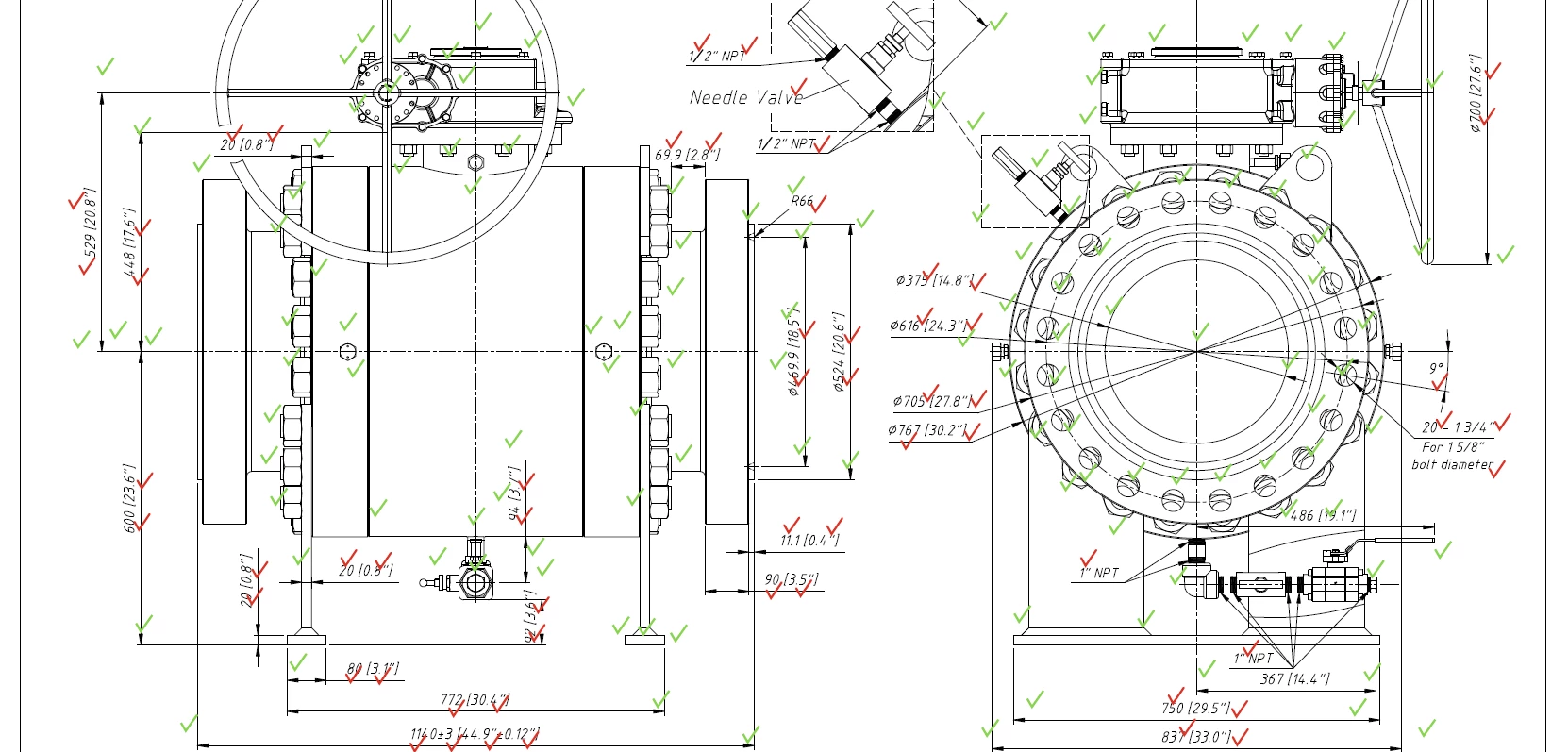
Imagen en buen estado (ejemplo usando Acrobar DC WEB)
Mucho agradezco el apoyo que me puedan brindar al respecto.
Gracias.
------------------
I am using Adobe Acrobat DC desktop for Windows 10 and Windows 11 to edit a PDF. My goal is to verify the technical specifications described in a plan (AutoCad) to identify possible errors.
Original document (partial)
When using the checkmark tool, multiple random issues occur, which I describe below:
1. The checkmark does not appear in the indicated location.
2. Sometimes the checkmark does not appear or appears invisible, only becoming visible after selecting it.
3. The checkmark appears randomly in a different location than the one selected.
4. The image becomes distorted as new checkmarks are added.
Distorted image (example using Acrobat DC desktop for Windows 11)
Distorted image (example using Acrobat DC desktop for Windows 10)
5. When saving the image, the distortions remain.
6. The response time for the checkmark to appear is often high (several seconds).
This situation is easily reproducible on different workstations with different user accounts.
I have already reinstalled the application, downloading it directly from the Adobe website (new pack).
The same tests performed on the same document, but using the web version, do not present the error, which suggests that the issue is directly associated with the desktop version. As a temporary measure, we have started using the web version of Adobe Acrobat DC.
I attach evidence of what is described, noting that the document information is CONFIDENTIAL.
Image in good condition (example using Acrobat DC WEB)
I greatly appreciate any support you can provide in this regard.
Thank you.


 AdChoices