


Participant
August 23, 2025
Question

Installing acrobat but can not install due to 136 error

  • August 23, 2025
  • 2 replies
  • 310 views

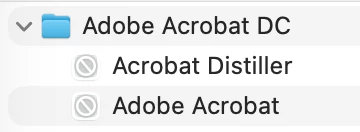
Hello, I am trying to install Acrobat; however, it does not want to download past 45% and then prompts me with Error code 136: (Unable to install the product). I have reason to believe that it is because it still has Acrobat Distiller and Acrobat installed; however, when downloading the remover tool, it is not able to find them. What can I do about this?
2 replies

Participant
August 23, 2025

Thank you for the response; however, when wanting to delete the (/Library/Application Support/Adobe/Acrobat) folder, it is telling me that the AdobeHunspellPlugin.bundle is still in use, and no matter what I do, including force quitting every Adobe application and Creative Cloud, it does not want to delete. This is the same for the /Applications/Adobe Acrobat*, it says that it is locked, and I have checked, and it is not.


AnandSri
Community Manager
Community Manager
August 23, 2025

Hello @Stijn2736646207gx


It looks like the reason you cannot delete AdobeHunspellPlugin.bundle or the locked item The /Applications/Adobe Acrobat* folder is because background Adobe processes are still running on your system, even if all apps appear closed. These helper processes (such as Adobe Desktop Service, Core Sync, or background plugins) can keep files “in use,” which prevents macOS from allowing you to delete them.


Quit all Adobe background processes

  • Open Activity Monitor (Applications > Utilities).

  • In the search bar, type Adobe.

  • Select all processes that appear (examples: Adobe Desktop Service, AdobeIPCBroker, Core Sync, Acrobat Updater, CCXProcess).


Unlock the files/folders

  • Right-click the Acrobat application folder or the AdobeHunspellPlugin.bundle.

  • Choose Get Info.

  • If the “Locked” box is checked, uncheck it.

  • In the same window, check Sharing & Permissions and make sure your user has Read & Write access. If not, click the lock icon to adjust.

Delete the folders

  • Try moving /Applications/Adobe Acrobat* and /Library/Application Support/Adobe/Acrobat to the Trash again.

  • If it still refuses, restart your Mac and repeat the deletion before launching any Adobe apps.


Restart the machine, and then use the Acrobat Cleaner tool again.


Try installing on a new user profile with full admin rights, and check.


Thanks,
Anand Sri | Acrobat Community Team
Meet Acrobat Studio

Participant
August 23, 2025

I did this and allowed read and write permissions for all users. The cleaner tool finds Adobe Acrobat in the trash and does not remove it, and it keeps not responding. I have force-quit it a couple of times, restarted my machine, and let the cleaner run its course twice. It says it completed after an error pops up, but it is still there.

AnandSri
Community Manager
Community Manager
August 23, 2025

Hello @Stijn2736646207gx


I hope you're doing well, and we apologize for the delayed response and the trouble. 


Please restart the machine once, check for all mandatory and optional operating system updates, install them, and restart the computer again. Then, use the Acrobat Cleaner tool to remove any conflicting or corrupt installation files. Manually Remove Leftovers (if Cleaner doesn’t detect them). Remove /Applications/Adobe Acrobat* and /Library/Application Support/Adobe/Acrobat*.

Restart the computer and install Acrobat from the direct download link.


For testing purposes, create a test user profile with full admin rights, and install Acrobat, and check. Let us know how it goes.


Thanks,
Anand Sri | Acrobat Community Team
Meet Acrobat Studio