Hello @felix_1574
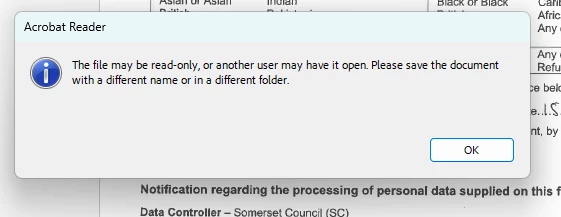
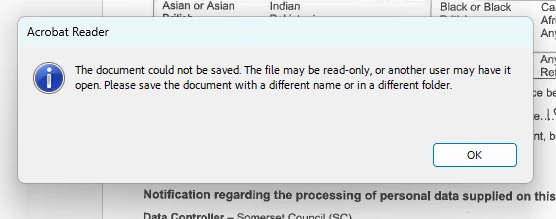
Thank you for providing the details and the screenshots. Based on the behavior you’ve described, Acrobat Pro shows “The file may be read-only, or another user may have it open” even when the user is the only one working on the document.
Please check this community discussion, try the suggestions, and let us know if that works for you: https://adobe.ly/3JOOvem
Recommended Workarounds:
Disable Windows Explorer Preview Pane:
In File Explorer, go to the View tab and uncheck Preview Pane.
This prevents the file from being “locked” by Explorer before Acrobat opens it.
Change Folder Permissions
Right-click the folder where the PDF is saved → Properties → Security tab → Edit permissions.
Grant Full Control to the user or “Everyone” (if on a secure private system).
Use “Save As” Instead of “Save”
This consistently works as a workaround. It avoids overwriting the original file and bypasses the lock.
Avoid Editing Files Directly from Network Drives
Copy the file to a local drive before editing.
Network latency or DFS pointers can interfere with Acrobat’s save operations.
Ensure you are on the latest version of Acrobat: 25.001.20672, Mac: 25.001.20668, Sept 03, 2025. Check for any pending updates from the Menu > help > check for updates, install the updates, restart the app and the machine, and try again.
Try saving the file with a different name and then renaming it back manually.
Check if the file has any digital signatures or embedded media that might restrict saving.
Use Acrobat’s Preflight tool to scan for file integrity issues.
Let us know how it goes.
Thanks,
Anand Sri.




 AdChoices