



Allison27967301dkaf
Participant
March 3, 2026
Question

Markup toolbar no longer showing strikethrough

  • March 3, 2026
  • 2 replies
  • 58 views

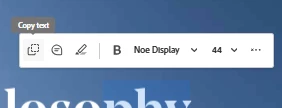
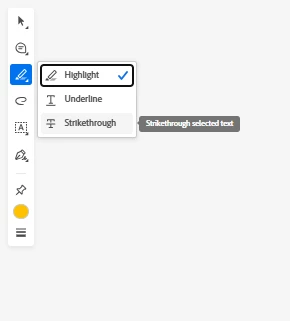
In a pdf that’s been sent out for review (cloud), you previously could select some text, and a quick markup toolbar would pop up. In that toolbar you could select strikethrough. That is no longer available (first image), and I cannot seem to change the settings on the markup toolbar. I now have to select the text, scroll over to the markup toolbar on the side, click and hold on the highlight tool, and then select strikethrough (second image). Is there a way to add the strikethrough option back to the quick toolbar?
 

    2 replies

    creative explorer
    Community Expert
    Community Expert
    March 3, 2026

    @Allison27967301dkaf as per ​@Dave Creamer of IDEAS, if you select the text first, it should pop up:


    or if you select it, and right click it, you should be able to hit strike-through as well:


    m
    Allison27967301dkaf
    Participant
    March 3, 2026

    This toolbar (nor the right click dropdown) does not show up in the cloud version anymore. If I open the shared pdf in the desktop app, it works, but I’ve experienced a fair amount of slowness using the desktop app lately.

    creative explorer
    Community Expert
    Community Expert
    March 3, 2026

    @Allison27967301dkaf I wonder if you need you trash your Adobe Preferences? Maybe, your tool bar is corrupted for some weird reason? 

    m
    Dave Creamer of IDEAS
    Community Expert
    Community Expert
    March 3, 2026

    Have you tried just selecting the text and hitting your delete key?

    David Creamer: Community Expert (ACI and ACE 1995-2023)
    Allison27967301dkaf
    Participant
    March 3, 2026

    This is the only work around I’ve found, though it doesn’t offer the replace or underline options like previously. Thanks!

    Dave Creamer of IDEAS
    Community Expert
    Community Expert
    March 4, 2026

    To replace, select the text you want to remove and simply start typing.

    To insert, click where you want the text and start typeing.

    If you select the text, you should see this contextual tool bar:


    David Creamer: Community Expert (ACI and ACE 1995-2023)