

bebarth
Community Expert
Community Expert
February 18, 2023
해결됨

Minimun width of a button in a custom dialog box

  • February 18, 2023
  • 2 답변들
  • 5950 조회

Hi,

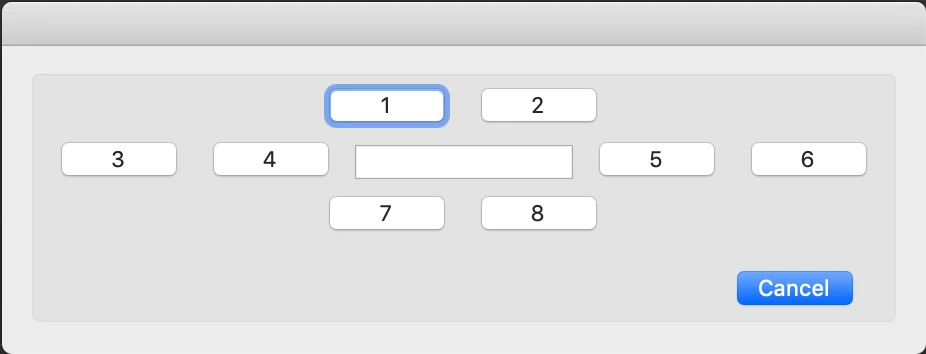
I would like create a custom dialog box with 8 square buttons aligned like the one below.

A the moment I can't manage to get square buttons.
Do you know if there is a minimum width!
Thanks.

@+

이 주제는 답변이 닫혔습니다.
최고의 답변: Thom Parker

Yes, thank you for always keeping an eye.


As I was working around the script I noticed that the alignment property overrrides the character_width and the width properties of the buttons.


The same is not true for the fillable text fields.


I think it is not possible to work around the minimu. width of dialog bottons.


Anything below 80 for the width , or not specifying width at all, will decault to that width.


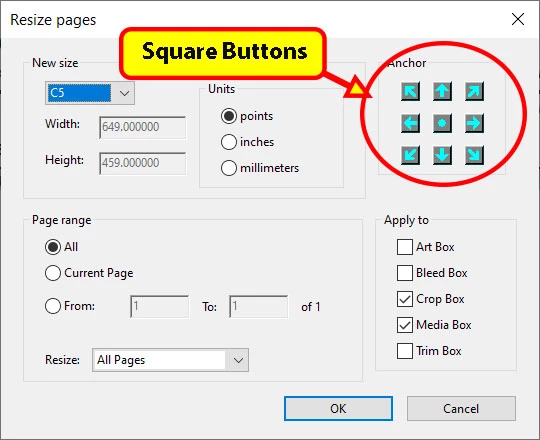
If you want to make square, or really, any shaped button, use the image field with an image that looks like a button. You get exactly the same behavior with an image as you do a button, but images can be any size.  


The free "Resize Pages Tool" here, uses this technique

https://www.pdfscripting.com/public/Free_Acrobat_Automation_Tools.cfm


Here's a WYSIWYG dialog editor 

https://www.pdfscripting.com/public/ACRODIALOGS-OVERVIEW.cfm


2 답변

ls_rbls
Community Expert
Community Expert
February 19, 2023

Bebarth,


Would you be able to share how were you able  to get 1 & 2 and 7 & 8 buttons close together like in your screenshot?

Thom Parker
Community Expert
Community Expert
February 20, 2023

The tool is free, so you can download it and take a look at the code. 

But basically it's all done with views organizing image fields into rows and columns. I think the image fields are 20x20. 


I find it really helpful to have the WYSIWIG tool when designing complex layouts.    


Thom Parker - Software Developer at PDFScriptingUse the Acrobat JavaScript Reference early and often
ls_rbls
Community Expert
Community Expert
February 20, 2023

Most definitely, thank you again!

ls_rbls
Community Expert
Community Expert
February 19, 2023

Here you go brother,


I am using a Mouse Up event in a textfield, but it can be modified to a button.


Here is what worked for me (partially):


     var myButtons =
     {
      eightButtons: function()
      {
       return app.execDialog(myButtons);
      },

      button1: "1",  
      button2: "2",  
      button3: "3",  
      button4: "4",  
      button5: "5",  
      button6: "6",  
      button7: "7",  
      button8: "8",  
      blankField : "",
    

///////////////////////////////////////////////

      initialize: function(dialog)
      {
       this.result = "Cancel";

        dialog.load
        (
         {
          "but1" : this.button1,
          "but2" : this.button2,
          "but3" : this.button3,
          "but4" : this.button4,
          "but5" : this.button5,
          "but6" : this.button6,
          "but7" : this.button7,
          "but8" : this.button8,
          "blnk" : this.blankField,
         }
       );
     },


///////////////////////////////////////////////


//        validate: function(dialog)
//        {
//         var button = dialog.store();

//         this.button1 =  button["but1"];
//         this.button2 =  button["but2"];
//         this.button3 =  button["but3"];
//         this.button4 =  button["but4"];
//         this.button5 =  button["but5"];
//         this.button6 =  button["but6"];
//         this.button7 =  button["but7"];
//         this.button8 =  button["but8"];
//         this.blankField =  button["blnk"];

         
          /* SOME CODE GOES HERE */

//        }


///////////////////////////////////////////////


        commit: function(dialog)
        {
         var button = dialog.store();

         this.button1 = button["but1"];
         this.button2 = button["but2"];
         this.button3 = button["but3"];
         this.button4 = button["but4"];
         this.button5 = button["but5"];
         this.button6 = button["but6"];
         this.button7 = button["but7"];
         this.button8 = button["but8"];
         this.blankField = button["blnk"];


        /* MORE CODE GOES HERE */
 

        },

///////////////////////////////////////////////


  description:
  {
   name: "[ B U T T O N S ]",  //--- NAME OF THE DIALOG IN THE TITLE BAR
   elements:
   [

    {
     align_children: "align_distribute",
     type: "cluster",
     font: "dialog",
     bold: true,
     elements:
     [
      {
       alignment: "align_center",
       height: 25,
       item_id: "but1",
       type: "button",
       font: "dialog",
       bold: true,
      },
      {
       alignment: "align_center",
       height: 25,
       item_id: "but2",
       type: "button",
       font: "dialog",
       bold: true,
      },
     ]
    },


    {
     align_children: "align_row",
     type: "view",
     font: "dialog",
     bold: true,
     elements:
     [
      {
       alignment: "align_left",
       height: 25,
       item_id: "but3",
       type: "button",
       font: "dialog",
       bold: true,
       char_width: 10,
       width: 10,
      },
      {
       alignment: "align_left",
       height: 25,
       item_id: "but4",
       type: "button",
       font: "dialog",
       bold: true,
       char_width: 10,
       width: 10,
      },
      {
       alignment: "align_center",
       height: 25,
       item_id: "blnk",
       type: "edit_text",
       width: 180,
       font: "dialog",
       bold: false,
      },
      {
       alignment: "align_right",
       height: 25,
       item_id: "but5",
       type: "button",
       font: "dialog",
       bold: true,
       width: 10,
      },
      {
       alignment: "align_right",
       height: 25,
       item_id: "but6",
       type: "button",
       font: "dialog",
       bold: true,
       width: 10,
      },
     ]
    },

    {
     align_children: "align_distribute",
     type: "cluster",
     font: "dialog",
     bold: true,
     elements:
     [
      {
       alignment: "align_center",
       height: 25,
       item_id: "but7",
       type: "button",
       font: "dialog",
       bold: true,
      },
      {
       alignment: "align_center",
       height: 25,
       item_id: "but8",
       type: "button",
       font: "dialog",
       bold: true,
      },
     ]
    },

                
  //////////////////////////////////////////////
 /////// Set OK and CANCEL buttons ////////////
//////////////////////////////////////////////
    
    { 
     alignment: "align_right",
     type: "ok",
     ok_name: "CANCEL"
    },


   ] 
  }

 };


///////////////////////////////////////////////


(event.target.value !== "") ? 

  event.target.value = event.target.value : 

  ([
        myButtons.eightButtons() == "Submit", {},

    this.resetForm([event.target])

  ]); 


Also, all of the execDialog elements and their properties are thoroughly explained in the JavaScript for Acrobat API Reference - "app methods", starting on page 79.


Here's a good old PDF copy:


Let me know if these shared links work. My Acrobat was throwing some errors.


NOTE:

I am not able to get buttons 1 and 2, and buttons 7 and 8 to stick together closer than they appear shown in my screenshot below:


Nesa Nurani
Community Expert
Community Expert
February 19, 2023

@ls_rbls I think he wanted to know if there is a limit to dialog button minimum width, which I think it is limited.

On the other hand, the height of a button is not limited.

ls_rbls
Community Expert
Community Expert
February 19, 2023

Yes, thank you for always keeping an eye.


As I was working around the script I noticed that the alignment property overrrides the character_width and the width properties of the buttons.


The same is not true for the fillable text fields.


I think it is not possible to work around the minimu. width of dialog bottons.


Anything below 80 for the width , or not specifying width at all, will decault to that width.