jarikunnel
Known Participant
July 28, 2026
Question

Move a text box

  • July 28, 2026
  • 1 reply
  • 23 views

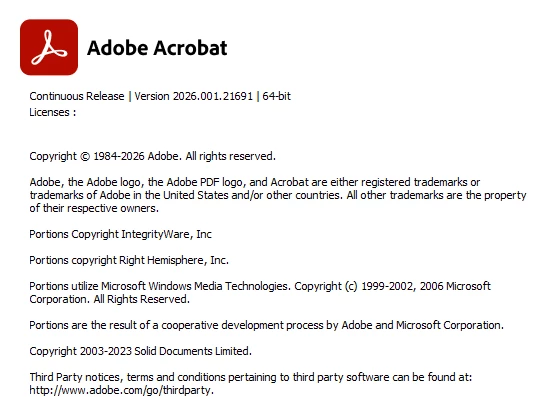
I have this version of Adobe Pro:

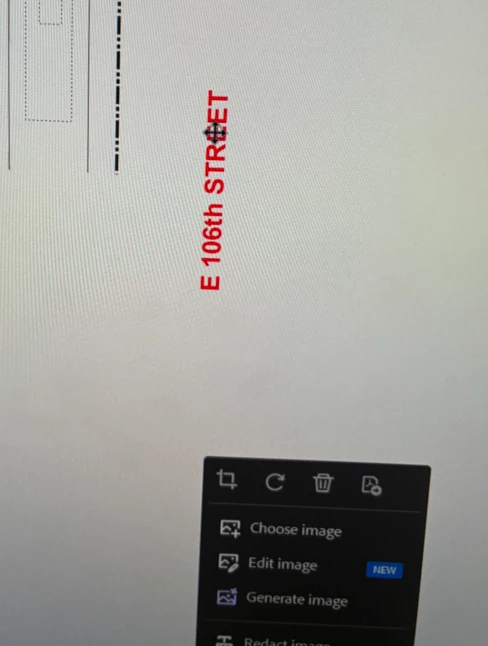
I created a “Text” via “Add Content”. I want to move the text to the dotted line. Why can’t I move it?  What setting should I be in? What pointer type should be using? Why are basic things incredibly frustrating to do?
 

    1 reply

    Amal Jaiswal
    Community Manager
    Community Manager
    July 28, 2026

    ​Hi ​@jarikunnel ,

    Hope you're doing well, and thanks for reaching out. We are sorry for the trouble you are experiencing. 

    When you add text to the PDF, Acrobat places a bounding box around it with small circular handles at the corners and edges. Most people naturally try clicking inside the text to drag it, but that puts you into text-editing mode instead of move mode.

    To move the box, you need to hover over the border line of the bounding box itself (not inside it, and not on a handle). When your cursor is in exactly the right spot, it will change to a four-arrow Move pointer that's your cue to click and drag.

    Steps to follow:

    1. Select Edit in the global toolbar at the top.

    2. From the Edit panel on the left, select Text under Add Content. This activates the text editing mode, so your text boxes become selectable.

    3. Click once on your text box to select it. You'll see the blue bounding box appear with circular handles around it.

    4. Move your cursor slowly to hover over the line of the bounding box, not a handle, and not inside the text.

    5. Wait for the cursor to change to the Move pointer (four arrows pointing outward).

    6. Once you see it, click and drag the box to your dotted line.

    For the full official steps with screenshots, check Adobe's help article: How to edit or format text in PDFs using Adobe Acrobat — Move, rotate, or resize a text box


    Hope this helps. Let us know if you experience any trouble and need more help. 

    ~Amal