
New simplified experience of Fill & Sign.
The new Sign menu provides an easy access to all form-related tools like Fill and Sign, Request Signatures, Create Form, and Manage All Agreements.
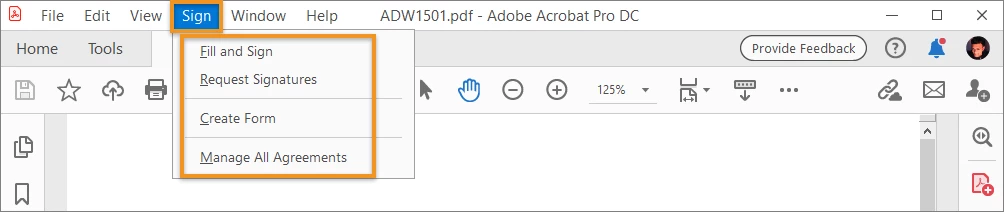

Fill & Sign: With the simplified Sign menu signing a document is just a click away.
Open a document using Acrobat DC>Sign (from menu)>Fill & Sign
Note: opening Fill & Sign from “Tools” menu will give you the old experience, where you get to choose “Who needs to Fill & Sign?”

Request Signature:
To get the document signed by others. This new Sign menu will make your work smoother.
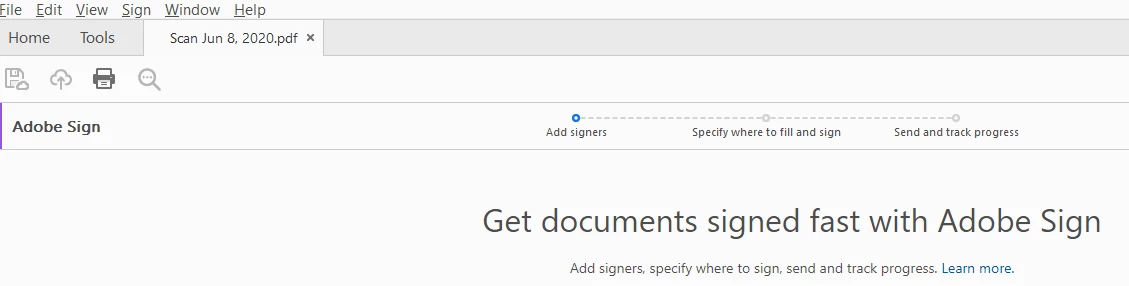
Open a document using Acrobat DC>Sign (from menu)>Request Signature
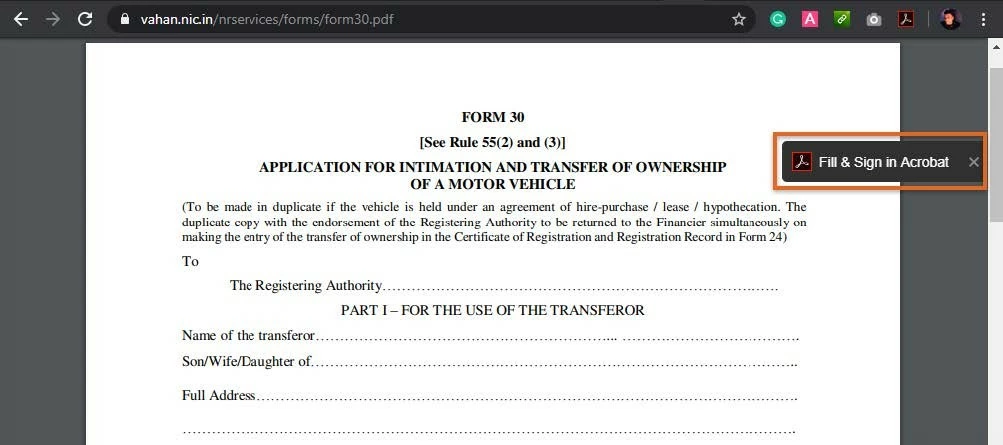
New Fill & Sign in Acrobat option in Google Chrome
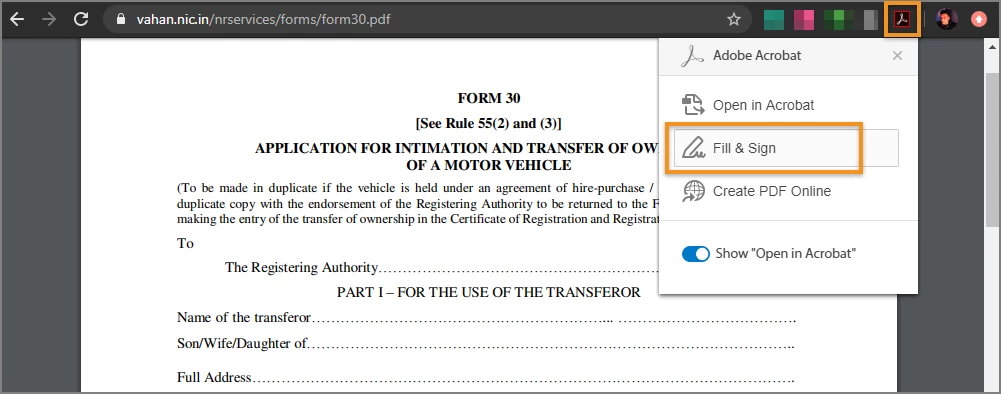
The new Fill & Sign option for Chrome helps you open a PDF form in Acrobat directly from Chrome. When you open an online PDF in Chrome, Acrobat detects if it is a PDF form and displays a persistent Fill & Sign in Acrobat option. To fill and sign the form, do one of the following:
- Click Fill & Sign in Acrobat in the persistent menu.
- Click the Acrobat extension in the top-right corner of the browser window, and then click Fill & Sign.

To know more about the top new features check ours What's new in May 2020 release . For all the features, check this detailed article on What's New in Acrobat DC Any further question in mind?
Join the conversation here. We are listening!
 AdChoices