Correct answer markm88390108

This worked with my Brother 5200DW

  • CONTROL PANEL > PRINTERS > RIGHT CLICK YOUR PRINTER. 
  • Choose PRINTER PROPERTIES (not to be confused with 'printer preferences', or 'properties' at bottom). 
  • Choose the Tab 'DEVICE SETTINGS'
  • Under 'INSTALLABLE OPTIONS' section is a line item 'DUPLEX SETTINGS'.    Change it to INSTALLED
  • Click APPLY.

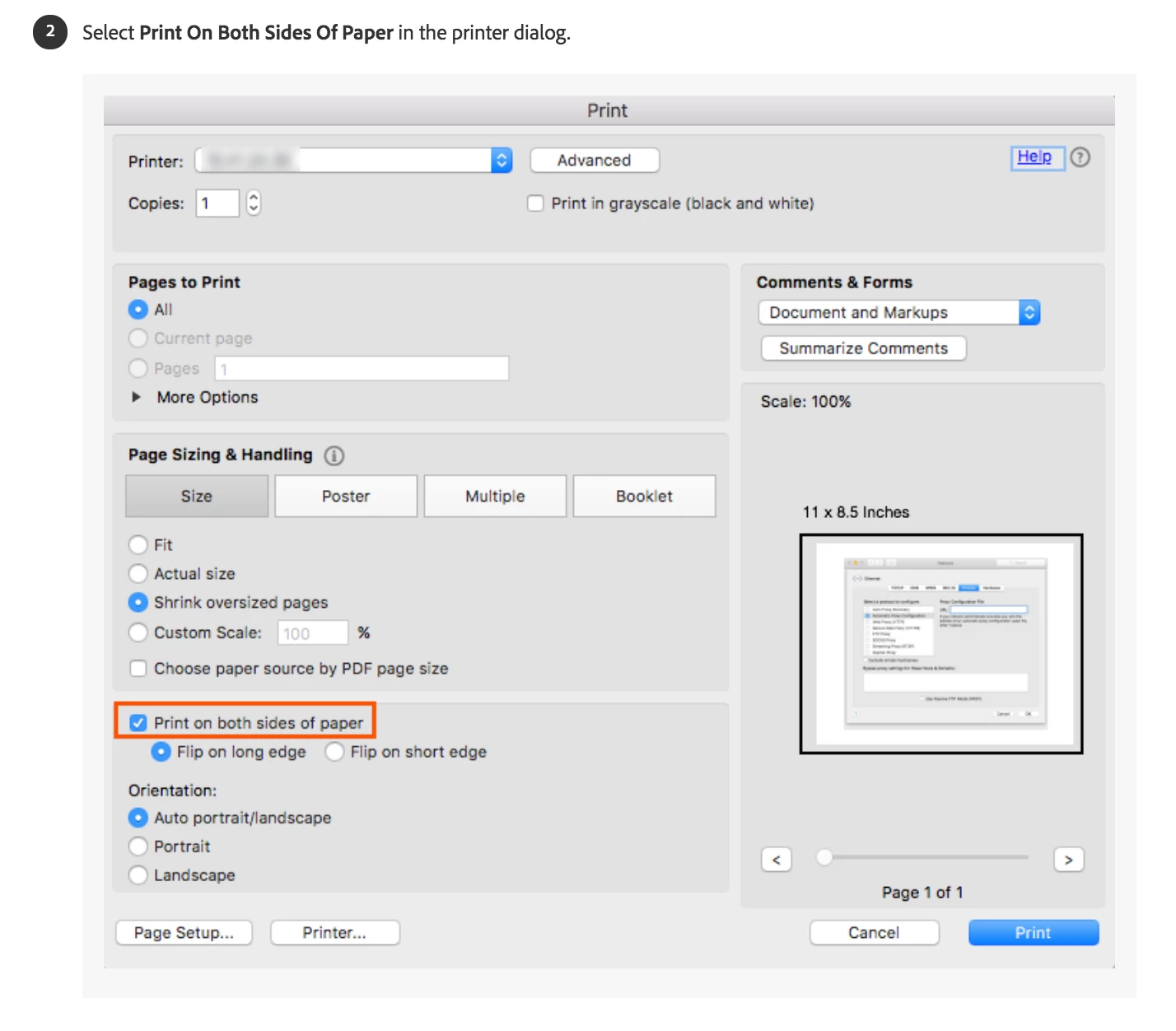
I reopened my PDF and the option was available under the PAGE HANDLING AND SIZING section of the dialog box.

As I said, this worked for me.    But, I did find one other option having to do with double sided printing.  It likely has the correct setting, but if not, there is an option to flip on the long edge or short edge.    Go into Control Panel > Printers >right click your printer > choose Printer Preferences, under 'Print on both sides of paper' there is a drop down options box.


10 replies

Participant
January 4, 2024

Good

Participant
March 9, 2021

Brother  L2520

CONTROL PANEL > PRINTERS > RIGHT CLICK YOUR PRINTER.

Tab > Device Settings > Installable Option > Instaled

OK

After reopen Abobe Acrobar Reader 


ls_rbls
Community Expert
Community Expert
March 10, 2021

Thank you for sharing that feedback.

Joe Needs Help
Participating Frequently
January 15, 2021

I appreciate the kindness of your reply, but this doesn't work.  There is no option on any dropdown, tab, or anywhere else.  Word has no problem giving me an "print double-sided" option for the same printer.  Why is everything so HARD to find on Adobe products?

Participant
May 1, 2020

Finally fixed the duplex printing issue ! Someone said (correctly) that the issue is printer specific - but this wasn't helpful in fixing it.  I have a Brother MFC-L5900DW.  This works for any Brother but should be instructive for anyone.  See this link which is helpful. 

https://help.brother-usa.com/app/answers/detail/a_id/143747/~/missing-the-option-to-print-on-both-sides-of-the-paper---windows-or-macintosh

Basically, you don't see option for double-sided (duplex) printing because it's likely you are using a generic driver for your printer (that was included with Windows).  This WILL work for basic printing but doesn't include advanced options like duplex printing.  To fix, you basically go Control Panel -> View Devices and Printers (under Hardware and Sound) -> then scroll down to Printers, find the Printer you are using, right-click and delete.  This removes the generic driver.  

Then go to the web site for support for your printer manufacturer. (For me, it was support.brother.com)  There should be some kind of search for your printer model.  At that point, you should see different download options.  If avail, I suggest downloading something like "Full Driver & Software Package".  This will usually launch an executable that will basically do everything for you.  Alternatively, you should see something on that download list which will be just the Driver.  If you are more advanced, you can use this.

Now after you do all this ... close Adobe and re-open it.  Go back to Print.  And you should see far more options than before (including printing on two-sides).  If you want even more, click on Print -> Properties.  If you've followed the steps correctly, you will see something that looks very different than the generic option.  This Printer Properties page will likely be built by your Printer manufacturer and will have their name and icon and many options. 


Hope this helps ! 

ls_rbls
Community Expert
Community Expert
May 9, 2020

.

ls_rbls
Community Expert
Community Expert
May 10, 2020

What you're describing is known as the print server Advanced Configuration Options if in a MS Windows machine.


On Linux and other Unix-like operating systems, such as macOS, this print server is  known as the Common UNIX Printing System (CUPS) , which was developed by Apple, but is Open Source software, and you can download and install for free.


Every OS provide users with graphical and command line tools to edit printing configuration  preferences and manage printers in a centralized convenient way.


In the case of CUPS  it can  be accessed via telnet or web browser using Internet Printing Protocol (IPP) .


You type in the URL bar of your browser:


http://localhost: 631 


In the case for those of us who also use MS Windows you need to go to Control Panel-->> Hardware and Sound-->>View Devices and Printers.


Left-click once with your mouse to select the default printer icon.


Look a few lines up in that window, and you'll notice that a new toolbar becomes visible.


Click once with your mouse  on the label "Printer Server properties".


The Print Server Properties dialogue box will open.


You'll be setting up your form in thr "Forms" tab.


Below the list box of forms presets, there is a greyed out blank " Form Name"


Tick the checkbox below that blank "Create a new Form" and you will be able to assign a template name, and down below, there is a section "Form description (measurements)".


There is where you input the correct paper size, and the printer area margins. When you're done editing these preferences click on the "Save Form" button. Then click close.


Go back to Acrobat.


Click on Print, and then click on the "Properties" button.


This will open upthe "Adobe PDF Document Properties" dialogue box.


Click on the "Paper/Quality" tab, below in that box follow by clicking on the "Advanced" button.


We're almost there!


This will open another dialogue box " Adobe PDF Converter Advanced Options".


Below the section "Paper/Output" select from the Paper Size dropdown menu the customized form that you created earlier, and click OK to close that window, click OK to close Document Properties window.


Last, click on "Print".


Now you should be good to go.

Participant
June 12, 2019

I have the same problem, with Windows X, and a Brother DCP-L2540DW series Printer.  I found out the problem was the printer duplex option has not been turned on when installed.  So the solution was to go to Settings -> Devices -> Printers -> Choose the printer -> Manage printer -> then printer properties -> Device Settings -> turn the duplex option to "installed"

Bevi Chagnon - PubCom.com
Legend
June 12, 2019

Depending upon how your printer was set up on your Windows computer, you might have to install the printer's specific drivers to get all of its features available to you in the print dialogue box, including duplexing.

Visit the printer manufacturer's website, look under support, downloads, or something similar, and download and install the drivers for your model of printer.

Remember that printing options are controlled by the printer driver, not any software program including Adobe's. That includes the range of pages to print, scaling, and duplexing.

|    Bevi Chagnon   |  Designer, Trainer, & Technologist for Accessible Documents ||    PubCom |    Classes & Books for Accessible InDesign, PDFs & MS Office |
Participant
June 12, 2019

Sure that make sense.  In my case, everything was already installed, but for some reason the duplex option was not turned on, and I just had to manually turn it on.

lorraineb81406171
Participating Frequently
March 6, 2019

i was able to select two-sided printing in my print dialogue box until yesterday.  now the option is greyed out.  why can i no longer select two-sided printing?  what can i do to re-enable this feature?

AnandSri
Community Manager
Community Manager
March 6, 2019

Hello Lorraineb,

We're sorry for the trouble you had, would you mind sharing a screenshot of the print window where you are getting the greyed out option? To post a screenshot, please refer to https://forums.adobe.com/docs/DOC-7043#jive_content_id_How_do_I_attach_a_screenshot

What is the version of Acrobat installed? To identify, refer to Identify the product and its version for Acrobat and Reader DC

Make sure you have the latest version of Acrobat installed, check for any pending updates from help menu>check for updates, reboot the machine and check.

Install the latest firmware/drivers for the printer.

What is the version of OS installed?

You may refer to the help article and try the suggestions Print double-sided | Adobe Acrobat, Reader DC

Thanks.

Anand Sri.

lorraineb81406171
Participating Frequently
March 7, 2019

Thanks for your reply Anand.  Here's the info you asked for...

I'm using macOS Mojave Version 10.14.3

and I have Acrobat Pro DC version Continuous Release 2019.010.20098


Here's the print dialogue box I get if I print an email:

Here are the print dialogue boxes I get when I try to print a .pdf:

Note that the box to the right opens after I select the (blue button) printer option on the bottom of the box on the left.

I have a new HP OfficeJet 3830 series which has duplexing capability.  Keep in mind I've been printing two-sided no problem until just the other day.  I've read through the article link you supplied.  I don't see anything there that matches what I'm experiencing, and I have re-started my computer and printer.   I've  tried deleting and re-adding the printer in my printer & scanner preferences.  I tried adding it with the HP driver, as well as the AirPrint driver.   I tried looking through my acrobat preferences.  I'm totally stumped.  If you or anyone who reads this is able to shed light on this frustrating situation, I'd be grateful for any input.

Thanks!

mandab98100072
Participant
August 22, 2018

I have tried EVERYTHING to get the Two-sided turned on. As you can tell from my first screenshot, the option under just the "Layout" tab is turned off. However, if you see my second screenshot, under the "Layout/Finish" page, the 2-sided option is selected. I'm not sure how to remedy this and it is causing a massive headache. PLEASE HELP!!!

Inspiring
August 22, 2018

The triangle with the exclamation point may indicate a problem with your printer.

mandab98100072
Participant
August 22, 2018

That is just informing me that the paper is low in another tray. Doesn't have an affect on this option.

markm88390108Correct answer
Participant
January 30, 2018

This worked with my Brother 5200DW

  • CONTROL PANEL > PRINTERS > RIGHT CLICK YOUR PRINTER. 
  • Choose PRINTER PROPERTIES (not to be confused with 'printer preferences', or 'properties' at bottom). 
  • Choose the Tab 'DEVICE SETTINGS'
  • Under 'INSTALLABLE OPTIONS' section is a line item 'DUPLEX SETTINGS'.    Change it to INSTALLED
  • Click APPLY.

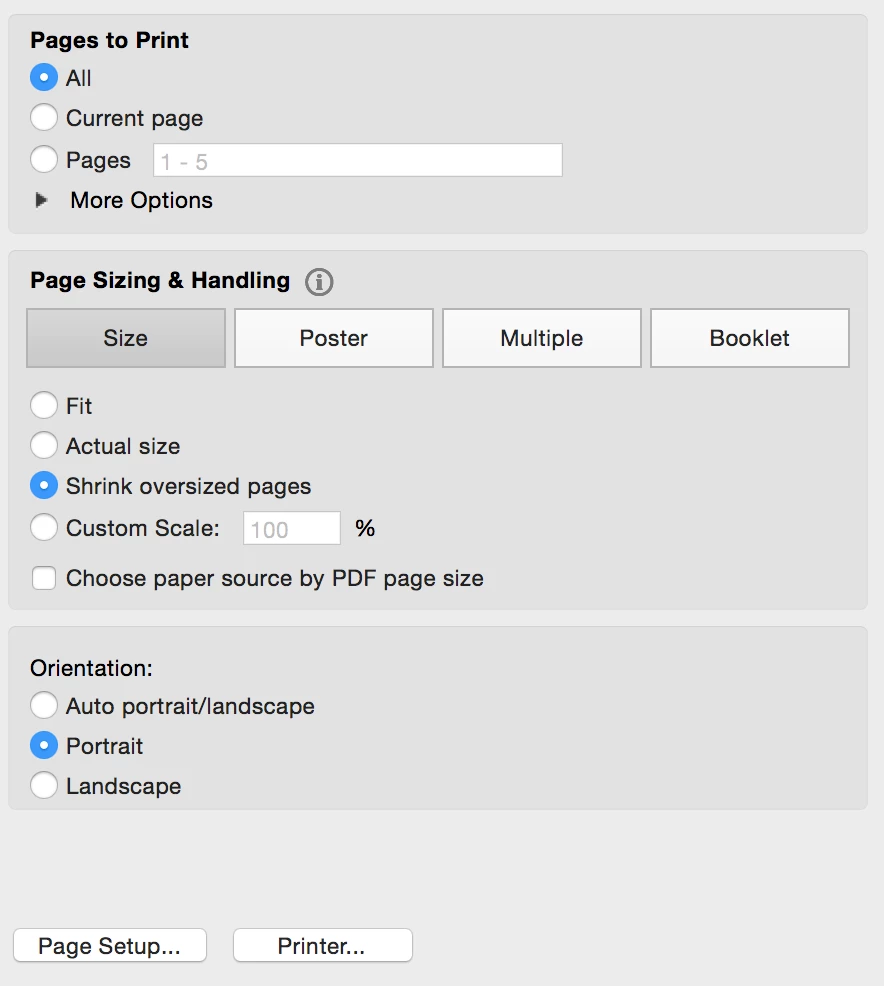
I reopened my PDF and the option was available under the PAGE HANDLING AND SIZING section of the dialog box.

As I said, this worked for me.    But, I did find one other option having to do with double sided printing.  It likely has the correct setting, but if not, there is an option to flip on the long edge or short edge.    Go into Control Panel > Printers >right click your printer > choose Printer Preferences, under 'Print on both sides of paper' there is a drop down options box.
christophk88071689
Participant
May 19, 2018

Logged in just to say thanks! Worked and spared me a lot of time.

(Also Brother Printer user)

Chris

Inspiring
December 15, 2017

This feature is very dependent upon the printer and one needs to access the properties of the printer. Click on the "Advanced" button next to the printer name to bring the operating systems interface pop-up for the printer and set the printer's option for duplex printing.

AnandSri
Community Manager
Community Manager
December 15, 2017

Hello cynthiab89927365

Sorry for the delay in response to your query and apologize for the inconvenience caused. Please refer and try the troubleshooting steps from the folloing KB docs which discusses the similar issue In Acrobat Pro DC, I do not have the option for duplex printing on my mac. Any suggestions?

Menu option for "print on both sides" not displayed

You may also refer to Resolve issues with duplex printing in Acrobat or Reader 10.1.2

Print double-sided | Adobe Acrobat, Reader DC

Let us know how it goes.

Regards,

Anand Sri.