Participant
August 25, 2024
Answered

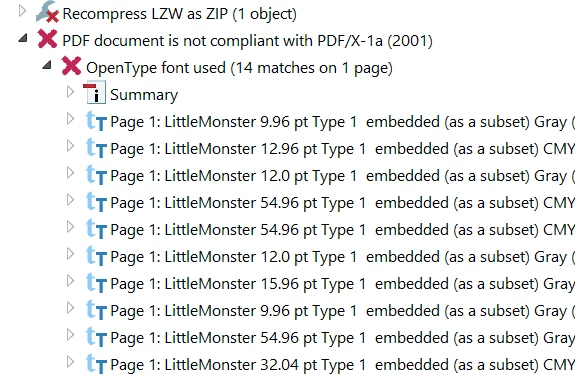
Not compliant with PDF X-1a Open type font

  • August 25, 2024
  • 1 reply
  • 964 views

Hi,


I have a book cover which uses an open font which is embedded BUT when I try to create a PDF X-1a I get an error message saying that the PDf isn't compliant with PDF X-1a and when I click on that, the reason given is that an open type font is used.

Any idea how I can fix this is gratefully received.

Thank you!

This topic has been closed for replies.
Correct answer S_S

Hi @sarah_8671,


Hope you are doing well. Sorry for your experience with Acrobat!


I tried checking the same workflow with a file that uses Type 1 font, but I couldn't see a similar error. 

What I suspect here is the embedding of the font. 


Would you mind trying out the below steps:

1. Open the file;

2. Go to Menu-> Print-> change the printer to "Adobe PDF;"

3. Click "Properties;"

4. Click Edit to the right of default settings;

5. On the next window, click on Font on the left side;

6. Make sure the option "Embed OpenType Fonts;"

7. Click OK and save the new print settings file.

8. Use the newly saved default settings and save the PDF.

9. Now open the new PDF and check for compliance again.

[screenshot attached for reference]


If this does not help, please share the file with me so I can try to reproduce and get back to you with a solution.


-Souvik

1 reply

S_S
Community Manager
S_SCommunity ManagerCorrect answer
Community Manager
August 25, 2024

Hi @sarah_8671,


Hope you are doing well. Sorry for your experience with Acrobat!


I tried checking the same workflow with a file that uses Type 1 font, but I couldn't see a similar error. 

What I suspect here is the embedding of the font. 


Would you mind trying out the below steps:

1. Open the file;

2. Go to Menu-> Print-> change the printer to "Adobe PDF;"

3. Click "Properties;"

4. Click Edit to the right of default settings;

5. On the next window, click on Font on the left side;

6. Make sure the option "Embed OpenType Fonts;"

7. Click OK and save the new print settings file.

8. Use the newly saved default settings and save the PDF.

9. Now open the new PDF and check for compliance again.

[screenshot attached for reference]


If this does not help, please share the file with me so I can try to reproduce and get back to you with a solution.


-Souvik
Participant
August 26, 2024
Hi Souvik,

Thanks so much for your speedy response - it worked - whoop!

No more hair ripping out for me!

Thanks again

Sarah
S_S
Community Manager
Community Manager
August 26, 2024

@sarah_8671 Thanks for letting us know that it worked.


Marked the answer as correct for future users to use as a reference.


-Souvik