Hello @default29009325h37oo6,
I hope you are doing well, and thanks for sharing the details. We're sorry for the trouble you had.
The Acrobat version you have mentioned, 2023.006.2038, is an old version. Could you please share a screenshot of the Acrobat and the version from Menu/Help > About Adobe Acrobat? Check the version details and the type, i.e., Continuous or Classic. And share the details with us.
You’re on InDesign 21.3 and Acrobat 2023.006.2038. Adobe’s current InDesign release notes list the latest builds, and Acrobat’s current desktop release notes are updated for the June 2026 release stream. Can you please update both the apps, and check the workflow again.
Suggestions:
Since you used Layout > Table of Contents, keep that workflow and regenerate/update the TOC from InDesign rather than manually editing the TOC text in Acrobat. Adobe’s current TOC workflow says to generate the TOC with Layout > Table of Contents and update it with Layout > Update Table of Contents; it also notes that each TOC is its own story/text frame, so avoid threading the TOC frame into other text stories. Check this article for more details: https://adobe.ly/3RjilMn
For the TOC entry paragraph style, leave the PDF export tag at [Automatic] while testing. Do not change the TOC entry style to a normal one P or heading tag as a workaround. Acrobat’s standard PDF tags include dedicated TOC, TOCI, and Link elements, and the TOC needs that more specific structure rather than being forced into ordinary paragraph tagging. Adobe’s InDesign accessibility guidance also treats tables of contents, bookmarks, hyperlinks, and cross-references as navigation elements for accessible PDFs. Check these articles for more details: https://adobe.ly/3RhdtHC
https://adobe.ly/3U1gJaJ
Double-check the Articles panel setting, not just that the TOC is in the panel.
In InDesign, go to Window > Articles, confirm the TOC object is in the correct reading position, then open the Articles panel menu and make sure Use for Tagging Order in Tagged PDF is selected. Adobe documents this exact setting for using the Articles panel as the tagging/reading order source when exporting a tagged PDF.
Note: You may get in touch with the InDesign community team as well to confirm the steps.
Export a fresh Interactive PDF with tagged PDF enabled.
Use File > Export > Adobe PDF (Interactive). Adobe’s current interactive TOC workflow says to export as Adobe PDF (Interactive) so the exported TOC contains interactive links. In the interactive PDF export options, keep Create Tagged PDF enabled. Use Structure for Tab Order is available only for tagged PDFs and applies the tab order specified through Object > Interactive > Set Tab Order, so it is worth keeping on, but it is not specifically documented as a fix for repeated screen-reader link announcements
Inspect the actual tag tree in Acrobat, not only the Reading Order overlay.
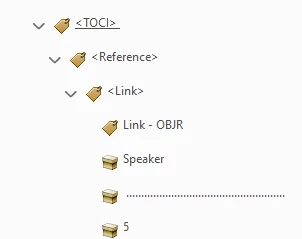
In Acrobat Pro, open the tag tree from the menu path Adobe documents for the Tags panel: hamburger menu on Windows / View menu on macOS > Show/Hide > Side Panels > Tags. Expand the TOC area and check whether the TOC is represented with TOC / TOCI / Link structure and whether the page number text is actually present in the tagged content for that TOC item. The screen readers use the logical structure of tree/tags to determine reading order and interpretation.
Run Acrobat’s Accessibility Check, then manually review the link/tag results.
In the current Acrobat UI, use All tools > View more > Prepare for accessibility > Check for accessibility. Please note that the checker can report Passed, Skipped, Needs Manual Check, or Failed, and that some items require manual verification. For this issue, I’d specifically review Tagged PDF, Tagged content, Tagged annotations, Accessible links, and Logical reading order.
Try these suggestions, and let us know how it goes.
If the issue continues, please share the current version of Acrobat (latest), InDesign, the OS details, the files through which you are able to reproduce the issue. So that we can replicate the environment and test it.
Regards,
Anand Sri.





 AdChoices