Participant
February 10, 2021
Answered

OCR capabilities

  • February 10, 2021
  • 1 reply
  • 1477 views

I have just subscribed to Adobe Acrobat PRO with big expectations on its OCR capabilities, but instead I am getting dissapointed fast. When aplying "enhace" to an existing B&W scanned .pdf  document, Acrobat does recognize the text, but I was expecting that it woud make possible to completely substitute the old text by the new version. However, the old text remains there completely uneditable and unremovable. I have being playing with some of the settings like "background Removal" > high, but no change is noticable.  I would apreciate any small advice in case I am missing something. Thanks!



This topic has been closed for replies.
Correct answer gary_sc

Hi Funn5C09,


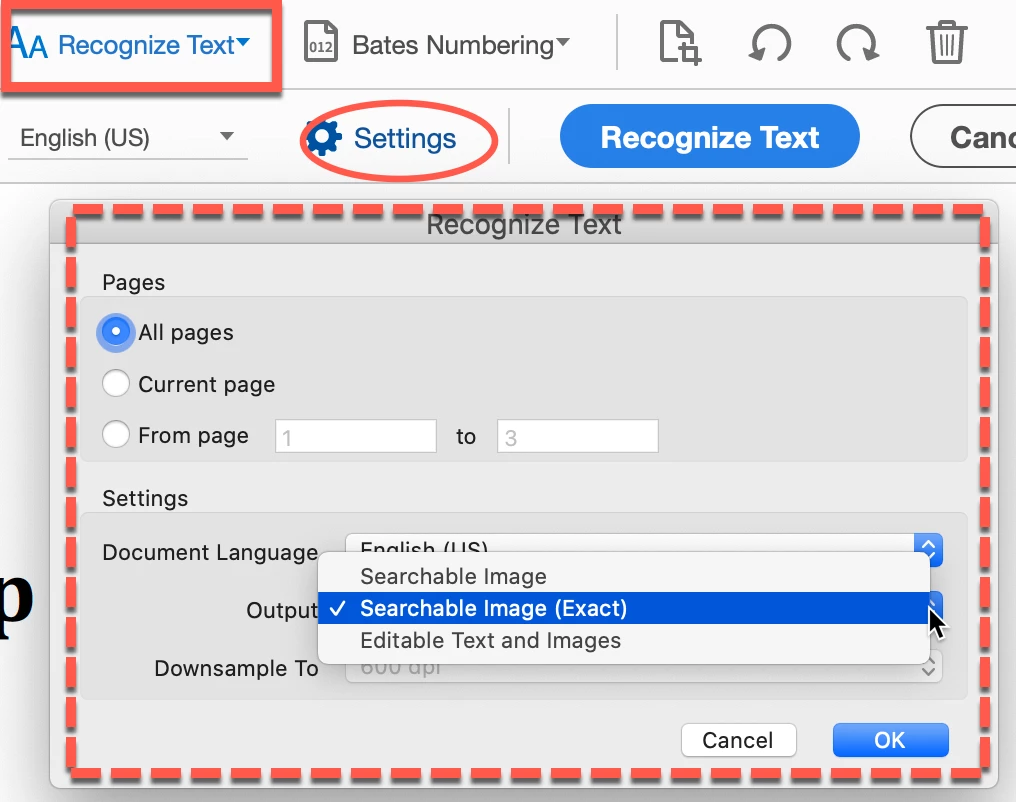
It looks like you have the 3rd selection in the Settings for Recognizing text. One place you can locate this is if you go to the Edit mode and click on the Aa Recognize Text (in the rectangle), then click on Settings (in the oval) which brings you the place to set your options (dashed rectangle).

Specifically, the difference between Searchable and Searchable (exact) is that the latter provides maximum fidelity to the original and may take more time (the plus and minus). My guess is that you have the third option selected which synthesizes a new custom font that closely approimates the original. 


So try the first or selected option and see how that works.


BTW, getting a GREAT scan is part of getting better OCR results. You may want to go through this blog I wrote for Adobe on how to get a good result. You might find something of value.


http://photosbycoyne.com/Gary's_Help/Scanning/clean-scanning.html

1 reply

gary_sc
Community Expert
gary_scCommunity ExpertCorrect answer
Community Expert
February 11, 2021

Hi Funn5C09,


It looks like you have the 3rd selection in the Settings for Recognizing text. One place you can locate this is if you go to the Edit mode and click on the Aa Recognize Text (in the rectangle), then click on Settings (in the oval) which brings you the place to set your options (dashed rectangle).

Specifically, the difference between Searchable and Searchable (exact) is that the latter provides maximum fidelity to the original and may take more time (the plus and minus). My guess is that you have the third option selected which synthesizes a new custom font that closely approimates the original. 


So try the first or selected option and see how that works.


BTW, getting a GREAT scan is part of getting better OCR results. You may want to go through this blog I wrote for Adobe on how to get a good result. You might find something of value.


http://photosbycoyne.com/Gary's_Help/Scanning/clean-scanning.html

Funn5C09Author
Participant
February 16, 2021

Gary, thank you very much for your useful tips. It helped me a lot!