Jacob McCredie LP
Participant
April 9, 2026
Answered

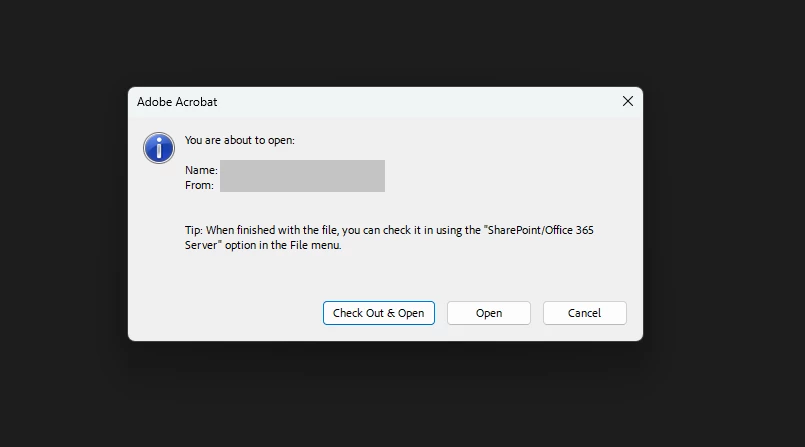
Opening SharePoint documents prompts to check out

  • April 9, 2026
  • 1 reply
  • 185 views

We previously were able to disable this prompt with the settings described in this post:

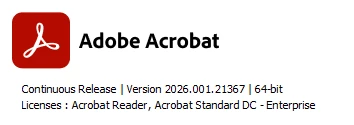
But this is no longer working anymore as of version 2026.001.21367
 

Is there a way to have Acrobat to default to the “open” option? Then we can checkout and update the document if edits are made?

    Correct answer Souvik Sadhu

    Hi ​@Jacob McCredie LP,


    Hope you are doing well. Thanks for writing in!


    Have you tried the steps below:

    • Go to your SharePoint site
    • Open the Document Library 
    • Click the Settings (gear icon) in the top-right
    • Select Library settings
    • Click Versioning settings
    • Find the option:
      “Require documents to be checked out before they can be edited?”
    • Select No
    • Click OK / Save

    Working with these settings would need Owner or Admin permissions. Also, this change applies to the entire document library. Once disabled, users can edit files without checking them out and Acrobat’s “Check Out & Open” prompt will disappear.


    In case you don’t see Library settings, you can try the below settings:

    • Click Settings
    • Choose Library settings or More library settings
      • If not visible, try Settings > Site contents > open the library > Settings.

    Info about this is available here.


    Note: Before disabling, confirm with your team because check-out is used to prevent simultaneous edits. Also, if versioning is enabled, you can safely disable check-out in most cases since version history still tracks changes.


    Let me know if this helps.


    Regards,

    Souvik

    1 reply

    Souvik Sadhu
    Community Manager
    Souvik SadhuCommunity ManagerCorrect answer
    Community Manager
    April 10, 2026

    Hi ​@Jacob McCredie LP,


    Hope you are doing well. Thanks for writing in!


    Have you tried the steps below:

    • Go to your SharePoint site
    • Open the Document Library 
    • Click the Settings (gear icon) in the top-right
    • Select Library settings
    • Click Versioning settings
    • Find the option:
      “Require documents to be checked out before they can be edited?”
    • Select No
    • Click OK / Save

    Working with these settings would need Owner or Admin permissions. Also, this change applies to the entire document library. Once disabled, users can edit files without checking them out and Acrobat’s “Check Out & Open” prompt will disappear.


    In case you don’t see Library settings, you can try the below settings:

    • Click Settings
    • Choose Library settings or More library settings
      • If not visible, try Settings > Site contents > open the library > Settings.

    Info about this is available here.


    Note: Before disabling, confirm with your team because check-out is used to prevent simultaneous edits. Also, if versioning is enabled, you can safely disable check-out in most cases since version history still tracks changes.


    Let me know if this helps.


    Regards,

    Souvik