I have looked and played with the action list steps, but have not had a breakthrough. It works on some files automatically, other files require a manual cut/paste of the text that is selected after running the second action. It is certainly a puzzle, just one that I can’t crack at this time.
OK, it has taken me a while as I am new to scripting, however I now have a fallback plan. I originally wanted to add the trim info into document properties metadata using PitStop Pro, however there appears to be a maintenance issue which Enfocus are now aware of…
Step 1: So the fallback plan is to add the trim box info as metadata using an Acrobat Pro javascript. Before imposition, run the following script on the 1up file. The script could be run in any number of ways, I tested with an Acrobat Action, then settled on installing it into the File menu instead:
//Add trim size to document title.js
//Acrobat Pro javascript
//https://forums.adobe.com/message/10778492
//https://forums.adobe.com/thread/1246108
function TrimInfo(){
var aRect = this.getPageBox("Trim");
var width = aRect[2] - aRect[0];
var height = aRect[1] - aRect[3];
this.info.title = ("Trim: " + Math.round(width*0.3528) + " mm x "
+ Math.round(height*0.3528) + " mm");
}
app.addMenuItem ({cName: "Add trim size to title", cParent: "File", cExec: "TrimInfo()" });
The installation path would be similar to:
C:\Program Files (x86)\Adobe\Acrobat DC\Resource\Javascripts\
/Applications/Adobe Acrobat DC/Adobe Acrobat.app/Contents/Resources/JavaScripts
Then one would run the script from the foot of the File menu:
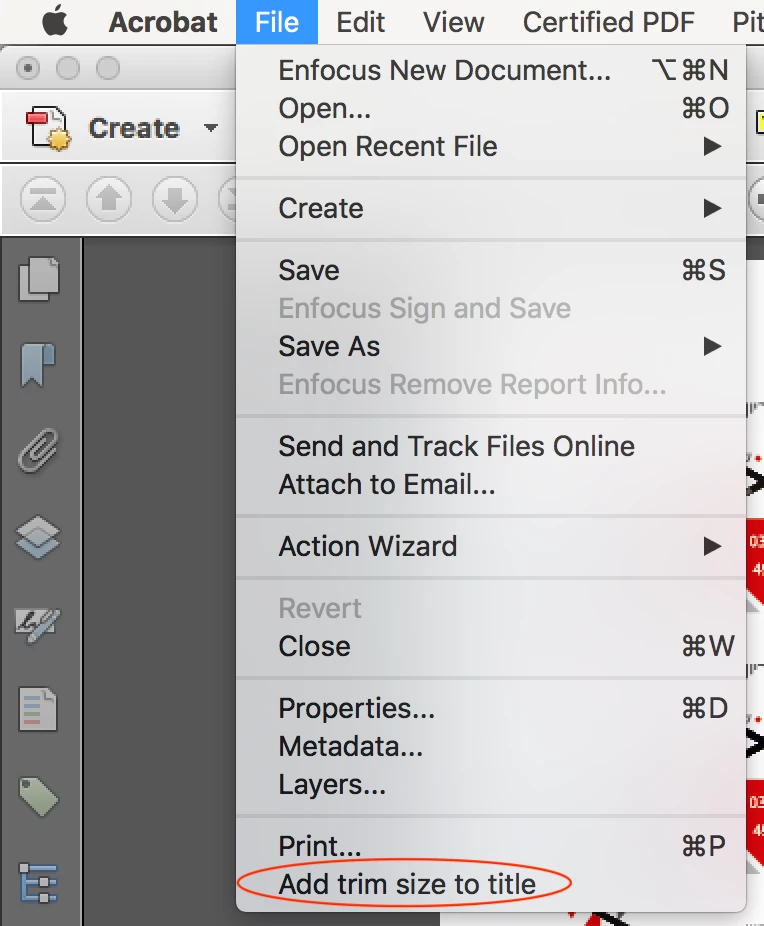
Note: it is presumed that the input file is either a single page or if multi-page, that all pages have the same trimbox size.
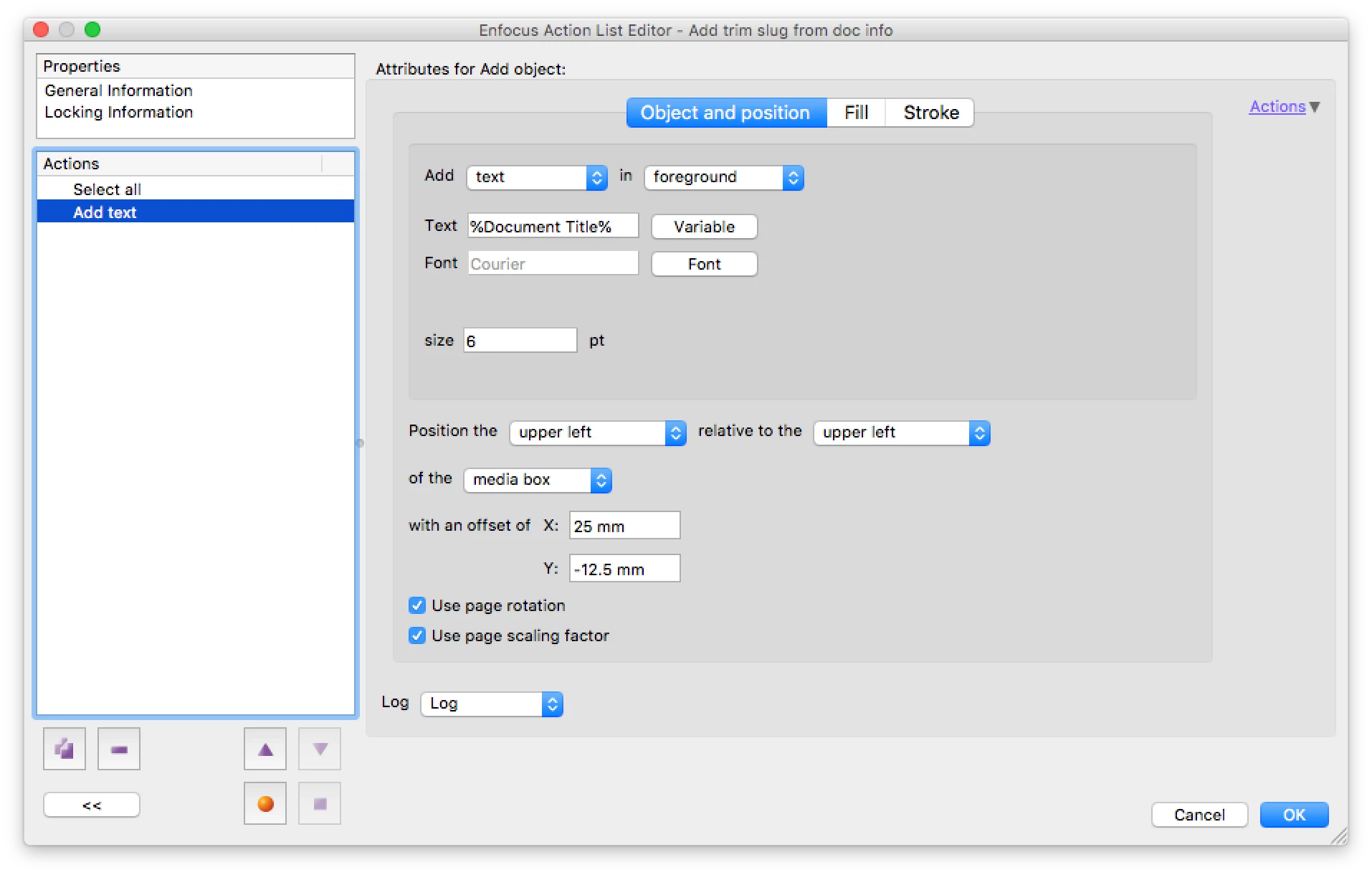
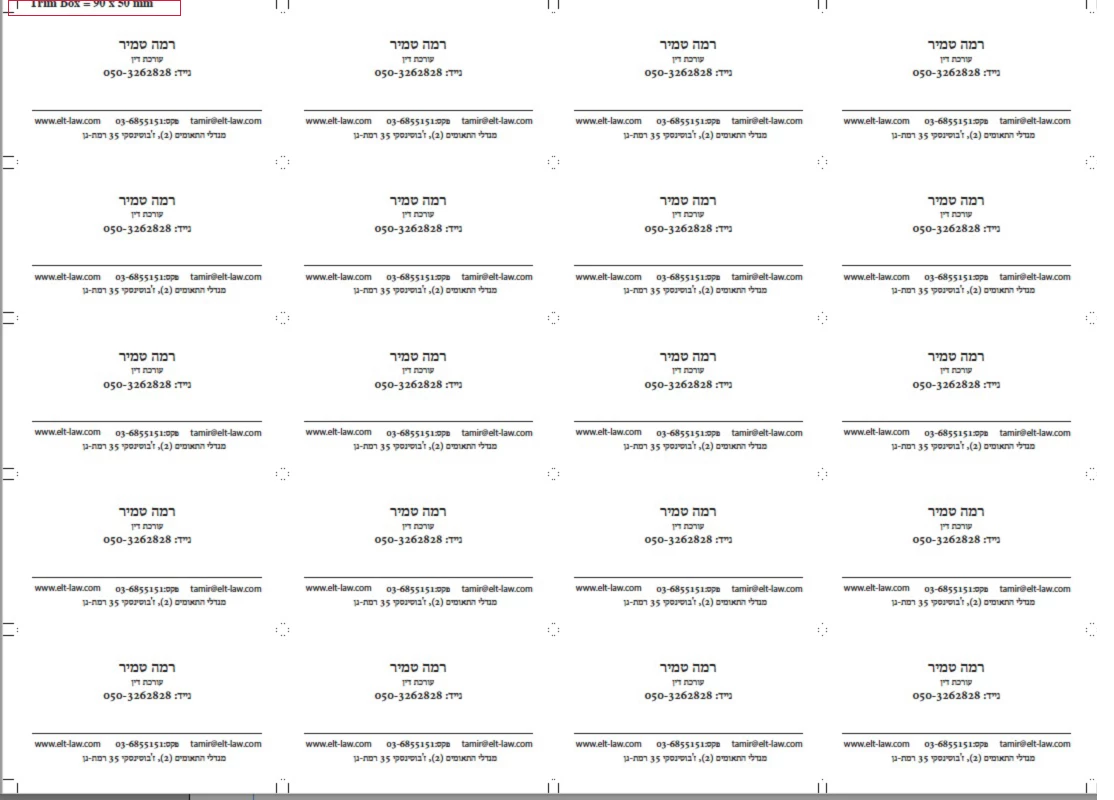
Step 2: After imposing with Quite Imposing Plus, a simple PitStop Pro Action List then adds the text from the document properties as a text slug on the upper left of the file.
The final result:

Enjoy!
P.S. If anybody can share code to add the text slug using an Acrobat script, then that would be fantastic!

 Hi.
Hi. AdChoices