
Participant
August 7, 2017
Answered

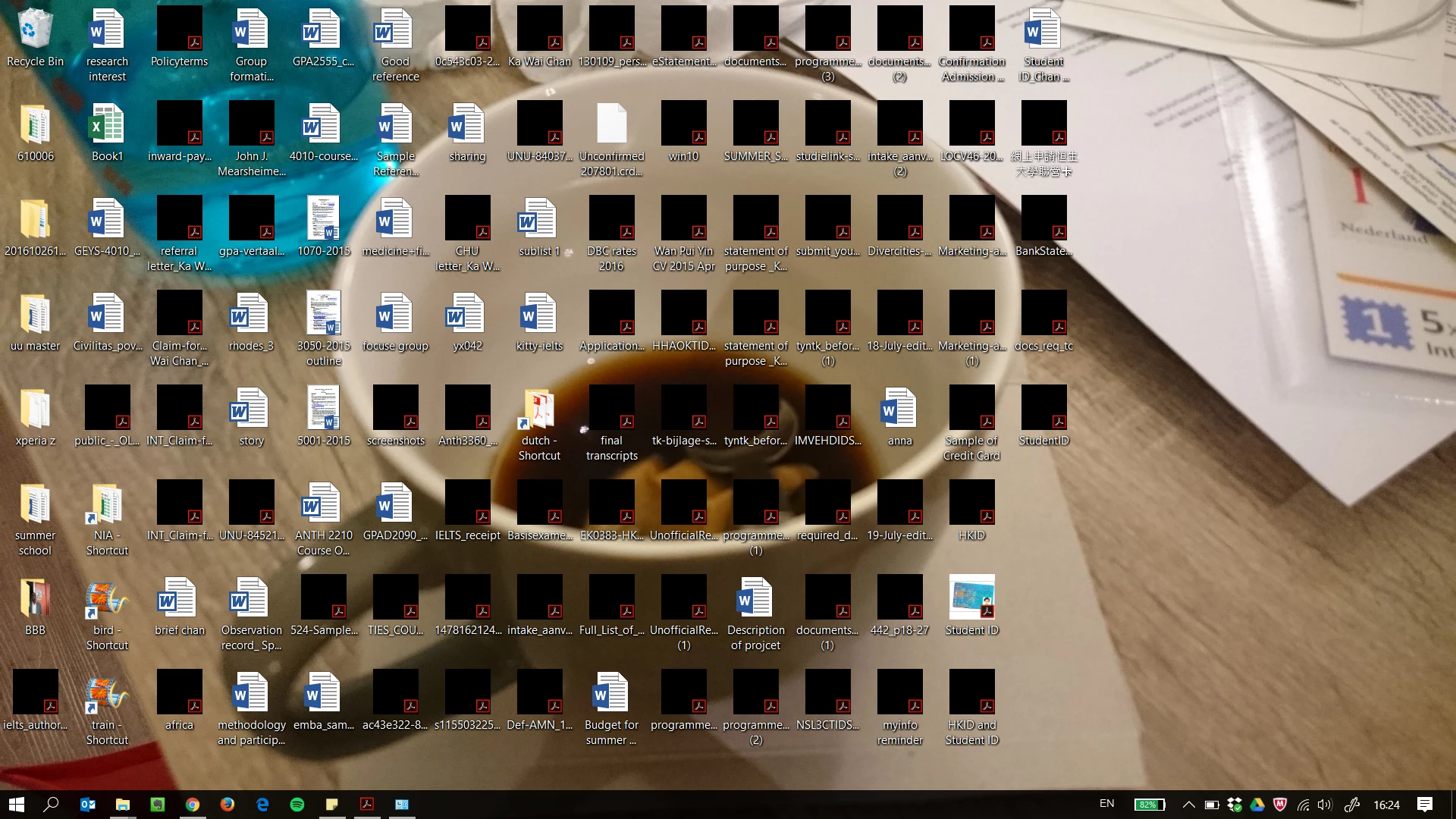
pdf icons on desktop turn into black squares

  • August 7, 2017
  • 15 replies
  • 195086 views

hi,

im using Windows 10 home and the latest version of Adobe Acrobat Reader DC on my Thinkpad X1 carbon. Since i bought this laptop, the icons of pdf files on desktop have turned into black squares (see picture). This problem is solved temporarily by refreshing the desktop, but it happens again when I restart the laptop. Can anyone fix it? Thanks
Correct answer Alan F 2.0

So I have tried many of these and they may all work for you. Mnay did not work for me. Your problem is that you are all looking to fix the symptom. I have fixed the cause. This black icon, for me at least, is generated because i have three monitors and two of them are 4K. The black iocns are generated because of the different screen resolutions. Match the screen resolutions and reboot. Probelm solved. Guessa who's getting that third 4K monitor!


15 replies

Participant
December 10, 2020

Hi,


I hope you sorted it in the meantime... It happened exactly the same to me after enabling "show pdf previw" from the generale preference in Acrobat Reader. I just sorted unticking it (which unistall the add-on apparently), I reenaled it and still did not work, but did when I simply manually refreshed (right click - refresh) the desktop and all PDF icons reset and show the preview of the PDF. 


Hope it works for you too.

Cheers! 

Participant
September 28, 2020

**FINALLY FOUND THE FIX, NOT THE WORKAROUND**


-I had an issue where the icons on the desktop for PDF files were simply a black square. No small preview of the document, nor the traditional Adobe icon.


Upon further research it appears that a clearing of the thumbnails cache is necessary to fix the problem.

-you do NOT need to select always show icons, never thumbnails as that will be system wide and just show what program is going to open file, no thumbnail

-if you previoiusly selected Always show icons never thumbails then DE-SELECT this before applying this fix.


To do this, launch the Disk Cleanup Wizard go to Control Panel >> Administrative Tools >> Free Up Disk Space By Deleting Unnecessary Files.

Once launched, scroll down the list to make sure that "Thumbnails" is checked" and apply and then close and go to you Desktop --> right click and refresh.. BOOM everything works-


Participant
February 13, 2021

This did the trick for me. Thank you! Tried so many other solutions that did not work.

Jure_NEVROmedia
Participating Frequently
February 17, 2018

The problem was probably caused by CC desktop failed to install due to error 301.

Remove CC desktop via CC cleaner tool. Uninstall Acrobat, install CC desktop and install Acrobat again. restart.

Voila.

DNK why I get errors with CC desktop updates, but if I get problems with any app the first thing is to check Creative Cloud desktop app (or some unnecessary update in one of them).

Mrraj
Adobe Employee
Adobe Employee
August 31, 2017

Hi Kittych,

Can you try this workflow once.

Please repair Acrobat Reader in you system. Go to Control Panel >> In top most corner you can see "View By" in which you can select Category then you need to click on "Uninstall a Program" under Programs in below left corner.

Once you land on "Uninstall or change Program" Page select Acrobat Reader and click on "Change" . Adobe Setup Dialog box appear click on Next and when its done with repair click "Finish".

Relaunch Reader and "Enable PDF Thumbnails" and check preview in Desktop.

Lets us know whether this solved your problem or not.

Thanks,

mrraj
kittychAuthor
Participant
September 1, 2017

unfortunately it doesn't work.

gmpeet
Participating Frequently
September 10, 2017

I had the same issue. Found a solution.

If you check "Enable PDF thumbnail previews in Windows Explorer" in Adobe Reader DC (latest version at the time of writing) and you put a PDF on the desktop, the thumbnail should only show the representation of your PDF (left) and not PDF on a white background (right).

If it shows the PDF on a white square background, chances are it will turn black on you.

I did the following.

1 - Start Adobe Reader DC and uncheck "Enable PDF thumbnail previews in Windows Explorer"

2 - I logged out and the back in Windows 10.

3 - Place a PDF to your desktop. It should show the PDF icon and not the miniature representation.

4 - I installed the Adobe Reader 64 bit fix from here: https://www.pretentiousname.com/adobe_pdf_x64_fix/

5 - Rebooted Windows 10

6 - Start Adobe Reader DC and check "Enable PDF thumbnail previews in Windows Explorer"

7 - Now the PDF's should look like this:

It looks like an Alpha channel issue

Dave__M
Community Expert
Community Expert
August 7, 2017

I would be curious to know in what application your PDF files open if you double click one of those black icons on your desktop.  Is it possible that your default PDF program has been changed away from Reader or Acrobat?  If so, this is easily fixed by right clicking one of the PDF icons, choosing Open with, clicking on 'Choose another app' at the bottom of the list, selecting Reader (or Acrobat Pro), and making sure the 'Always use this app to open .pdf files' option is enabled at the bottom.

If the default pdf app has not been altered, I'll see if maybe I can track down another fix.

My best,

Dave

kittychAuthor
Participant
August 8, 2017

Hi Dave,

The default app is still Adobe Acrobat Reader DC. There is a Acrobat icon at the right bottom of the black square.

Kitty

Dave__M
Community Expert
Community Expert
August 9, 2017

The next thing I would check would be to go into Reader, and open up the Preferences (Edit>Preferences, or Ctrl-K). Click on the General category on the left, and ensure the "Enable PDF thumbnail previews in Windows Explorer" is enabled.  If it is not, turn it on and see if this fixes your issue.

My best,

Dave