Ive replaced my printer, and since installing, all my PDFs only print in colour, when greyscale is picked. Ive uninstalled the printer and Adobe Acrobat and reinstalled, and no changes. The print preview stays in colour as well. Im running Windows 11.
Ive contacted Canon, and they seem to think its Adobe that isnt working properly, because when I open a PDF in Chrome or Edge, or even try printing anything else, greyscale works.
Was on with a tech from Adobe this morning, but still not working.
Tried several other trouble shooting I can find online, but still not working.
I don’t have a color printer in-house, but maybe I can help you narrow this down a little bit.
Right now I’m on my Mac, so I’m offering screen captures from my Mac Mini M4 system, poking around that interface and illustrating my (somewhat altered) settings to illustrate what we’re talking about:
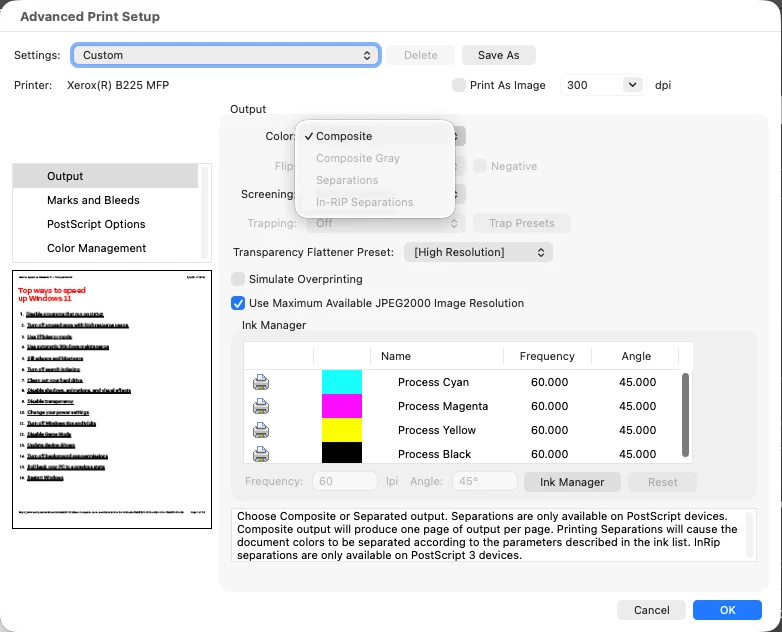
Click the Advanced button next to the Printer: options box showing in your Acrobat print screen. In the Output section of my Acrobat DC Pro print screen, I’m showing the options for printing Composite (CMYK color), Composite Grey, Separations and In-RIP Separations in the Color: options box. Have you tried changing these settings to get different results?
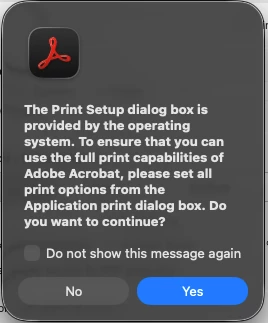
The next stop would be to click on the Printer… button at the lower-left of the Acrobat print screen. When you do that, it will show the alert window above. In this case, you do want to continue to sleuth the issue and click the Yes button.
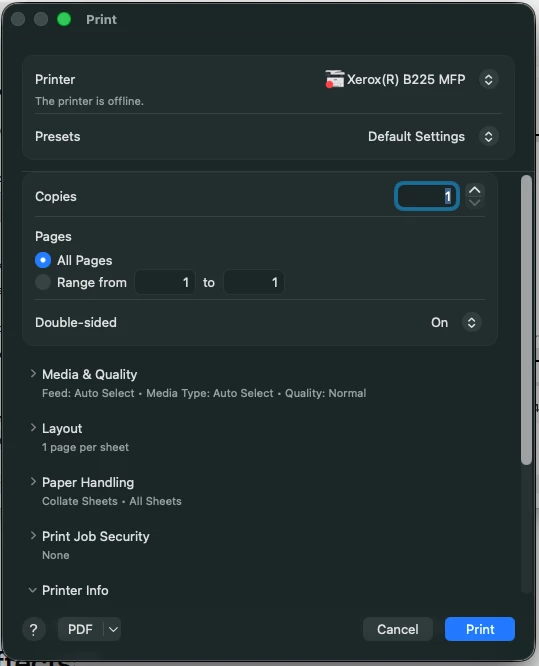
From here, you should find an option to change between Color and Grayscale, or it might be hidden in the Printer Info section. Give that a try and let us know if that makes a difference.
Finally, we can go direct to Settings, scroll down to the bottom Since I only have a grayscale printer in my studio, I can’t show you exactly what your printer settings will look like here. Select the Printers & Scanners section, then double-click on the printer driver you want to check on and see if you have the option to choose between Color and Grayscale here. If you can, make your choice and go back to Acrobat and try the various color switches again.
With Windows the process is much the same, with one additional caveat: you want to check both the Windows Settings panel and the Windows Control Panel. Both have granular controls to affect your printer driver defaults, and you may find that one (generally the Control Panel, but not always) offers more/different control settings than the other. So I’d try them both.
Please give these settings a good once-over and get back with us. If you’re still having issues, it’d help if you could share screen captures to show us what you’re seeing on your system and what results you may get. It’ll help us a lot as we try to assist you by long distance.
i checked the advance preferences for both the printer and adobe, and I dont see an option to change from color to b/w. Maybe Im not in the right place.. went to “printers/scanners” then clicked on the device, checked both preferences and properties. I did however, click the greyscale option previously, and nothing changed.
I don’t have a color printer in-house, but maybe I can help you narrow this down a little bit.
Right now I’m on my Mac, so I’m offering screen captures from my Mac Mini M4 system, poking around that interface and illustrating my (somewhat altered) settings to illustrate what we’re talking about:
Click the Advanced button next to the Printer: options box showing in your Acrobat print screen. In the Output section of my Acrobat DC Pro print screen, I’m showing the options for printing Composite (CMYK color), Composite Grey, Separations and In-RIP Separations in the Color: options box. Have you tried changing these settings to get different results?
The next stop would be to click on the Printer… button at the lower-left of the Acrobat print screen. When you do that, it will show the alert window above. In this case, you do want to continue to sleuth the issue and click the Yes button.
From here, you should find an option to change between Color and Grayscale, or it might be hidden in the Printer Info section. Give that a try and let us know if that makes a difference.
Finally, we can go direct to Settings, scroll down to the bottom Since I only have a grayscale printer in my studio, I can’t show you exactly what your printer settings will look like here. Select the Printers & Scanners section, then double-click on the printer driver you want to check on and see if you have the option to choose between Color and Grayscale here. If you can, make your choice and go back to Acrobat and try the various color switches again.
With Windows the process is much the same, with one additional caveat: you want to check both the Windows Settings panel and the Windows Control Panel. Both have granular controls to affect your printer driver defaults, and you may find that one (generally the Control Panel, but not always) offers more/different control settings than the other. So I’d try them both.
Please give these settings a good once-over and get back with us. If you’re still having issues, it’d help if you could share screen captures to show us what you’re seeing on your system and what results you may get. It’ll help us a lot as we try to assist you by long distance.
That’s not unusual. You may want to check how your printer is set up through your operating system, as print driver settings are usually fed first from your computer to your printer, and can override printer settings for individual — or multiple — applications.
I’d bet you a nickel that the default setting for your printer driver is set for color output. That’s why you’d buy a color printer, right?
Try this:
Go to your print driver settings in your OS settings.
Change the default from “Color” to “B/W.”
Restart your computer to lock in your OS settings.
Go back to Acrobat and try to print your monochrome job again, see if it works or if you still get color output.
If you get the desired result, try printing a color job and switching the print settings to “Color.”
If both jobs print in grayscale, you know the culprit and where you need to fix the problem. If one prints in grayscale and the other prints in color, you have your solution. If both still print in color, after you switched the OS print driver settings, I’d be surprised. But if that happens, feel free to come back here and sound the alarm. We’ll help any way we can.




 AdChoices