melanie_1280
Participant
February 11, 2026
Answered

PDF mit Kommentaren ausdrucken

  • February 11, 2026
  • 1 reply
  • 8 views

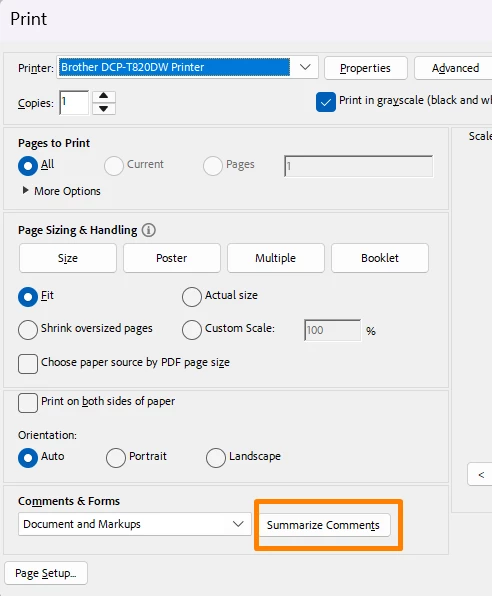
Ich möchte eine PDF-Datei mit Kommentaren so ausdrucken, dass auf der linken Seite des Ausdruckes die PDF-Seite abgebildet ist und rechts die Kommentare aufgelistet sind. Aktuell bekomme ich das nur so hin, dass die Kommentare auf einer separaten Seite (siehe Screenshot) aufgelistet sind. In Word gibt es eine ähnliche Funktion (siehe Screenshot). Vor einigen Jahren habe ich eine Tastenkombination dafür gekannt, diese habe ich leider vergessen… Wer hat eine Idee? 

    Correct answer AnandSri

    Hello ​@melanie_1280 


    I hope you are doing well, and thank you for reaching out.


    Please note that as of now, the Acrobat does not support printing a PDF page on the left and the full comment text in a right-hand column on the same printed page (like Microsoft Word’s “Print Markup” layout). There is also no keyboard shortcut for this.


    Suggestions/Workarounds: 

    1. Open the PDF in Adobe Acrobat (not just Reader)
    2. Go to Menu > Print
    3. Click Summarise Comments
    4. Confirm Yes when prompted

    Acrobat creates a comment summary, where:

    • The document prints normally
    • All comments are listed in order on separate pages, with page references

    If you want comments visually next to content (but not in a fixed right column):

    1. Menu > Preferences > Commenting
    2. Enable Print notes and pop-ups
    3. Disable Hide comment pop-ups when Comments List is open
    4. Manually open and position each comment pop‑up so it fits within page margins
    5. Print using Document and Markups

    For more details, please see this article: https://helpx.adobe.com/in/acrobat/kb/print-comments-acrobat-reader.html


    I hope this helps.

    Regards,

    Anand Sri.


    1 reply

    AnandSri
    Community Manager
    AnandSriCommunity ManagerCorrect answer
    Community Manager
    February 11, 2026

    Hello ​@melanie_1280 


    I hope you are doing well, and thank you for reaching out.


    Please note that as of now, the Acrobat does not support printing a PDF page on the left and the full comment text in a right-hand column on the same printed page (like Microsoft Word’s “Print Markup” layout). There is also no keyboard shortcut for this.


    Suggestions/Workarounds: 

    1. Open the PDF in Adobe Acrobat (not just Reader)
    2. Go to Menu > Print
    3. Click Summarise Comments
    4. Confirm Yes when prompted

    Acrobat creates a comment summary, where:

    • The document prints normally
    • All comments are listed in order on separate pages, with page references

    If you want comments visually next to content (but not in a fixed right column):

    1. Menu > Preferences > Commenting
    2. Enable Print notes and pop-ups
    3. Disable Hide comment pop-ups when Comments List is open
    4. Manually open and position each comment pop‑up so it fits within page margins
    5. Print using Document and Markups

    For more details, please see this article: https://helpx.adobe.com/in/acrobat/kb/print-comments-acrobat-reader.html


    I hope this helps.

    Regards,

    Anand Sri.