


Participant
October 15, 2025
Question

position of 'Autotag Document' within menu

  • October 15, 2025
  • 2 replies
  • 81 views

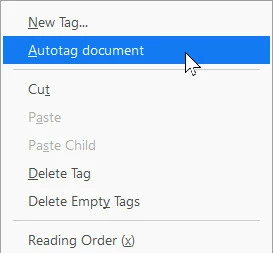
Please can you adjust either the position or the function of the 'Autotag Document' function, from within the Tags panel / sub menu options. Currently  (using 2025 continuous release, old layout)  'New tag' and 'Autotag document' are positioned next to each other. Choosing 'New tag' opens a New tag dialog box (good), but choosing 'Autotag document' (which is easy to do by mistake) imediately deltes all tags with no intermediate step (bad). At least add a confirmation step
2 replies

Adobe Employee
October 23, 2025

@andrew5C2518861987  - Acrobat does ask for confirmation if the document is already tagged. See snapshot of the dialog below. You may have checked the "Do not show this message again" checkbox in the past. To reset this, you will need to clear the entry in the registry. Try the steps below and let us know if this works - 

1. Make sure to quit Acrobat. 

2. Use Windows key + R to open "Run" dialog. 

3. Enter regedit to open the registry editor. 

4. Navigate to - HKEY_CURRENT_USER\Software\Adobe\Adobe Acrobat\DC\AVAlert\cCheckbox

5. You would see an entry - idontShowTaggedDocumentWarning. Delete this entry to start seeing the dialog again. 


creative explorer
Community Expert
Community Expert
October 19, 2025

@andrew5C2518861987 That's a really frustrating experience, and I completely understand why you're asking for an adjustment to the 'Autotag Document' function. It sounds like a significant pain point when trying to work efficiently—accidentally deleting all your existing tags with a single, unconfirmed click is a high-risk action positioned right next to the low-risk 'New Tag' option. Losing all that tagging work unexpectedly is a huge setback, and it makes perfect sense that you'd want either a confirmation step added or the function moved to a less prominent or clustered position to prevent these accidental data losses. 

m