Participant
August 31, 2021
Answered

Preserving fonts and links when converting from Word for Mac to .pdf

  • August 31, 2021
  • 2 replies
  • 5899 views

I am working on a MacBook Pro (Mac OS Big Sur 11.5.2) and I'm trying to convert files from Word for Mac (v16.52 with a Microsoft Office 365 license) to Adobe Acrobat Pro DC. The brand fonts that I need to preserve are Apertura and Futura PT, both of which are available in my Adobe Creative Suite. I have tried:

1. File > Save as > .pdf > Best for electronic distribution (preserves links but not fonts)

2. File > Save as > .pdf > Best for printing (preserves fonts but not links)

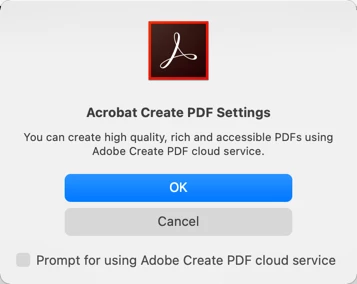
3. Menu > Acrobat > Create .pdf > (I get a "Acrobat Create PDF Window which reads You can create high quality, rich and accessible PDFs using Adobe Create PDF cloud service. Click Yes to create a rich PDF using this Service. Click NO to create a PDF without this service.) 

  3a. If I click yes: I get an error message that says, "An error occured while uploading. Please try again." If I try again, Adobe Acrobat Pro DC crashes.

  3b. If I click no: I'm reverted back to Microsoft Office Window as in 1 and 2.

4. Print > Save as .pdf (Preserves fonts but not links)


What would you recommend?
 

This topic has been closed for replies.
Correct answer gary_sc

Hi Amy Joy,


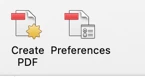
If you have Acrobat Pro on your system you should have an "Acrobat" ribbon on your copy of Word. There are two options on that ribbon:

The Preferences display this:

Allmost alway s always always I do my PDF creation on my computer, I seldom have very long PDFs. So if I have a very very long PDF, I'll send it up to the clouds. One of the annoying things that Acrobat does is that it's not respectful of other applications. So if you're processing a long PDF AND trying to (say) read email, everytime a page is done, Acrobat bounces back to the front interuppting your email reading. (big pain)


Never use "Save as PDF" from whereever you see this because that means it's not being processed by Acrobat. Rather it's being process by the Operating System (Mac or Windows) and simply, it is NOT as good as Adobe Acrobat.


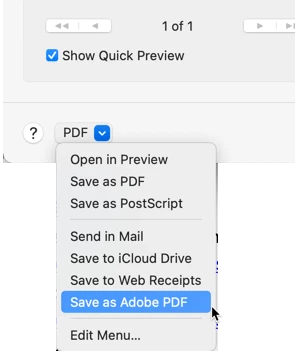
Even from the Print window, always go all the way down to "Save as Adobe PDF…"


There is no difference by selecting from the Ribbon or the Print menu to get Adobe Acrobat PDF generation.


I hope that all makes sense.

2 replies

Amal.
Community Manager
Community Manager
August 31, 2021

Hi there


++ Adding to the correct suggestion by gary_sc


For more information about creating PDF from MS office applications please check the help page - https://helpx.adobe.com/acrobat/how-to/create-pdf-files-word-excel-website.html


Regards

Amal

gary_sc
Community Expert
gary_scCommunity ExpertCorrect answer
Community Expert
August 31, 2021

Hi Amy Joy,


If you have Acrobat Pro on your system you should have an "Acrobat" ribbon on your copy of Word. There are two options on that ribbon:

The Preferences display this:

Allmost alway s always always I do my PDF creation on my computer, I seldom have very long PDFs. So if I have a very very long PDF, I'll send it up to the clouds. One of the annoying things that Acrobat does is that it's not respectful of other applications. So if you're processing a long PDF AND trying to (say) read email, everytime a page is done, Acrobat bounces back to the front interuppting your email reading. (big pain)


Never use "Save as PDF" from whereever you see this because that means it's not being processed by Acrobat. Rather it's being process by the Operating System (Mac or Windows) and simply, it is NOT as good as Adobe Acrobat.


Even from the Print window, always go all the way down to "Save as Adobe PDF…"


There is no difference by selecting from the Ribbon or the Print menu to get Adobe Acrobat PDF generation.


I hope that all makes sense.

Participant
June 28, 2022

Hello

I am also having this issue. I have tried using your wonderful advice, and it works to a point. So I'm finally getting the right fonts and working links in my PDF, however it isn't converting the entire Word document. Each time I try the conversion randomly picks a point in the Word document and converts from that point. So instead of a 60 page PDF (from a 60 page Word document) I end up with a 15 page or 29 page PDF.

Any advice?

Thanks

Tam


Participant
June 28, 2022

Ok so with some further 'playing around' I have figured out it has something to do with having Section page breaks vs Page break. My Word document has both and is converting to PDF using the <Ctrl+P> and selecting <Save as Adobe PDF> function with the right fonts (but no links) from the Section page break to the end of the document.

I removed the Section page breaks and now it will convert the entire Word document, embedding the right fonts, but sans the hyperlinks in the document (e.g. TOC links in the document is not working).


Very frustrating!