


Participant
May 17, 2021
Answered

Prevent rounding in number fields

  • May 17, 2021
  • 1 reply
  • 5876 views

Hello to all,

using Acrobat Pro 2017 (Classic Release), I created a fillable form. In the form I have a column with number fields that have the following field properties according to the screenshots:
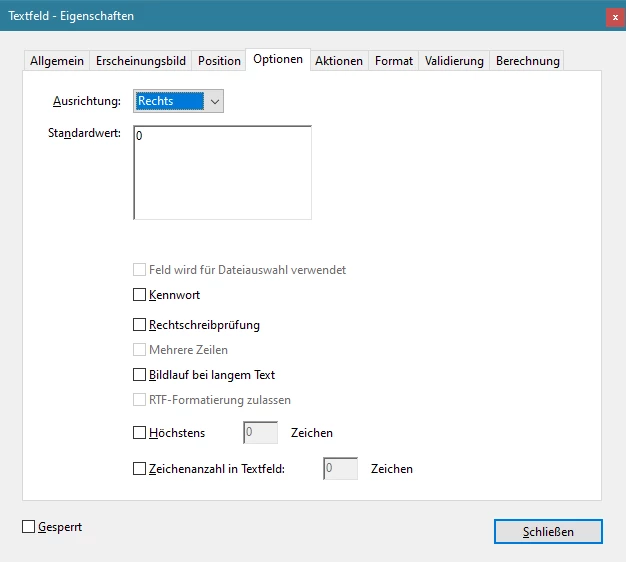
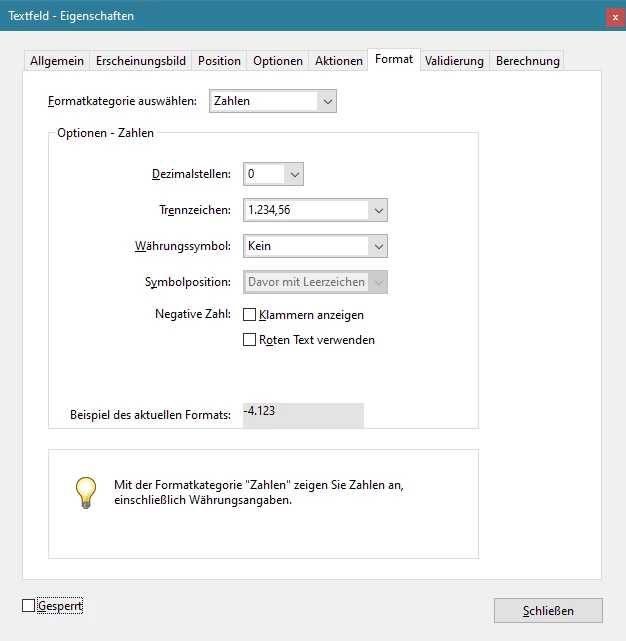


As expected, the form contains a 0.

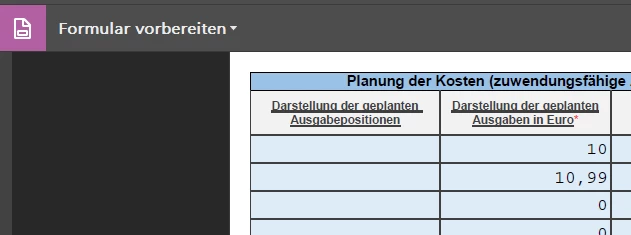
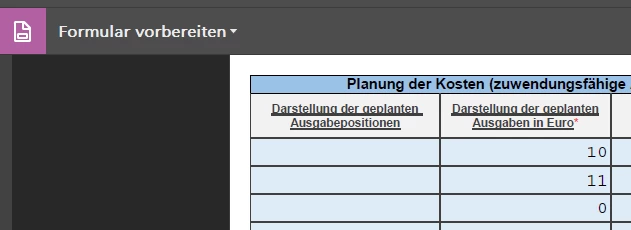
However, numbers with commas can still be entered. In the PDF form, these numbers are then rounded, e.g. 1.99 becomes 2 (compare screenshots):


How can I prevent rounding in Acrobat Pro or prevent commas from being entered in the field?

I am already very grateful for tips, ideas and possibly code examples!

I probably won't be able to get around JavaScript.

Regards, Daniel Schunk

Correct answer try67

The entered values are not actually rounded, they are only formatted in a way that hides the decimal digits, because of the Number format you've selected. If you click the field after exiting it, you'll see that the value you entered is still there. Also, if you use it in a calculation it will use the entered value, not the displayed one.

So how to prevent the user from entering those decimals? You can't do it with the Number setting under Format, but you can by setting your own Keystroke script (under Properties - Format - Custom). For example, you can use this one:

event.rc = /^\d*$/.test(event.change);

It will only allow the user to enter digits into the field.

1 reply

try67
Community Expert
try67Community ExpertCorrect answer
Community Expert
May 17, 2021

The entered values are not actually rounded, they are only formatted in a way that hides the decimal digits, because of the Number format you've selected. If you click the field after exiting it, you'll see that the value you entered is still there. Also, if you use it in a calculation it will use the entered value, not the displayed one.

So how to prevent the user from entering those decimals? You can't do it with the Number setting under Format, but you can by setting your own Keystroke script (under Properties - Format - Custom). For example, you can use this one:

event.rc = /^\d*$/.test(event.change);

It will only allow the user to enter digits into the field.

Participant
May 18, 2021

Hello, try67,

thank you very much for the quick help.

It worked with the code line

event.rc = /^\d*$/.test(event.change);


However, I had first put it in the "Custom formatting script" section. That was not correct.

It only works in the "Custom key input script" section, I found.


More generally, I must note that the documentation on JavaScript in PDF at Adobe is quite large, but not as immediately obvious as at Microsoft, for example.


Best regards,

Daniel

try67
Community Expert
Community Expert
May 18, 2021

I wrote it needs to go under the Custom Keystroke Script...