Hello @TenderWolf1987,
Thanks for reaching out.
The Acrobat UI has changed; "Organize Pages" can now be found under the All Tools panel, and the menu paths have been updated in the modern version of Acrobat. Let me verify the current UI labels before rewriting the information. I have now confirmed the UI paths for both modern and classic Acrobat. Here's the clear, community-ready answer:
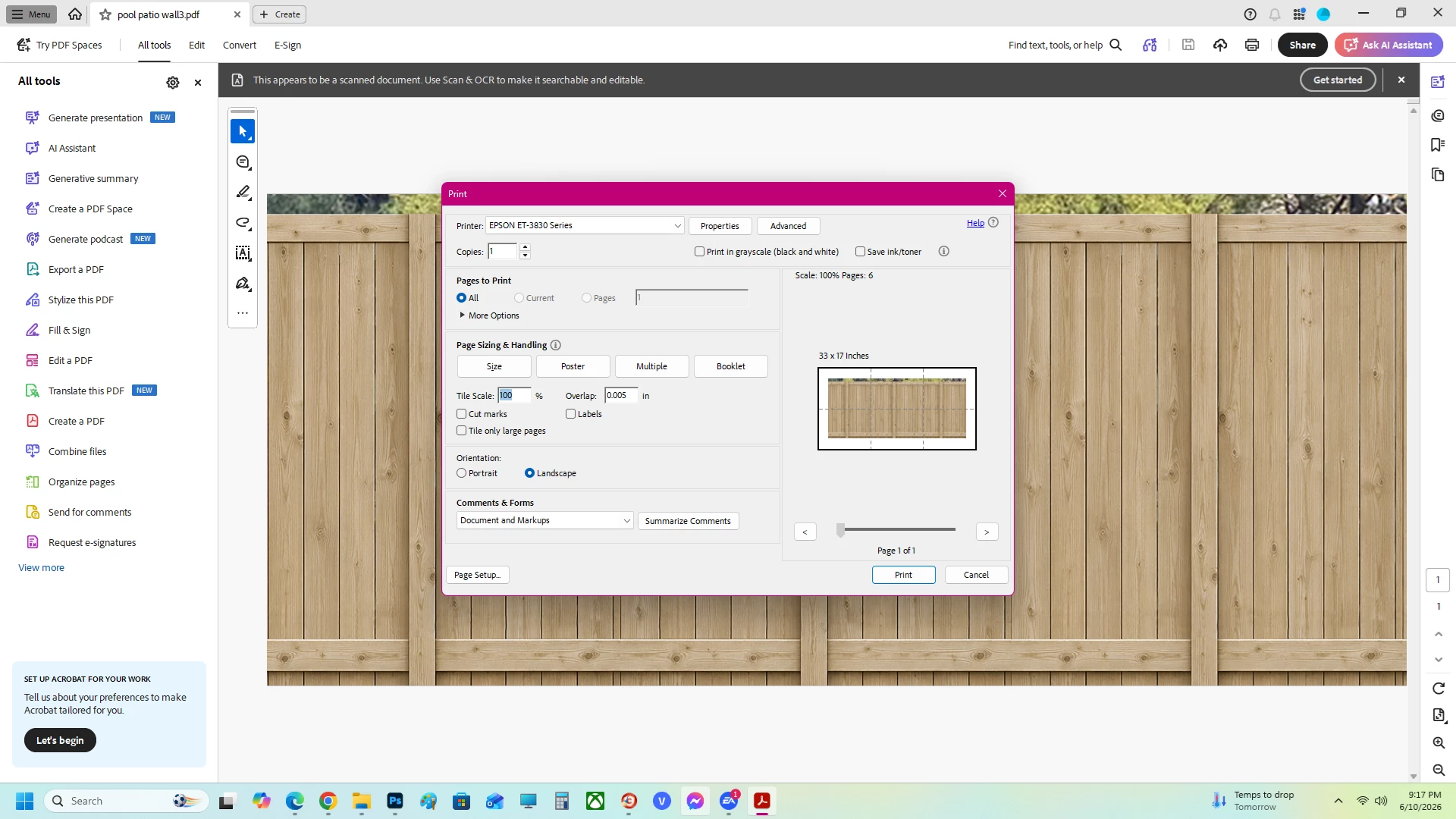
Why this is happening: Your image is a single large page (29" × 12.5"). When Acrobat tiles it across 6 letter-size sheets, the edge tiles (1, 3, 4, 6) simply contain less image than the center tiles (2, 5), so the content naturally sits toward one edge of those sheets. This is expected behavior, not a bug.
To get equal border space on every tile, you need to expand the canvas with equal whitespace on all sides first. This requires Acrobat Pro (not free Reader).
Modern Acrobat UI:
-
Click All Tools in the top menu bar
-
Select Organize Pages
-
Click Set Page Boxes
-
Under Change Page Size, select Custom
-
Increase the width and height equally on all sides: for example, add 2" to each: 31" × 14.5"
-
Set X Offset and Y Offset to half that amount (1" each) to keep the image centered on the new canvas
-
Set Page Range to All, then click OK
Classic Acrobat UI: Same steps, but start from Tools > Organize Pages, then select More > Set Page Boxes from the toolbar.
Then print as normal: File > Print > Poster > Tile Scale 100%. Every tile: including the edges, will now have consistent margin space on all sides for easier assembly.
Let us know how it went.
~Tariq



 AdChoices