Thank you for the additional info. Did you have any luck trying the Esc key?
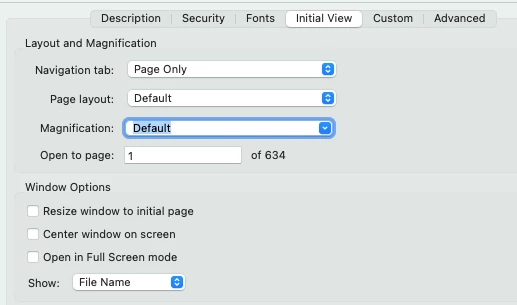
You can set that on a document basis by selecting the File>Properties… pull-down menu command, going to the Initial View tab and de-selecting the Open in Full Screen mode check box, as shown below:
On the application side, it’s a little more difficult to find — especially if, like me, you prefer to run on the “Old Acrobat” interface. In the Old Acrobat interface, first go to the View pull-down menu and select the Enable new Acrobat menu command. You’ll then be told to restart your system and you’ll be in the “New Acrobat” interface.
When you get there, or if you already are there, Go to the menu command up to the left with the three horizontal lines, also known as the Sandwich Menu, and click on it. Choose the Preferences… menu command and select Page Display in the list of setting options to the left. You can then use the Page Display: and Zoom: list boxes to set the view to where you would like things to be by default.
There are lots of reasons why that might be, but we can’t really tell you much to fix it because we haven’t been given much from you to go on. It’d help if you could provide answers to the following questions:
What platform are you using to open your PDFs — e.g. Mac, Windows, mobile, etc.?
What version of operating system are you using on that platform?
What program are you using to open your PDFs. Acrobat (which version/type of Acrobat — e.g. DC Pro, Standard, Reader, mobile, etc.)? A web browser? Some third party PDF tool?
With all that said, a common way to pop out of Full Screen mode in most any application is to tap the Esc key. No guarantees, but this works so often and so well that I recommend that you try this first. If it does work, you may be able to go into the application settings and change the Initial View of PDF files from a default Full Screen view.
Thank you for the additional info. Did you have any luck trying the Esc key?
You can set that on a document basis by selecting the File>Properties… pull-down menu command, going to the Initial View tab and de-selecting the Open in Full Screen mode check box, as shown below:
On the application side, it’s a little more difficult to find — especially if, like me, you prefer to run on the “Old Acrobat” interface. In the Old Acrobat interface, first go to the View pull-down menu and select the Enable new Acrobat menu command. You’ll then be told to restart your system and you’ll be in the “New Acrobat” interface.
When you get there, or if you already are there, Go to the menu command up to the left with the three horizontal lines, also known as the Sandwich Menu, and click on it. Choose the Preferences… menu command and select Page Display in the list of setting options to the left. You can then use the Page Display: and Zoom: list boxes to set the view to where you would like things to be by default.




 AdChoices