Participant
January 15, 2020
Answered

Reduce size without affecting fonts

  • January 15, 2020
  • 3 replies
  • 8206 views

Hello I know there is a lot on here about reducing PDF sizes, but I'm having some trouble doing so without affecting my fonts. 


After choosing Optimize PDF > Advanced Optimization and checking what is taking up all my space through Audit space usage, I can see that 97.21% is used by images and only 0.04% by fonts. 


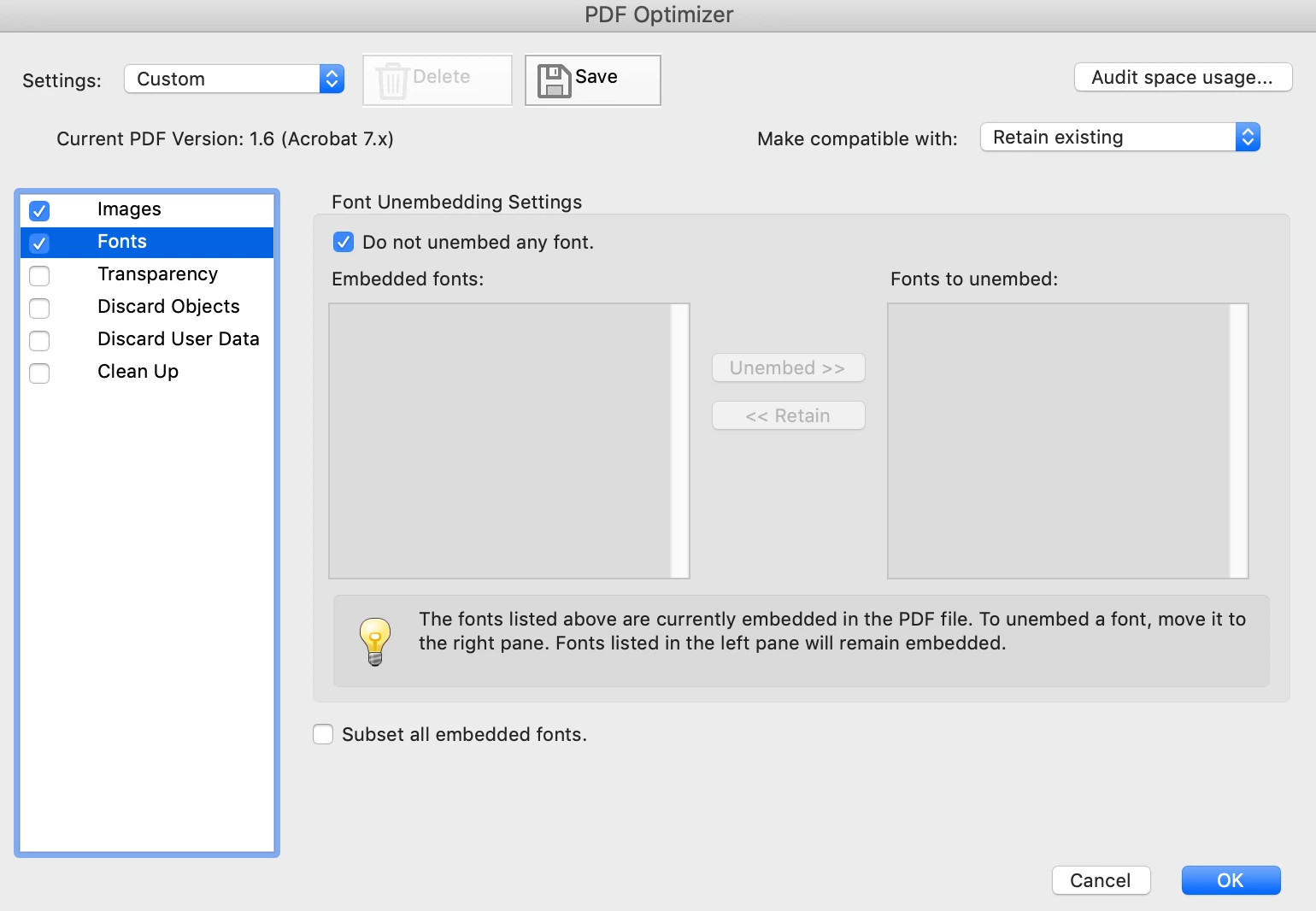
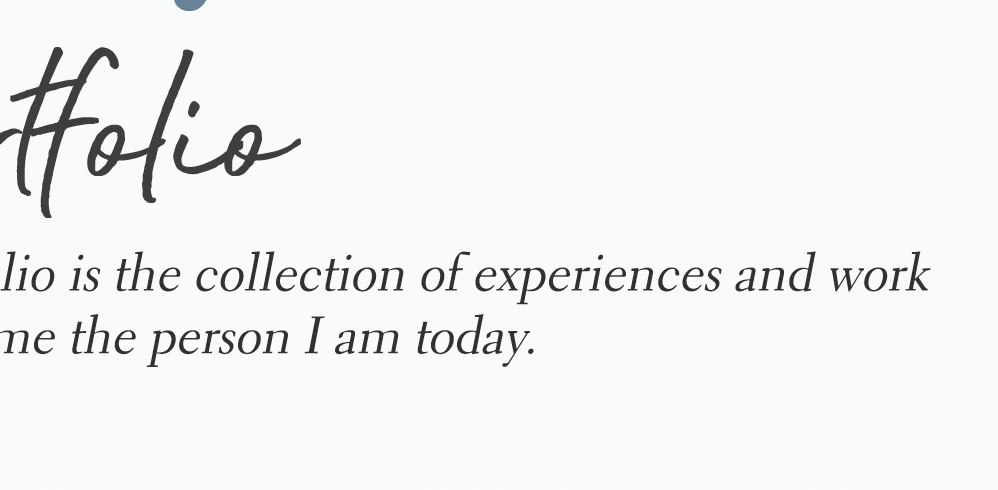
Hence, I'd like to reduce my PDF size by downsampling the images and not affecting the fonts. However, whether or not I select Do not unembed any font or not, my fonts still get messed up and appears something like in the attached photo. On top of that, nothing shows up in the Embedded fonts or Fonts to unembed boxes (also shown in the attached photo).


Anyone knows what I should do?
This topic has been closed for replies.
Correct answer JR Boulay

I used Photoshop to create the PDF pages

So, what you see is an optimized image, not text.

There is nothing you can do, unless creating the PDF with InDesign, Illustrator, Word, LibreOffice, etc.
Any software you like but not an image processor.


3 replies

Participant
November 17, 2022

Non of these people know. You should have used InDesign export to pdf and select the pdf preset "Smallest fille size", then in the "Compression" tab un-check the "Compress Text and Line Art". It was that simple, and your document will preserve the text characteristics (this is assuming you wrote the text in it on Photoshop and saved it as Hi-res pdf). 


Legend
November 17, 2022

"Non of these people know." Well, it's good to have an expert here at last.

"You should have used InDesign export to pdf and select the pdf preset " Can you take us through how to do that when the design was made in Photoshop, please?

" in the "Compression" tab un-check the "Compress Text and Line Art" I've always been under the impression that compression of text and line art was lossless. Can you take us through what is going on?

JR Boulay
Community Expert
JR BoulayCommunity ExpertCorrect answer
Community Expert
January 15, 2020

I used Photoshop to create the PDF pages

So, what you see is an optimized image, not text.

There is nothing you can do, unless creating the PDF with InDesign, Illustrator, Word, LibreOffice, etc.
Any software you like but not an image processor.


Acrobate du PDF, InDesigner et Photoshopographe
Mae_RVT
Inspiring
January 15, 2020

how was the PDF document created? did you use a print to PDF from word to make the document or did you import is using adobe?


the reason i ask, is if you print to PDF it has likely set all the text as images rather than text(font) itself. that would explain the degredation of the text on the page.


if you go to the edit PDF tab and click on the text, is it editable? as in can you change the text?

Participant
January 15, 2020

I see! I used Photoshop to create the PDF pages and combined them in Acrobat. What should I do then?

Mae_RVT
Inspiring
January 15, 2020

Is this going to be a fillable form? or just a plain PDF document?


I dont have Photoshop, so i cant trial different methods for you, but if you did it that way, i believe each page is actually classed as just a picture. Could you share your document?


what you may have to do is take the text out of the photoshop images and creat a new PDF with them then go to 'Edit PDF' in acrobat and 'Add Text' to insert text fields where you want them and type information back in.