



Mike_Gondek10189183
Community Expert
Community Expert
June 2, 2026
Question

Remove all Figure Tags for Accesssbility

  • June 2, 2026
  • 3 replies
  • 31 views

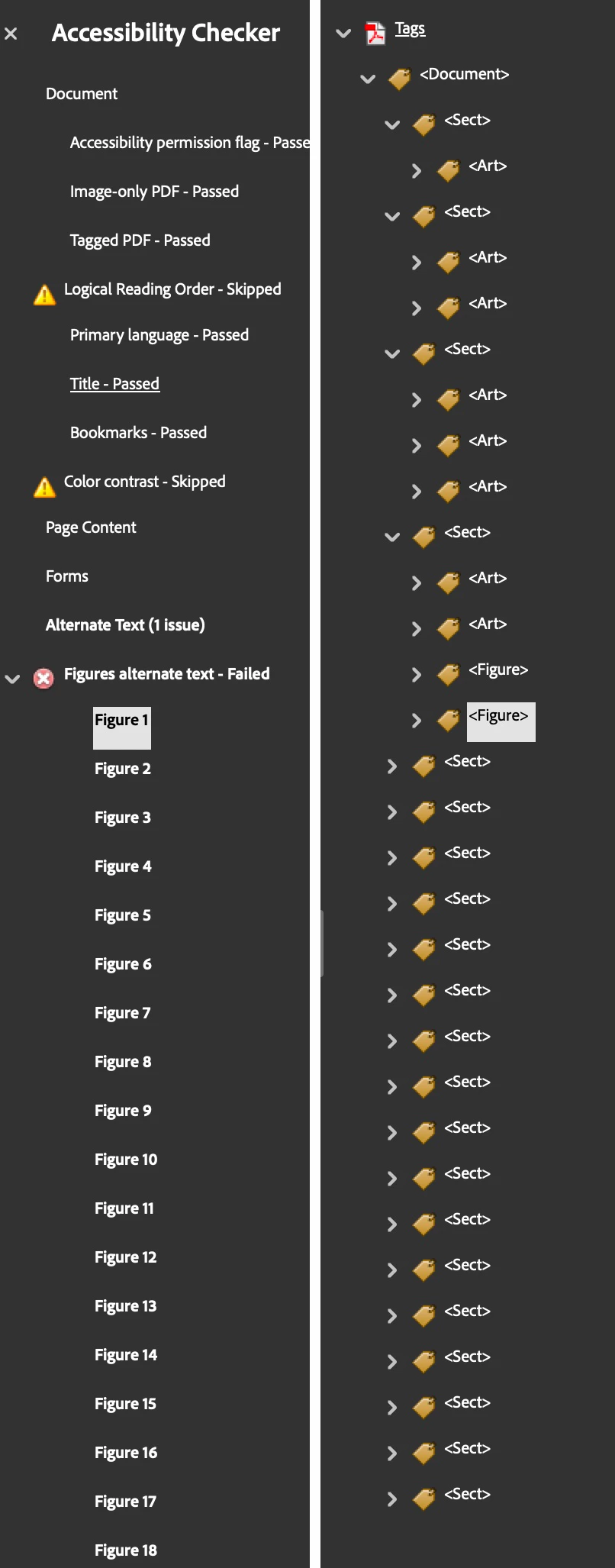
ADA complaince has been extned undtil May 2027, but we want to clean up all our pdfs.  The accessibility checker is giving me many of these. It is time-consuming to do each one. Is there a way to find all the figure tags and delete them with one kesytroke?

Not sure if deleting that tag is good for someone with ADA, so please advise if there is something else I should be doing, that is reasonable. 


    3 replies

    Mike_Gondek10189183
    Community Expert
    Community Expert
    June 26, 2026

    Is there a way to set all tags as decorative instead of clicking 276 times  = 138 x 2. You have to click the next button, then move your mouse over to enable decorative figure. Even a key command for next buton would help.

    Fixing these PDFs for ADA likley wil not help disabled people that much, but could bring me to insanity doing this to over 1200 PDFs on our website, and get carpal tunnel. 
    @Anand Sri Bhattacharya  ​@Tariq Ahmad Dar  


    Anand Sri Bhattacharya
    Community Manager
    Community Manager
    June 26, 2026

    Hello ​@Mike_Gondek10189183 


    Hope you are well. Acrobat does not have a single "mark every figure as decorative" button, and there is no keyboard shortcut dedicated to the Next arrow in that specific dialogue.

    The suggestion is to mark decorative images as artefacts. Checking "Decorative figure" is really just marking the image as an artifact so screen readers skip it. 


    However, I will get this checked internally for any other possible workaround.


    Regards,

    Anand Sri.


    Mike_Gondek10189183
    Community Expert
    Community Expert
    June 26, 2026

    Is there a way to find all Figure tags? Google Ai suggest there is under Tags >btu that may have been in an older version. To manually find each tags is very time consuming and fixing one for example 51 page PDF with over 141 tags manually is alot of work. Any is hard to see what is selected to even decide what to name it.

    I do not think many people are taking seriously updating their PDFs for ADA compatibility, and do not see a way they will be able to enforce, except for removing fudjing to government sponsored companies.

    This is all my find shows.


    Community Manager
    June 2, 2026

    Hello ​@Mike_Gondek10189183,

    I would be cautious about deleting all of the Figure tags in bulk.

    A Figure tag is used to identify non-text content such as images, charts, logos, icons, and other visual elements. If you remove all Figure tags, screen readers may no longer be able to identify content that could be important for users with disabilities. In other words, deleting the tags could make the document less accessible rather than more accessible.

    The accessibility checker is reporting that these Figure tags are missing alternate text. That does not necessarily mean the Figure tags themselves are incorrect.

    Before making any changes, I would recommend saving a copy of the PDF and testing a different approach:

    1. Save a copy of the file.
    2. Open Preferences > Accessibility.
    3. If available in your version of Acrobat, enable Use cloud-based services for document tagging.
    4. Return to Prepare for Accessibility and run Automatically Tag PDF on the copy.
    5. Review whether the results reduce the number of figures requiring manual attention.

    After re-tagging:

    • If a figure contains meaningful information, keep the Figure tag and add alternate text.
    • If a figure is purely decorative, consider marking it as an artifact so screen readers ignore it.
    • If the PDF was created from another application, such as Word, InDesign, or Express, it may also be more efficient to correct the source file and create a new PDF rather than manually editing a large number of tags.

    Can you tell us what application was used to create these PDFs and whether the flagged figures are actual images, logos, icons, or decorative design elements? That may help identify a more efficient workflow.

    Also, wait for more information from experts in the community.


    ~Tariq

    Mike_Gondek10189183
    Community Expert
    Community Expert
    June 4, 2026

    Thankyou so much for your reply. I would prefer to do this a way that benefits those with disabilities, btu was left with litlte alternatives to reach complaincy. Deleting tags and creating artificats are the only solutions I could find to make compliancy, and the rules of compliancy are vague.

    Cloud-based services have already been enabled and I have tried Automatically Tag numerous times. It never reduces figures or other issues.

    Various applications have been used to create the PDFs. Mostly word, and some are very old, This is a University with over 200 people who have created these PDFs.  Many times the items flagged are blank artifacts, as many of the designers who create these documents are not expereinced or self taught is using graphics apps. 

    I have already been deleting if not needed, or making artifacts. Is there a way to

    • make a key command for making artifacts. I seomthie shave over 100 items to fix in one pdf.
    • automaticlaly automaticlaly pull the title form the filename when fixing, I have to manauly type it.
    • copy that field name into the tooltip. Strange how if all tooltips are blank, only some of them are flagged by the Accessibility Checker.
    Anand Sri Bhattacharya
    Community Manager
    Community Manager
    June 4, 2026

    @Mike_Gondek10189183  Hello, I hope you are doing well. Thanks for reaching out and for sharing the details.


    We’ll get this checked internally, and we’ll get back to you with an update.

    Regards,

    Anand Sri.