Participant
March 27, 2025
Question

Remove checkbox outline after e-signing

  • March 27, 2025
  • 1 reply
  • 188 views

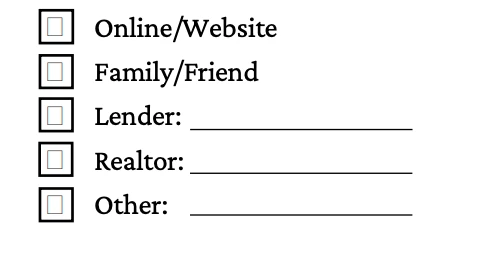
Is there a way to remove the unchecked boxes after someone e-signs a document? This is how it looks after it has been e-signed. 
1 reply

Souvik Sadhu
Community Manager
Community Manager
March 27, 2025

Hi @Chelsea225644398cpj,


Hope you are doing well. Thanks for writing in!


Yes, you can automatically remove (hide) unchecked checkboxes after an e-signature is applied using Acrobat JavaScript. Here’s how:


  • Open your PDF in Acrobat Pro.

  • Go to the Prepare Form tool.

  • Assign a JavaScript trigger to the signature field:

    • Right-click the signature fieldPropertiesActions tab.

    • Choose Trigger: Signed (if available) or Mouse Up.

    • Choose Action: Run a JavaScript and click Add.

    • Paste the following

      • var checkboxes = ["checkbox1", "checkbox2", "checkbox3"]; // Update with your checkbox field names

        for (var i = 0; i < checkboxes.length; i++) {
            var cb = this.getField(checkboxes[i]);
            if (cb.value !== "Yes") { // "Yes" is the default checked value in Acrobat
                cb.display = display.hidden;
            }
        }

  • Click OK and Save your form.

Note: Ensure checkboxes have unique names and match those in the script.


Hope this helps.


Regards,
Souvik.

ck4331Author
Participant
March 27, 2025

Do I have to add the JavaScript before I make it into an E-Sign template or can I edit the template and still keep all of the fields in place? Thanks! 

Souvik Sadhu
Community Manager
Community Manager
March 28, 2025

Hi @Chelsea225644398cpj,


Thanks for writing back!


The best approach here would be:


  • If using Adobe Sign → JavaScript won’t work, and you'll need a different approach (e.g., workflow automation via Power Automate or API calls).

  • If signing in Acrobat (not Adobe Sign) → Add JavaScript before sending the form.

Another alternative if using Acrobat Sign would be:

  1. Open Adobe Sign → Go to Templates → Edit your form.

  2. Select the Checkbox Field you want to hide.

  3. Go to Field Properties and set a Rule:

    • Example: "Hide this field if [another field] is [not checked]."

  4. Apply the rule and save the template.


Let me know if this works for you.


Regards,
Souvik.
