


Participant
March 24, 2025
Answered

Remove / permanently hide Navigation Pane in Portfolio Documents

  • March 24, 2025
  • 1 reply
  • 683 views

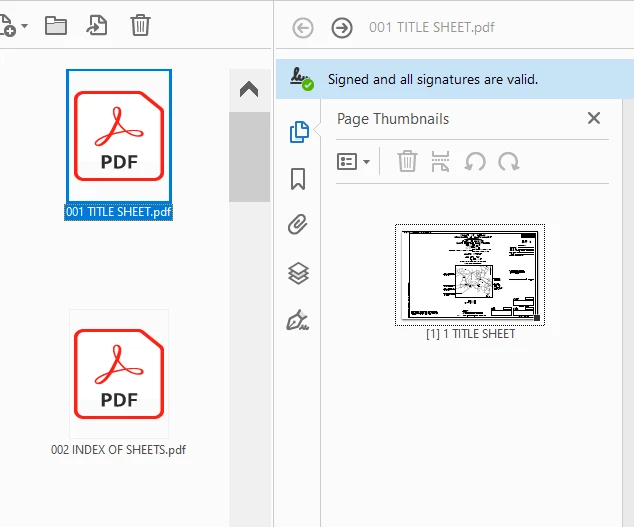
When I create PDF Portfolios, the Navigation Pane automatically opens and shows either the Page Thumbnails or the Bookmarks tab. If I close the page thumbnails / navigation pane on the first document in the portfolio, it re-opens when I move to the next document in the portfolio (and subsequently re-opens if I return to the first doc). Having to close the Thumbnails / Bookmarks tab (which takes up nearly 1/3 of the screen) for every single document in the portfolio is INCREDIBLY irritating, especially when there are often 100+ documents in each portfolio. 


Is there a way to Permanently hide the Navigation Pane or otherwise stop the Page Thumbnails / Bookmarks from opening for every single document?


I have tried:

View > Show/Hide > Navigation Panes (all options)

Navigation Pane:

  • Reset Panes
  • Hide Navigation Pane Buttons
  • Embed all page thumbnails
  • Remove all embedded thumbnails

File > Properties > Initial View > Navigation Tab - Page Only


As mentioned above, these settings reset every time I go to the next document in the portfolio, rendering them useless. Photo included below for reference. 


Adobe Version: 2024.003.20054
 

Correct answer mandy_0149

User preferences don't seem to have any effect on this, I believe because the problem lies in the Initial View setting, which overrides user preferences.


I think the source of the issue is that I'm exporting these PDFs from AutoCAD, which automatically exports PDFs with the Initial View set to "Pages Panel and Page", rather than "Page Only". The only way to fix it is to change the initial view of each PDF to be combined into the portfolio.

1 reply

creative explorer
Community Expert
Community Expert
March 26, 2025

@Amanda38358975h0n7 if I can remember correctly, in the past, changing PDF preferences before opening a document applied those preferences to all subsequent PDFs. However, changing preferences after a PDF is opened only affects that specific document.

m
mandy_0149Correct answer
Participant
April 16, 2025

User preferences don't seem to have any effect on this, I believe because the problem lies in the Initial View setting, which overrides user preferences.


I think the source of the issue is that I'm exporting these PDFs from AutoCAD, which automatically exports PDFs with the Initial View set to "Pages Panel and Page", rather than "Page Only". The only way to fix it is to change the initial view of each PDF to be combined into the portfolio.

Community Manager
April 17, 2025

Hi @mandy_0149


You are absolutely correct, and that is as designed behavior. PDF Initial view settings will override app view settings that are defined or set for a file. 


~Tariq