January 18, 2018
Answered

Remove Sticky Note Icon next to Text Markups

  • January 18, 2018
  • 4 replies
  • 41311 views

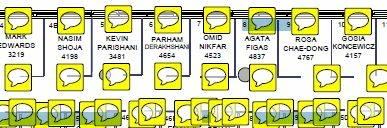
I just upgraded to Acrobat Pro DC on Win7. I am converting MS Visio 2016 files to PDF but it has started adding annoying yellow Sticky Note comment chat bubbles next to every text box.

Any ideas on how to convert .VSD to PDF without creating these yellow comment icons?

Correct answer AnandSri

Hello Mark,

Sorry for the delayed response and inconvenience caused. By default PDF Studio Version 9 is set to copy the text you mark up into the annotation note. A sticky note/bubble will appear right next to the markup on the page to indicate that there is text in the note.

To remove the text note from a specific text markup annotation, follow the step below:

1. Using the Hand Selection tool, double-click on the text markup annotation. This will open the annotation note popup dialog.

2. Delete all of the text from the note section

3. Close the note popup dialog and the icon will go away

You may also refer to Flattening a PDF with sticky notes

Feel free to update this discussion for any further assistance.

Regards,

Anand Sri.

4 replies

Participant
April 25, 2024

I cracked this by making a complete copy "Duplicate" of the entire file. The PDF was still editable and the yellow note squares disappeared. Wasted one hour trying to work round this before doing the most obvious (?) thing. ! 

Participant
June 10, 2025

This was so helpful, thank you!  No, I don't think was the obvious thing, so kudos to you for figuring that out!  I was utterly frustrated.  No notes were showing up in Annotations, Command + I in the Inspector, Highlights and Notes, nada, nothing, nowhere, just seen on the actual pages you scroll up/down through.  This was still the case when I had text typed in the sticky note and when I deleted the text, still nothing.  I did notice however, when I created the duplicate, a box popped up saying I don't have permission to save this duplicate.  This could have been related to my specific PDF. However, I was able to save it, just changed the name of the PDF. Closed it. Re-opened it and yellow sticky note was gone (fyi, the note had floated in a stationary spot as I scrolled through the pages of the PDF). Furthermore, when I re-opened the original PDF, the yellow sticky note was also gone.  So both documents no longer had the yellow stick note.  So strange, must be a weird quirk! (on iMac OS Sonoma 14.4.1)

Participant
February 25, 2020

0

Participant
January 15, 2020

correct, but long painful way of doing this. quick and easy:

edit> preferences> Commenting > uncheck Enable text indicators and tooltips.

Participant
February 25, 2020

THANK YOU !!

AnandSri
Community Manager
AnandSriCommunity ManagerCorrect answer
Community Manager
March 21, 2018

Hello Mark,

Sorry for the delayed response and inconvenience caused. By default PDF Studio Version 9 is set to copy the text you mark up into the annotation note. A sticky note/bubble will appear right next to the markup on the page to indicate that there is text in the note.

To remove the text note from a specific text markup annotation, follow the step below:

1. Using the Hand Selection tool, double-click on the text markup annotation. This will open the annotation note popup dialog.

2. Delete all of the text from the note section

3. Close the note popup dialog and the icon will go away

You may also refer to Flattening a PDF with sticky notes

Feel free to update this discussion for any further assistance.

Regards,

Anand Sri.