
René_Schwarz
Participant
May 3, 2017
Answered

Requirements on Certificates for Certification

  • May 3, 2017
  • 1 reply
  • 4903 views

While the requirements on the Key Usage and Extended Key Usage extensions of X.509 certificates for signing PDF documents are somehow documented on A: Changes Across Releases — Digital Signatures Guide for IT​​, I was not able to find a similar documentation on the requirements for certifying PDF documents.

When I try to use my organization-issued digital certificate with the following KU/EKU purposes, it will be validated as trusted for document signing:

  • KU: Digital Signature, Non-Repudiation
  • EKU: Client Authentication, Email Protection

However, this certificate is not trusted for certifying documents and I receive the validation warning "The signer's certificate has not been trusted for the purpose of creating Certified documents".
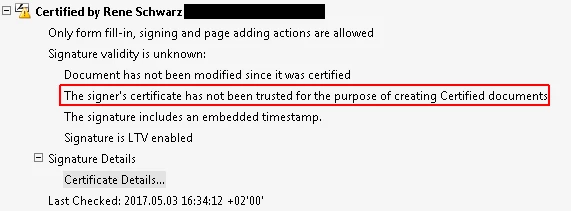
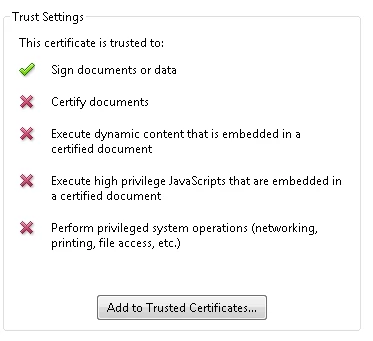
I am not able to find any documentation on what KU/EKU purposes are necessary in order to create valid document certifications. Having said this: What KU/EKU purposes are required for a certificate to be trusted for certifying documents?

This topic has been closed for replies.
Correct answer Tariq Dar

Hi RenSchwarz,

Sorry for the delay in response.

  1. There are no KU or EKU values specifically associated with certifying PDFs.
  2. However, you may have to manually set trust for certifying. One of the following two steps should trust a specific cert for certifying.

  1. Click the “Add to Trusted Certificates” button. Close and reopen the cert viewer to see if trust is now extended to Certifying.
  2. Manually edit trust in the trusted certificates list;
    1. Open the Trust Settings under Edit > Preferences > Signatures
    2. Next, to Identities & Trusted Certificates, click the More… button
    3. In the Digital ID and Trusted Certificate Settings dialog, click the Trusted Certificates category
    4. In the list of certificates, locate the cert that you want to trust for certifying and click on it to select it.
    5. With the cert selected, click the Edit Trust button at the top of the dialog.
    6. Check the boxes for the trust you want to apply. Click OK to close the dialog.
    7. Close the Digital ID and Trusted Certificate Settings dialog.
    8. Click OK to close the preferences dialog.

Let us know if you have further questions.

-Tariq Dar

1 reply

Legend
May 30, 2017

Hi RenSchwarz,

Sorry for the delay in response.

Do the trust settings change when you click "Add to Trusted Certificates..."

Usually, the button is disabled when trust has been applied.

-Tariq Dar.

René_Schwarz
Participant
June 9, 2017

Dear Tariq Dar,

thank you very much for your answer. Manually overriding the trust level of a certain certificate would just be a local mitigation of this problem and would miss the point of my question.

My question was the following: What KU/EKU purposes are required for a certificate to be trusted for certifying documents?

Having said this, I assume that the digital certificate has been issued by an CA already included in the trust store of Acrobat, so that there is no need for manually setting a trust level for this particular certificate. The point is, what KU/EKU purposes are required for this certificate so that Acrobat accepts it to be trusted for certifying documents? Apparently, Acrobat requires the certification certificate to have a certain combination of KU/EKU purposes, but this is --- at least to my knowledge --- not documented somewhere.

Tariq DarCorrect answer
Legend
June 13, 2017

Hi RenSchwarz,

Sorry for the delay in response.

  1. There are no KU or EKU values specifically associated with certifying PDFs.
  2. However, you may have to manually set trust for certifying. One of the following two steps should trust a specific cert for certifying.

  1. Click the “Add to Trusted Certificates” button. Close and reopen the cert viewer to see if trust is now extended to Certifying.
  2. Manually edit trust in the trusted certificates list;
    1. Open the Trust Settings under Edit > Preferences > Signatures
    2. Next, to Identities & Trusted Certificates, click the More… button
    3. In the Digital ID and Trusted Certificate Settings dialog, click the Trusted Certificates category
    4. In the list of certificates, locate the cert that you want to trust for certifying and click on it to select it.
    5. With the cert selected, click the Edit Trust button at the top of the dialog.
    6. Check the boxes for the trust you want to apply. Click OK to close the dialog.
    7. Close the Digital ID and Trusted Certificate Settings dialog.
    8. Click OK to close the preferences dialog.

Let us know if you have further questions.

-Tariq Dar