
Question
Search/Find "Enable auto complete suggestions" preferences show not appear without Onix32.dll
Search/Find "Enable auto complete suggestions" preferences show not appear withoutOnix32.
Steps:
- Launch Adobe Reader DC or Acrobat.
- Open preferences (ctrl/cmd+k).
- Select Search in the left pane
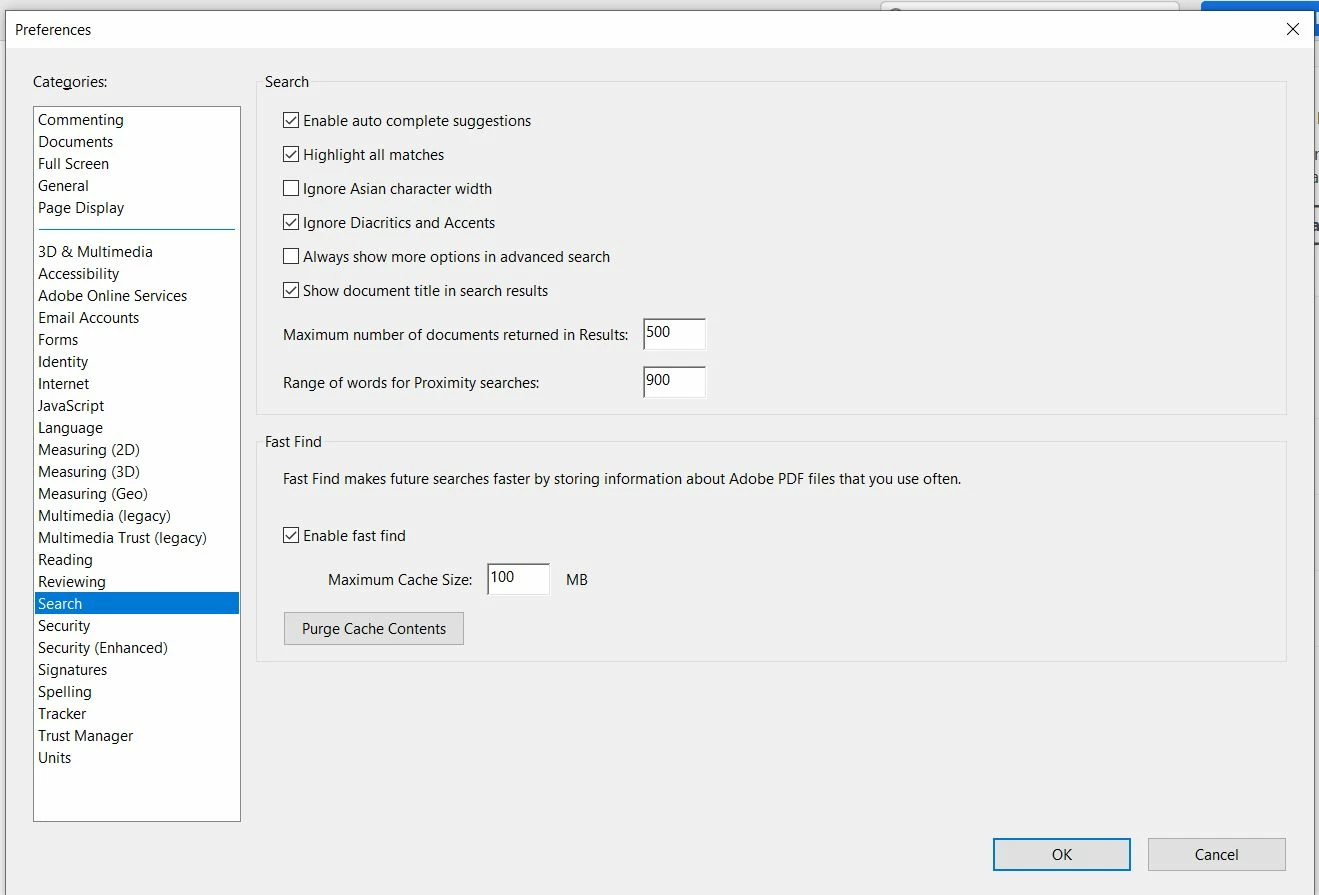
- "Enable auto complete suggestions" option is present.
- Close Adobe Reader DC or Acrobat.
- Go to Adobe Reader installtion folder "C:\Program Files (x86)\Adobe\Acrobat Reader DC\Reader".
- Remove or Rename Onix32.dll.
- Launch Adobe Reader DC.
- Open preferences (ctrl/cmd+k).
- Select Search in the left pane
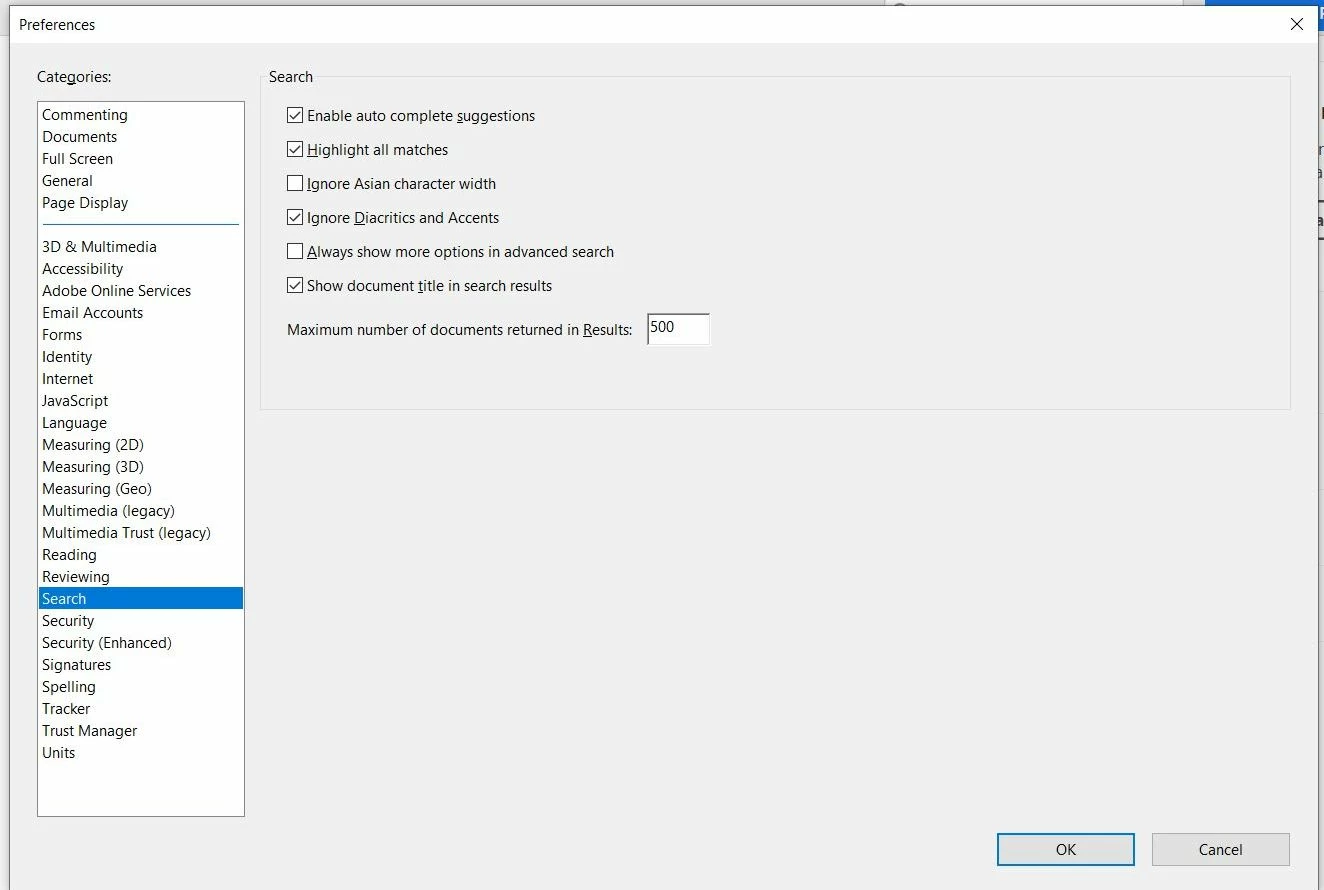
- "Enable auto complete suggestions" option is present.
Since "Enable auto complete suggestions" require background index to work option should be hidden when Onix32.dll is not there.
You can see Fast Find section is hidden when Onix32.dll is not there, similarly "Enable auto complete suggestions" should be hidden.
 AdChoices