Recommended settings based on conversation with SwissSign:

SwissSign recommends to deactivate Enhanced Security. In my case, both settings with and without enhanced security worked.
Settings under Preferences > Signatures > Identities & Trusted Certificates:

Navigation "Digital IDs" (top level): As the SwissSign token (USB stick or chip card) contains two certificates, the one for signing (Qualified Signature) must be set to "use for signing" under "Usage Options". The setting is shown with a pencil symbol left to the certificate.
Refresh might be necessary in case the certificates are not displayed.
Sometimes, the SuisseID certificates are displayed twice - it appears that they are cached on the Apple keychain. I could resolve the situation by restarting Acrobat.

In the "PKCS#11 Modules and Tokens" navigation, the path to the PKCS#11 module must be set to /usr/local/lib/libcvP11.dylib - the module is copied to that directory in the SwissSign installation process (but the path is not automatically set).

Navigation "cv PKCS#11 module": Login is required (using the SuisseID token password/pin). In my case, this doesn't always reliably the first time; more attempts might be necessary. Once logged in, the certificates are accessible.

Navigation "SuisseID": Again, the certificate used for signing (Qualified Signature) must be set to "used for signing" (shown by pencil to the left).
Settings under Preferences > Signatures > Document Timestamping:

Under the navigation "Time Stamp Servers", a path to the SwissSign server must be added: http://tsa.swisssign.net
In addition, the SwissSign server must be set as default, displayed by the star symbol to the left.
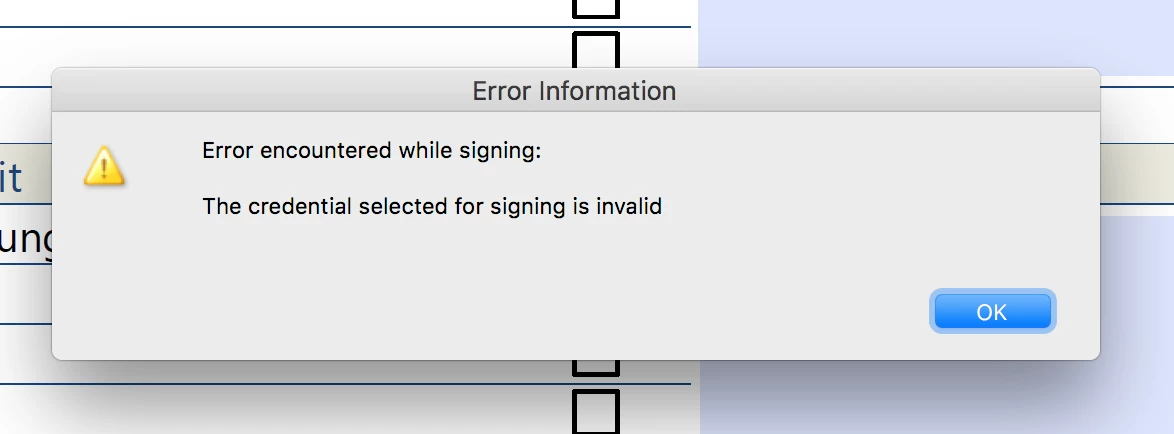
A last effect: In case macOS went through a few sleep cycles with applications open, Acrobat doesn't recognise the token anymore. Restarting Acrobat helped in my case. Sometime, a system restart might be required.




 AdChoices