
Participant
August 18, 2026
Answered

Struggling with checkboxes

  • August 18, 2026
  • 2 replies
  • 22 views

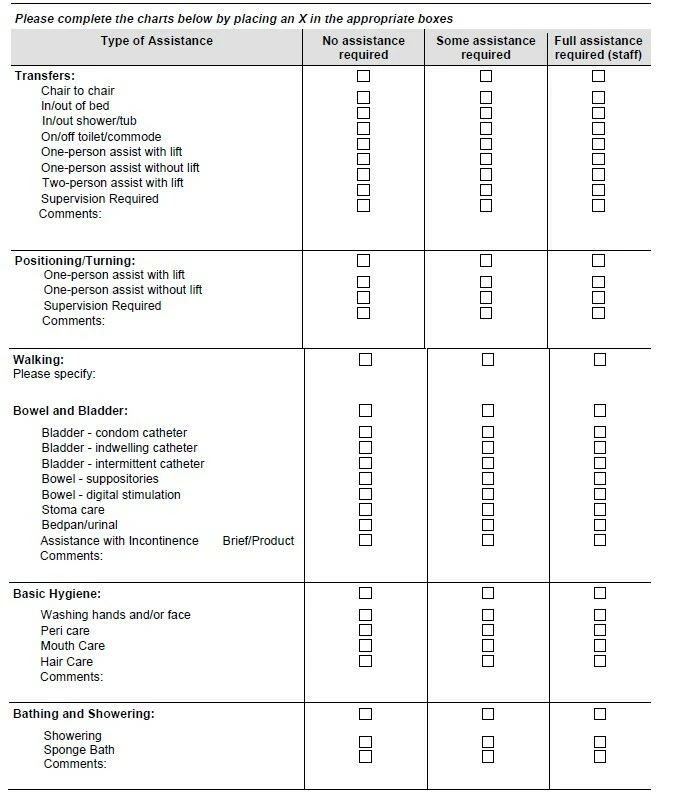
I have a form that contains a 3-page checklist, the first page is shown. I’m using the Accessibility detect form fields tool and it does all of the other questions perfectly (including some smaller checklists), but on these 3 pages, the checkboxes are only recognized as text boxes! I generally add the checkboxes manually, which takes hours, but I feel that there must be some way around this! General research hasn’t provided a solution, just similar situations. 

Does anyone know how I can either get the forms wizard to recognize the checkboxes (and no, I can’t change the spacing between them), or some way to convert the text boxes to checkboxes?

Thank you.
 

    Correct answer Karl Heinz Kremer

    The funtionality of the forms wizard is very limited. It either works, or it does not work - which unfortunately what you are dealing with with this form. 

    I would create three check boxes at the top for the first row, and then select these, right click and then select to create multiple copies of this row (count how many you need). After that, you will have to move the copies to the correct rows. Don’t pay too much attention to their horizontal layout. Once all of them are placed, select the first column of checkboxes and make sure your cursor is over the one from the first row, right click and select to align them. Do the same for the remaining two columns. 


    Not quite as efficient as if the wizard would work, but it does cut down on the number of steps it takes to create such a form. 


    2 replies

    Karl Heinz  Kremer
    Community Expert
    Karl Heinz KremerCommunity ExpertCorrect answer
    Community Expert
    August 18, 2026

    The funtionality of the forms wizard is very limited. It either works, or it does not work - which unfortunately what you are dealing with with this form. 

    I would create three check boxes at the top for the first row, and then select these, right click and then select to create multiple copies of this row (count how many you need). After that, you will have to move the copies to the correct rows. Don’t pay too much attention to their horizontal layout. Once all of them are placed, select the first column of checkboxes and make sure your cursor is over the one from the first row, right click and select to align them. Do the same for the remaining two columns. 


    Not quite as efficient as if the wizard would work, but it does cut down on the number of steps it takes to create such a form. 


    Participant
    August 18, 2026

    That’s what I feared. Thank you!