


Participant
August 14, 2025
Answered

Table header cells won't update

  • August 14, 2025
  • 1 reply
  • 2789 views

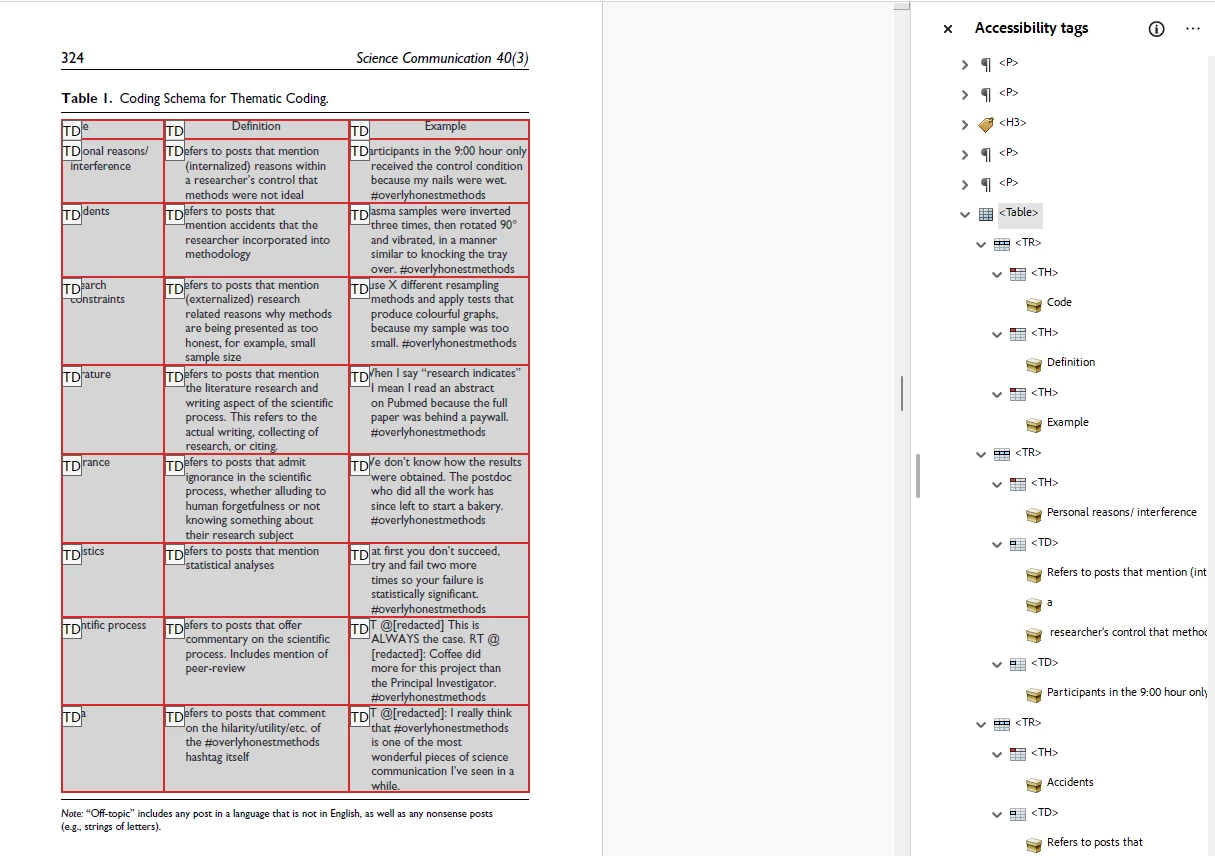
I'm getting a Table-Headers check failure in the Accessibility report. When I check in the Accessibility tags area, the TH tags are properly set. Yet, when I go into the Reading Order, the headers are all set as TD and when I try to edit them to TH with the appropriate scope, they snap back to TD. How can I get the headers to properly tag and stop defaulting back to TD?


Correct answer aldis_0718

Hello - @aldis_0718 @lindsay_3411 @CarlieT @ellis_2082 @melh3 


This issue has been fixed at our end. 
Next time you run Cloud-based Auto-tagging, you shouldn't experience this issue again. Please inform us how it performs on your side.


Thank you for your patience and support.

Best regards,
Tariq | Adobe Community Team | Meet Acrobat Studio


Auto-tagging correctly tags table headings now. Thank you!

1 reply

Legend
August 15, 2025

Hi @lindsay_3411,


Thanks for bringing this up, I can see you’ve already been thorough with your accessibility checks. When Acrobat’s Accessibility Checker or the Tag's panel shows TH cells labeled as TD, it usually means the PDF’s table structure wasn’t fully defined as headers in the source document, or the tagging didn’t carry over correctly during PDF creation.


Some things you can try:

  • Open the Tag's panel in Acrobat and verify that header cells are tagged as <TH> and contain the appropriate scope (row/column).

  • If the PDF came from Word, Excel, or another authoring tool, ensure the table headers are explicitly set as headers before export.

  • Use Table Editor (Accessibility tool > Reading Order > Table Editor) to manually change tags from TD to TH.

  • Re-run the accessibility check to confirm changes.


In some cases, even correctly formatted source tables can lose TH tagging during conversion — especially if the export uses a print-to-PDF method instead of an accessibility-preserving export.


Adobe’s guide on fixing accessibility: https://adobe.ly/3HB7ZSX


If this often happens with correctly tagged source files, we can flag it to the product team for review. Please help us with source file, pdf file and exact workflow of converting source document to PDF format


Also, wait for more inputs from experienced experts on this topic.

Best regards,
Tariq | Adobe Community Team

Participant
August 15, 2025

Hi Tariq,

I did try all your suggestions. Here's what happened:

  • Open the Tag's panel in Acrobat and verify that header cells are tagged as <TH> and contain the appropriate scope (row/column).

    • I verified all the tags are TH. But when I go into the Table editor, they are all displaying as TD.
    • I also tried resetting them to TD in the Tag's panel and changing them to TH, and that did nothing to the issue in the Reading Order.
  • If the PDF came from Word, Excel, or another authoring tool, ensure the table headers are explicitly set as headers before export.

    • This was only available as a PDF. I tried re-downloading the file from the original source and the issue is still coming up in this file. 
  • Use Table Editor (Accessibility tool > Reading Order > Table Editor) to manually change tags from TD to TH.

    • I tried manually changing the tags. Immediately after I click the "Ok" button after setting the TH with a Scope, it reverts back to TD. 
  • Re-run the accessibility check to confirm changes.

    • I re-did the accessibility check and it's not registering any of my changes. 


What steps do I need to take to flag it for the product team to review?

Thank you,

Lindsay

Participating Frequently
August 18, 2025

This is a new issue I have been having, as well!! I posted screenshots of my issue here. Please flag to product team!!