
August 16, 2019
Question

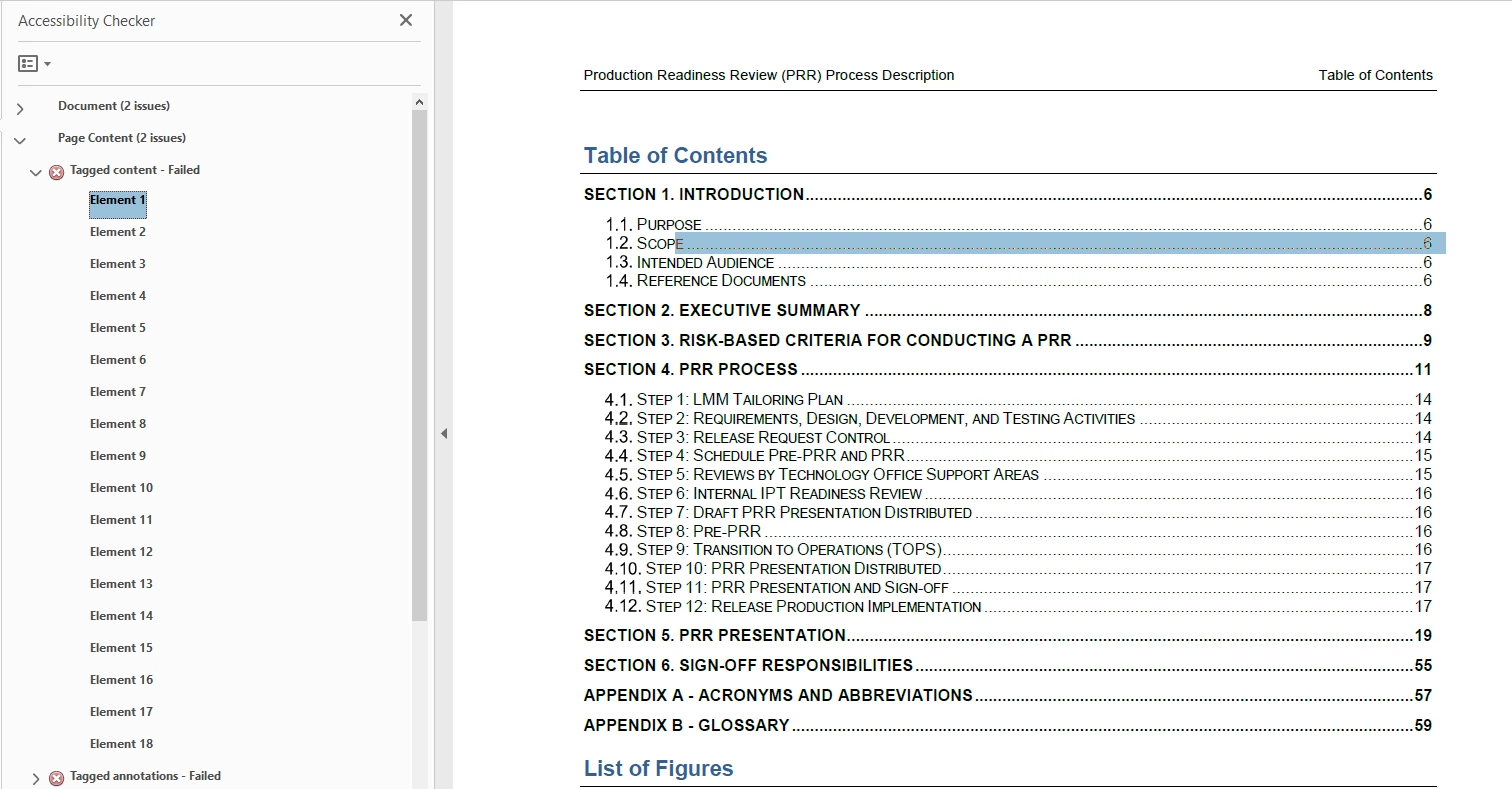
Table of Contents header numbers being read as untagged images when converting from Word

  • August 16, 2019
  • 3 replies
  • 2778 views

I have an issue where when I convert a docx file to PDF, I get a series of errors when running the accessibility checker that flags the different components of the TOC as untagged images.  Does anyone have any ideas on why its doing this?  I'm using the Acrobat DC Pro when getting this error but when I log into Citrix and use Acrobat 17 Pro I don't get this issue.
This topic has been closed for replies.

3 replies

Participant
April 24, 2024

This happened to me today. I've done lots of Word-to-PDF conversions without this happening ever. What's the solution? I suspect something has to happen in Word before outputting to Adobe, but I don't know what that is. Seems to be some sort of incompatibility/error issue on Adobe's end.

Known Participant
May 15, 2024

This frequently happens and has been happening for a long time. The only solution I have ever found is to NOT use auto-numbering in headings ever. This can be confusing at best and if you are starting with a document someone else created it takes a lot of work to accomplish. In the heading manually type the number after the autonumber.  Do this for every autonumbered heading.  Then Edit the heading styles to turn off the autonumbering and proof the document headings again to make sure no mistakes were made.  What a pain!  Why can't this be fixed ?  

If someone has found an easier solution I'm eager to hear it.

Participant
May 15, 2024

Hi, Thanks confirming this DOES happen! Appreciate your message. I was able to solve it for my document in Word, by 'importing' the heading style from another Word document that had a TOC that output correctly to PDF. I imported the style to replace the one in the problematic document, updated the TOC, and output to PDF--and all was fine. Took a while to get there and hopefully this trick works if needed again. I wasn't ever able to figure out the cause of the problem.

maxwithdax
Community Expert
Community Expert
August 19, 2019

I tried to replicate using Word 2007 and Word 365 and had no luck. Both came out without the error you posted. Answering Bevi's questions will help us narrow this down for you.

-Dax

Bevi Chagnon - PubCom.com
Legend
August 19, 2019

Word 2007 had serious bugs when exporting to accessible tagged PDF.  Never use it for anything other than plain body text and headings. TOCs, lists, tables, and anything else more complicated...forget it!

Word 365 should be making compliant accessible tagged PDFs, providing that the user knows how to make a compliant source Word document and then used a compliant PDF conversion utility.

At this time, there are only 2 tools that make a compliant PDF from Word 2016 / 2019 / 365:

  • Adobe Acrobat Pro's PDFMaker plug-in (ver. 17 / 19 which is installed with Acrobat Pro DC 2018 / 2019).
  • Microsoft's built-in Save As / PDF utility (from Word 2016 / 2019 / 365).

And exporting a PDF from Word for Mac still doesn't do everything it's supposed to do. Forget it, too!

|    Bevi Chagnon   |  Designer, Trainer, & Technologist for Accessible Documents ||    PubCom |    Classes & Books for Accessible InDesign, PDFs & MS Office |
Dave__M
Community Expert
Community Expert
August 16, 2019

Can you tell us what method you are using to do the conversion from Word to PDF?

From your screenshot, it would appear that the dots leader is what is being characterized as a figure.  There's no reason for them to be read by the screen reader, and can likely be deemed artifacts.

My best,

Dave

August 16, 2019

Hi Dave!

It's also hitting the actual section heading numbers- like the 1.1, 1.2, 2.1 etc as well.

To convert, I hit the "save as an adobe pdf" option when in Word.

Dave__M
Community Expert
Community Expert
August 16, 2019

Here's what i would recommend, if all the pieces are at your disposal...

Open the document in Word, and use the PDF Maker (it's the Acrobat ribbon in Word, assuming you have Acrobat Pro installed).  Visit the Preferences button first, and be sure the option to 'Enable Accessibility and Reflow with tagged Adobe PDF' is turned on.

Then click the Create PDF button.  In my experience, this is the best way to get reasonable tagging done for you in the conversion process.  This may address the issue, it may not.  But I would give this method a try if you can.  It might make a difference.

My best,

Dave