


Participant
September 16, 2024
Question

Table of Contents (TOC) adding <Link> tag to multiple lines at once

  • September 16, 2024
  • 2 replies
  • 733 views

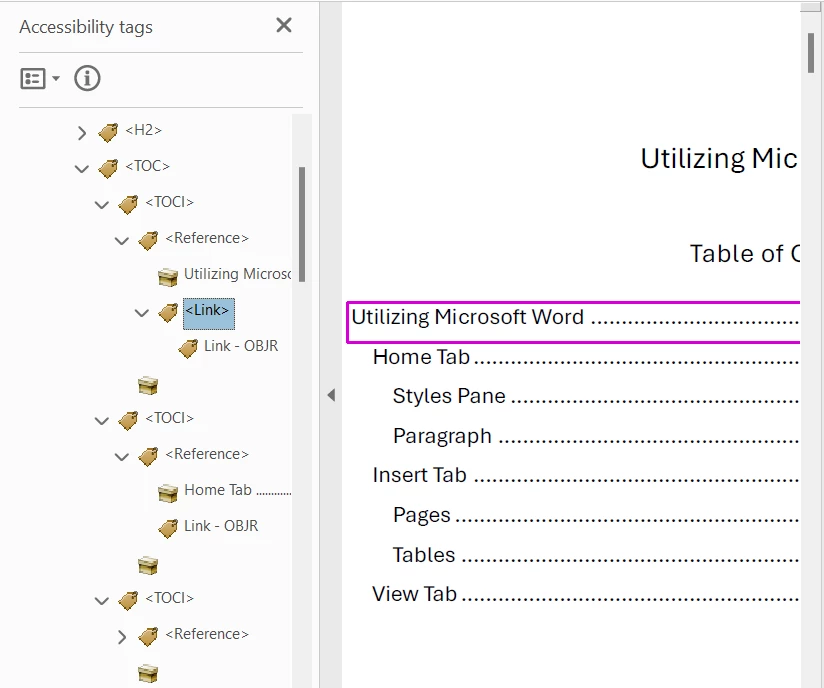
I'm running into a problem regarding the Table of Contents (TOC) in Adobe Acrobat and document accessibility. When I open the Tag Tree in Adobe and navigate to the Table of Contents, the entire TOC is missing a tag for each line. For document accessibility and a linked Table of Contents, the structure needs to be <TOC> tag, <TOCI> tag, <Reference> tag, <Link> tag, and finally Link - OBJR.


When I open the table of contents the <Link> tag is missing on each line, which means I have to go to each line of the Table of Contents, manually add a tag and then nest the Link-OBJR underneath the <Link> tag. The image below shows the first line which I manually corrected and the remaining lines with the missing <Link> tag. Is there anyway to speed up this process? Is there a method to select each line of the TOC and add a new <Link> tag for each line? I process documents with extensive tables of contents and correcting each line of the table of contents is extremely time intensive. Any tips or tricks would be extremely helpful!
 

I'm using Adobe Acrobat (64-bit) (24.003.20112)

2 replies

Participant
May 5, 2025

I have this same issue, but it's not just the TOC, it's all internal links too (TOC and links created properly in Word). The Link tag is missing in all instances. I am using PDFMaker (or Save As PDF, same happens). Does anyone know why this is happening please and have a solution? I have 165 such links in the document so I'd rather not create a new tag for each one individually.

S_S
Community Manager
Community Manager
August 15, 2025

Hi @daisyeditor,


Hope you are doing well. Sorry for the trouble with using Tags on Acrobat.


Have you tried Acrobat's cloud-based auto-tagging feature once you open the file? 

To do so, open the file > click tools > prepare for accessibility > and auto-tag document.


Also, I see this being reported as a known issue on Microsoft forums: https://adobe.ly/47v4GY0


Let us know how it goes.


Regards,
Souvik.

S_S
Community Manager
Community Manager
February 7, 2025

Hi @Amy31586253rl7l,


Hope you are doing well. Sorry for the trouble, and the delayed response.


In case you are still looking for a solution, you might want to try the below steps:

Using "Preflight" Tool to Automate Some Tasks

  • The Preflight tool has various fixups that can help automate some aspects of document accessibility, although this won't directly address TOC-specific tagging.
  • Steps:
    • Go to Tools > Print Production > Preflight.
    • Choose a profile or custom fixup to check for accessibility issues.
    • Create a Custom Fixup if necessary, such as for adding missing tags.

While Preflight doesn’t have a direct “fix TOC” option, you might be able to create or adapt a custom fixup for your specific document setup, which can reduce manual effort.

Rebuild the TOC Using the "Autotag" Feature (Where Possible)

  • If your TOC was created in a structured manner (i.e., heading styles and text links), you could use the Autotag feature to automatically generate tags for the document.
    • This can be found in Tools > Prepare for Accessibility > Autotag Document.
    • This method can be effective for relatively clean documents, though you may still need to tweak specific tags afterward, especially if the TOC is highly customized.

Rebuild the TOC in the Source Program

  • If possible, consider rebuilding the Table of Contents in the source program (such as Microsoft Word or InDesign). When exporting or converting the document to PDF, ensure that the TOC is correctly tagged in the source program. This will minimize the manual corrections required in Acrobat.
  • Ensure that proper heading styles and hyperlinks are used in the source document so that tags can be automatically generated during the PDF conversion process.

Hope this helps.


-Souvik