Yup, that's where it's from.
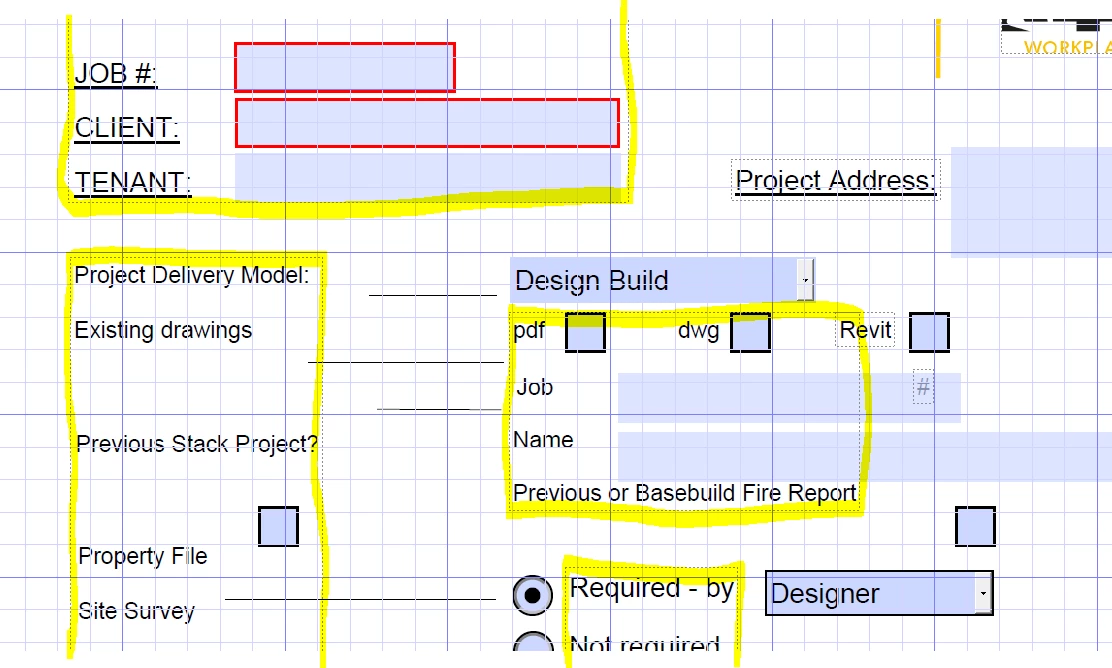
I've read elsewhere that this is a "clever" function of Adobe - to automatically group text. No way to avoid it. Very frustrating and makes creating a Form useless.
https://community.adobe.com/t5/acrobat-discussions/is-there-a-way-to-ungroup-the-text-boxes-in-pdf-forms/td-p/10460493
If Adobe offers Form as a form creator, it needs to allow us to do just that.
You're confusing the usability of what Adobe Acrobat Pro is versus other programs, such as Micrososft Word, for example.
Acrobat Pro is not a word processing program, is an PDF editor; two different things, and from what I've been learning there are lots of complicated bits and pieces that makes this conversion process to a PDF file possible.
As such, the forms creator that you're referring to is often misunderstood.
For example, when you're creating a PDF form from another file or a scanned image, Acrobat involves a file distilling process in which images and text are interpreted using optical character recognition (OCR) into layers of digital data visible to the user(s) in a human-readable format.
This type of PDF usually contains images and font types ( also referred to as static images and static text) which can be edited, enhanced or troubleshooted using the "Edit Text & Images" tool, and by employing other additional methods, such as the "Print Production" tool.
So you can group static (or free text) using a keyboard combination and mouse clicks (holding the CTRL key while pointing and clicking on the desired textboxes, (similar to textbox grouping in Microsoft Word), and dragging while holding the left mouse button, and releasing the left-mouse button to drop the grouping in another location of the current page.
However, As mentioned by Bernd Alheit, the "Prepare Form" tool is another method of editing a PDF document, by which it allows the user to create a PDF document from scratch.
With the Prepare Form tool you may incorporate in your PDF document field objects, such as text fields, dropdown menus, radio buttons, comments, annotations, checkboxes, digital signature fields, image fields (just to name a few features), all of which have additional built-in field properties features with JavaScript scripting options to produce much more advanced interactive and dynamic PDFs.
In your particular case, you'll need to employ a combination of both tools: Edit Text & Images and Prepare Form tool.
NOTE:
If you come from the Microsoft Office mindset , then Adobe Acrobat is not the program for you to perform this type of editing that you're inquiring about. An easier approach is to design your text document in MS Word the way you want it before exporting or saving as a PDF document.

 AdChoices