Participant
March 1, 2018
Answered

Text won't line up

  • March 1, 2018
  • 2 replies
  • 1083 views

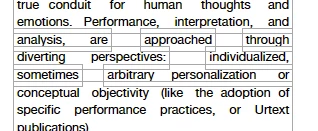
I've worked with Adobe for a while but never had this problem. After writing several pages in two columns of text, I push save and each text box is broken into smaller and uneven text boxes.  Also, the justification is altered.  How do I keep the entire text in its original box? How do I solve the justification issue?
This topic has been closed for replies.
Correct answer try67

Yes. That's seems OK.

There's not much else that can be done about it, I'm afraid.

The best way to edit such files is to go back to the original file used to create the PDF, edit it and then create a new PDF file.

2 replies

Participant
September 16, 2020

Cant believe this issue is over 2 years old, I'm having exactly the same issue. Its not on a file converted to PDF but made with Adobe Acrobat. I use Adobe for a CV since it handles positions of text boxes much better than word. With issues like these I will never use Adobe Acrobat again. It messed up my document big time and its unsolvable (over 2 years!! seriously?)

try67
Community Expert
Community Expert
September 16, 2020

Using Acrobat to create files from scratch is a VERY bad idea and a recipe for headaches and problems, exactly like the one described above. It is NOT an authoring tool, like Word, and should not be attempted to be used as such. Create your CV in Word or InDesign or a similar app, then convert it to PDF using Acrobat when done.

try67
Community Expert
Community Expert
March 1, 2018

Editing static text is always going to be tricky and risky. It might work perfectly on one file, and be a complete mess on another.

What version of Acrobat are you using?

Participant
March 1, 2018

Thank you! Is this the information you requested?

try67
Community Expert
try67Community ExpertCorrect answer
Community Expert
March 1, 2018

Yes. That's seems OK.

There's not much else that can be done about it, I'm afraid.

The best way to edit such files is to go back to the original file used to create the PDF, edit it and then create a new PDF file.